Translate a study into another language
Last updated: October 11, 2026
Running the same study in more than one language lets you compare how different markets experience your product, without rebuilding the study from scratch each time. Because a single study can't hold multiple language variants, the way to do this in Maze is to duplicate your study and then ask the Study Assistant in the AI Study Builder to translate the copy into the language you need.
The Study Assistant translates the content of your study — block titles, questions, answer options, and screens — while keeping the same structure, block order, and settings as the original. You end up with one study per language, each with its own link and its own results.
Who can use this feature
Translating a study with the Study Assistant is available for users on our Enterprise plan.
Before you start
Translation works on Unmoderated studies. The Study Assistant is available in the builder for any draft study, however it was created, but not once a study has been published — see Editing your study with the Study Assistant.
Translate a duplicate, not your original study. This keeps your source study and its results untouched.
Maze translates your study content, but not your prototypes or live websites. If you're testing a Figma prototype or a website, make sure a localized version exists and link it in the translated study.
Maze's testing interface (buttons, progress, and system messages) is localized separately, based on the participant's browser language. See What languages does Maze support for testing pages? for the full list.
Step 1: Duplicate your study
Start by creating a copy of the study you want to translate. You can duplicate both draft and live studies. The copy is always a new draft, so the Study Assistant is available on it even if your original study is already live.
Go to your Projects page.
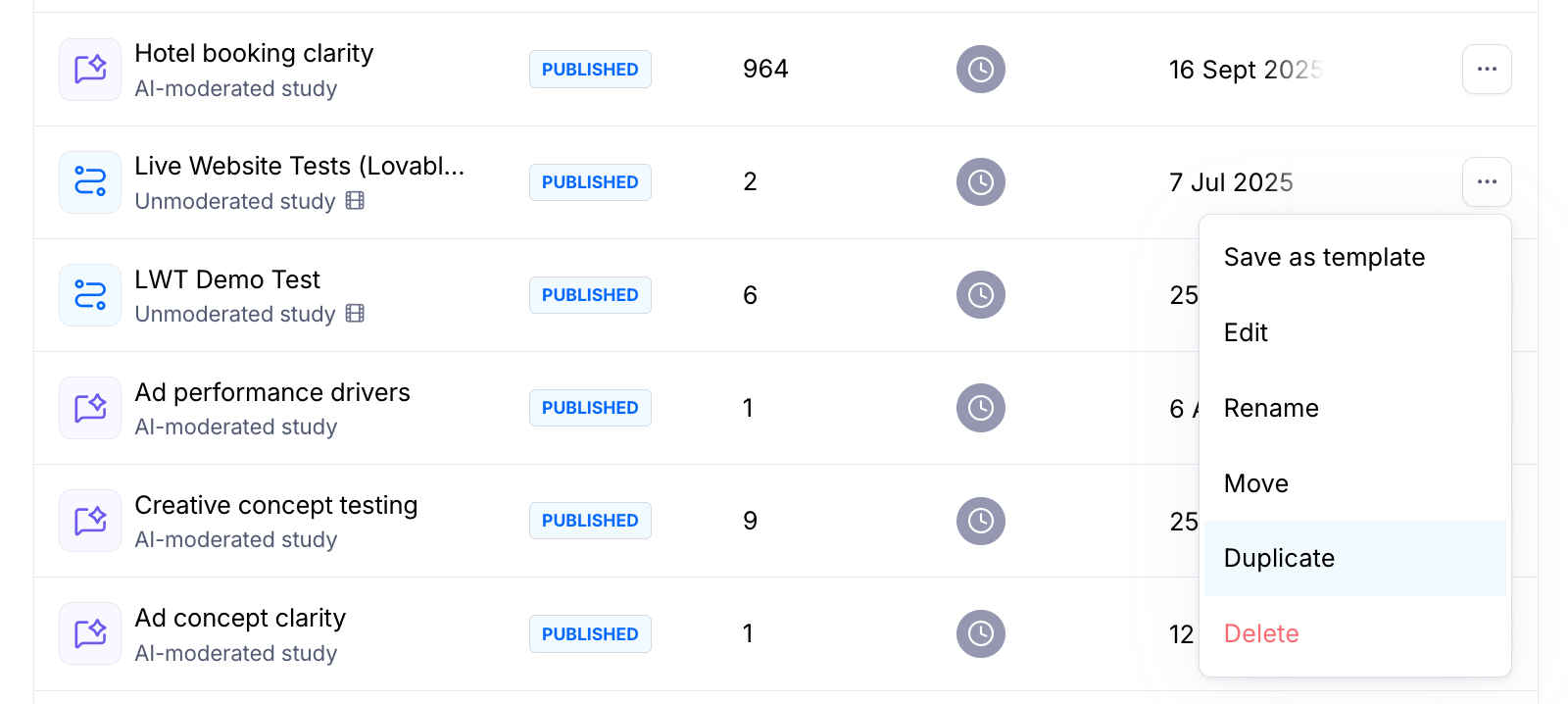
Hover over the study you want to translate and click Duplicate.
Open the new draft study. We recommend renaming it to include the target language right away — for example, Checkout usability – ES — so it's easy to tell your language versions apart.
If you duplicate a live study, results data isn't copied to the new version. Each language version collects its own results.
Step 2: Ask the Study Assistant to translate your study
With the duplicated study open in the builder, use the Study Assistant to translate all of its content in one request.
In the builder, click AI chat near the upper-left corner of the builder header.
The Study Assistant panel opens on the left side of the builder.
In the chat input, ask the Assistant to translate the study into your target language.
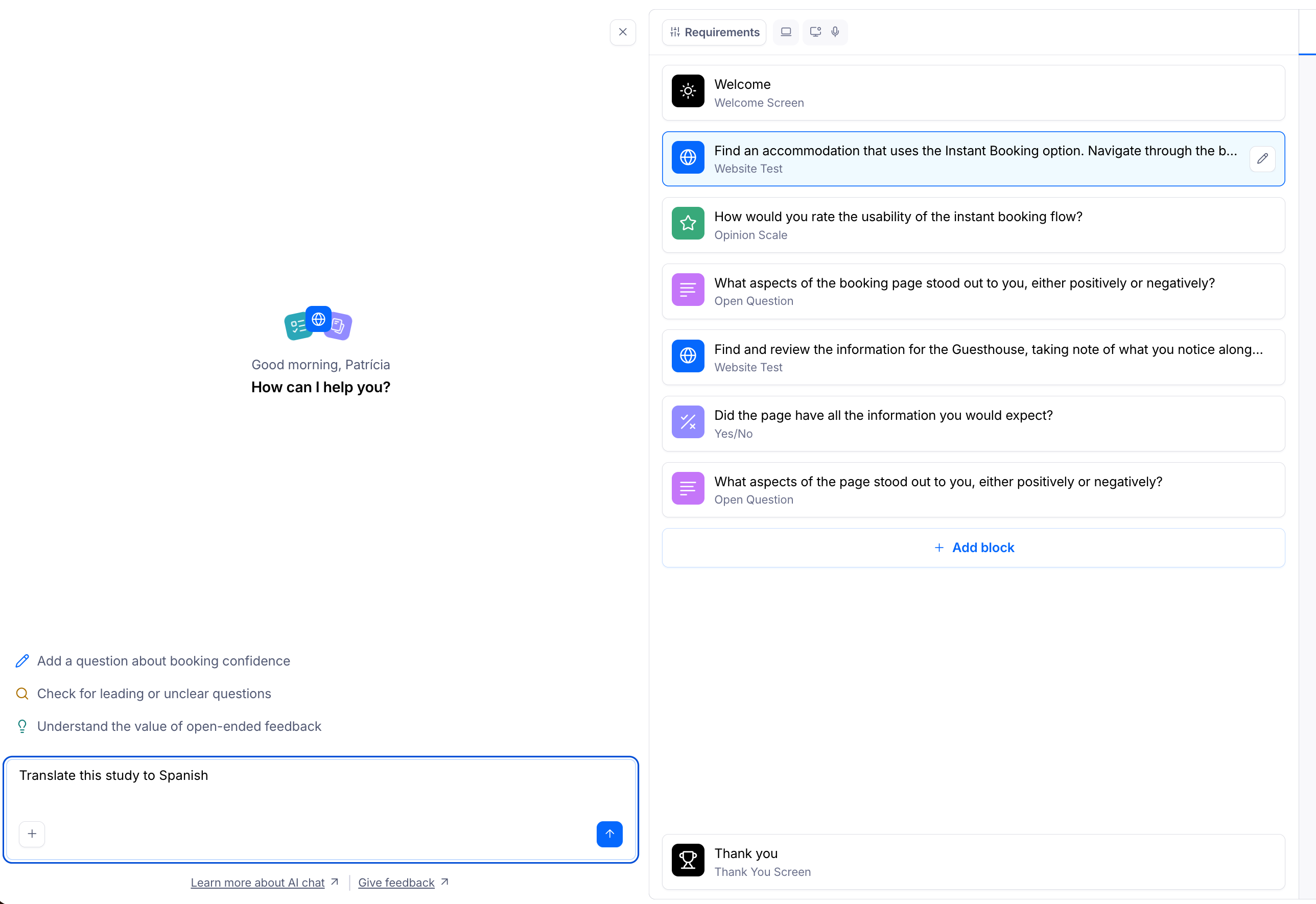
Example requests:
"Translate this entire study into Spanish."
"Translate all blocks, the welcome screen, and the thank you screen into German."
"Translate this study into French for participants in France. Use a formal tone."
"Translate this study into Brazilian Portuguese and keep the product name 'Acme Pay' in English."
The Assistant translates your study content and keeps the same blocks, block order, and study-level settings. If the result isn't quite right, click Undo below the Assistant's reply to return the study to its previous state, then rephrase your request.
Step 3: Review and publish your translated study
AI translations are a strong first draft, but always review them before going live — especially for research where wording affects how participants answer.
Check every block. Go through the study block by block and confirm questions, answer options, and instructions read naturally in the target language. You can fix anything by hand or ask the Assistant for a targeted change — for example, "Reword the second question to sound less formal."
Check your stimuli. Make sure any prototype, website, or image in the study matches the target language.
Preview the study. Run through it as a participant would to confirm the flow reads the way you intend.
Set the testing UI language (optional). The testing interface follows each participant's browser language. To force it to match your study, add the
?lng=parameter to your study link — for example,https://t.maze.co/74641933?lng=esfor Spanish.Publish. When you're happy with it, publish your study as usual.
If you're recruiting from the Maze Panel, set the matching language in your order. See Language requirements in panel orders.
Best practices
Finalize your source study first. Translate once the original is ready. Any change you make to the original later has to be repeated in every language version.
Name the language and the audience. "Spanish for participants in Mexico" gets better results than "Spanish", because word choice varies by region.
Protect terms that shouldn't change. Tell the Assistant which product names, feature names, or brand terms to keep as they are.
Have a native speaker review. For high-stakes studies, ask a colleague who speaks the language to check the wording before you publish.
Keep names consistent. Use the same naming pattern across versions (for example, Study name – FR, Study name – DE) so results are easy to find and compare.
FAQ
Can one study include multiple languages? No. Each study supports one language. Create a separate duplicate for each language you want to test.
Will my original study change? No. The Study Assistant only edits the study you have open — your duplicate.
Are results combined across language versions? No. Each language version is its own study with its own results.
Does the Study Assistant translate my Figma prototype? No. It translates the study content in Maze only. Use a localized version of your prototype or website.
Which languages can I translate into? You can ask the Assistant for any language. For the testing interface itself, see the list of supported testing languages.
Still need help?
If you run into any issues translating your study — translation quality, unexpected edits, or anything technical — please contact our Support team.