Mobile testing with Maze
Last updated: September 17, 2026
Testing on mobile devices is supported through multiple methods in Maze, including both unmoderated and moderated testing approaches. This guide explains each testing method and when to use them.
Unmoderated Mobile Testing
Maze helps you test prototypes, websites, or real apps on any device—including those created with AI tools like Figma Make or Lovable. The table below highlights the stimuli Maze supports across different devices, with or without snippet.
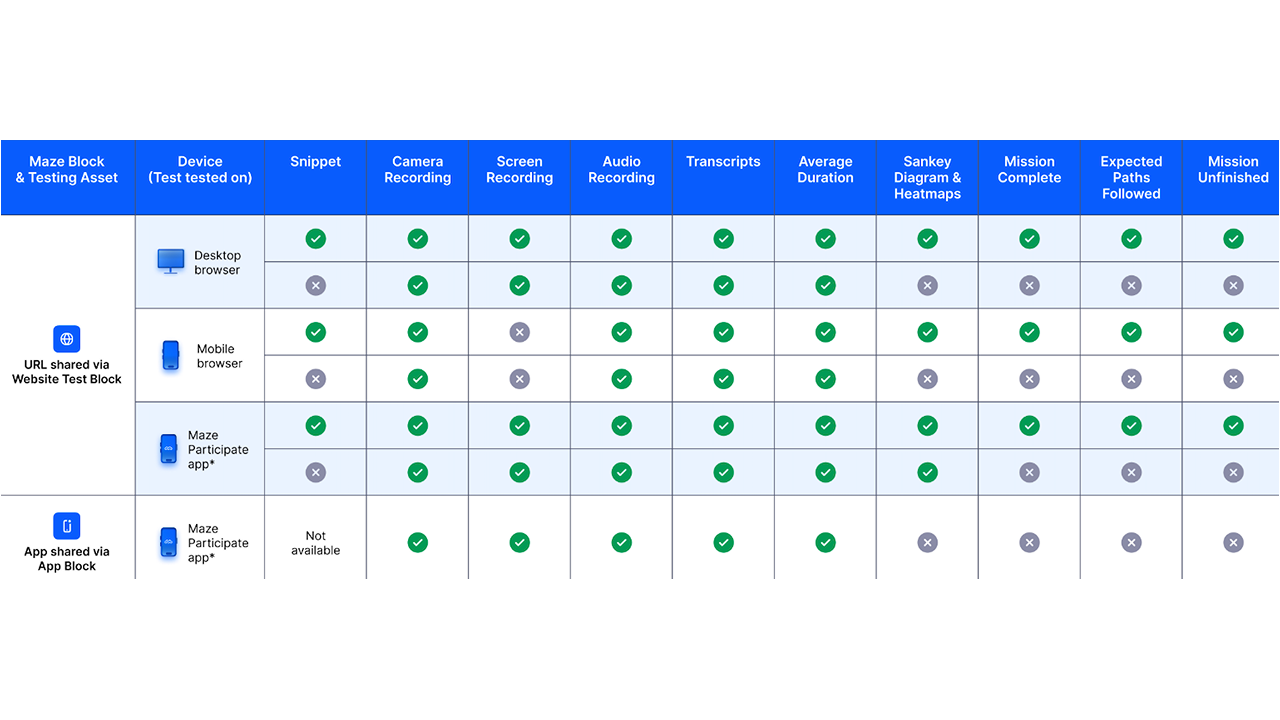
On mobile, participants can join your test in two ways:
Mobile browser
Participants can open the study link directly in their mobile browser—no app download needed. This option works well for quick questions with simple stimuli like images.
Limitations: Screen recording isn’t available, and complex prototypes (e.g., Figma) may not display at their best size because of the browser bar.
Mobile App: Maze Participate (recommended)
The app offers the most reliable testing experience. Prototypes display in full fidelity, and screen recording captures participants’ natural behavior in real world environment. This is also a strong option for testing your mobile websites and apps in production, as well as for running competitive research.
How to Run an Unmoderated Study on Mobile
Understand device settings
How to test prototypes on mobile
How to test native iOS or Android apps? It’s possible to test mobile prototypes using a mobile device and browser, however, to test a native iOS or Android app, we recommend using the App Test block for participants to test using the Maze Participate mobile app.
How can I best guide my participants?
What is my participant consenting to when they start a study?
AI Moderated Mobile Testing
Participants can complete AI Moderated sessions from a mobile device via a web browser, but screen sharing within AI Moderator is not currently supported on mobile.
The Maze Participate app does not currently support mobile AI Moderator experiences.
Moderated Mobile Testing
Moderated testing with Interview Studies is a great way to run mobile testing as it allows for direct observation and reactions.
You can use your preferred conferencing tool and upload the recordings afterwards for analysis. Alternatively, you can also use Maze conferencing for automatic uploads.
When using Maze conferencing, you can choose which device participants should use to join the session. This helps participants join from the right device for the study—especially when you need them to share their mobile screen during a moderated mobile test.
If screen sharing is required on mobile, participants must have the Zoom app installed. If the Zoom app is not installed, participants will be prompted to download it through the standard Zoom joining flow.
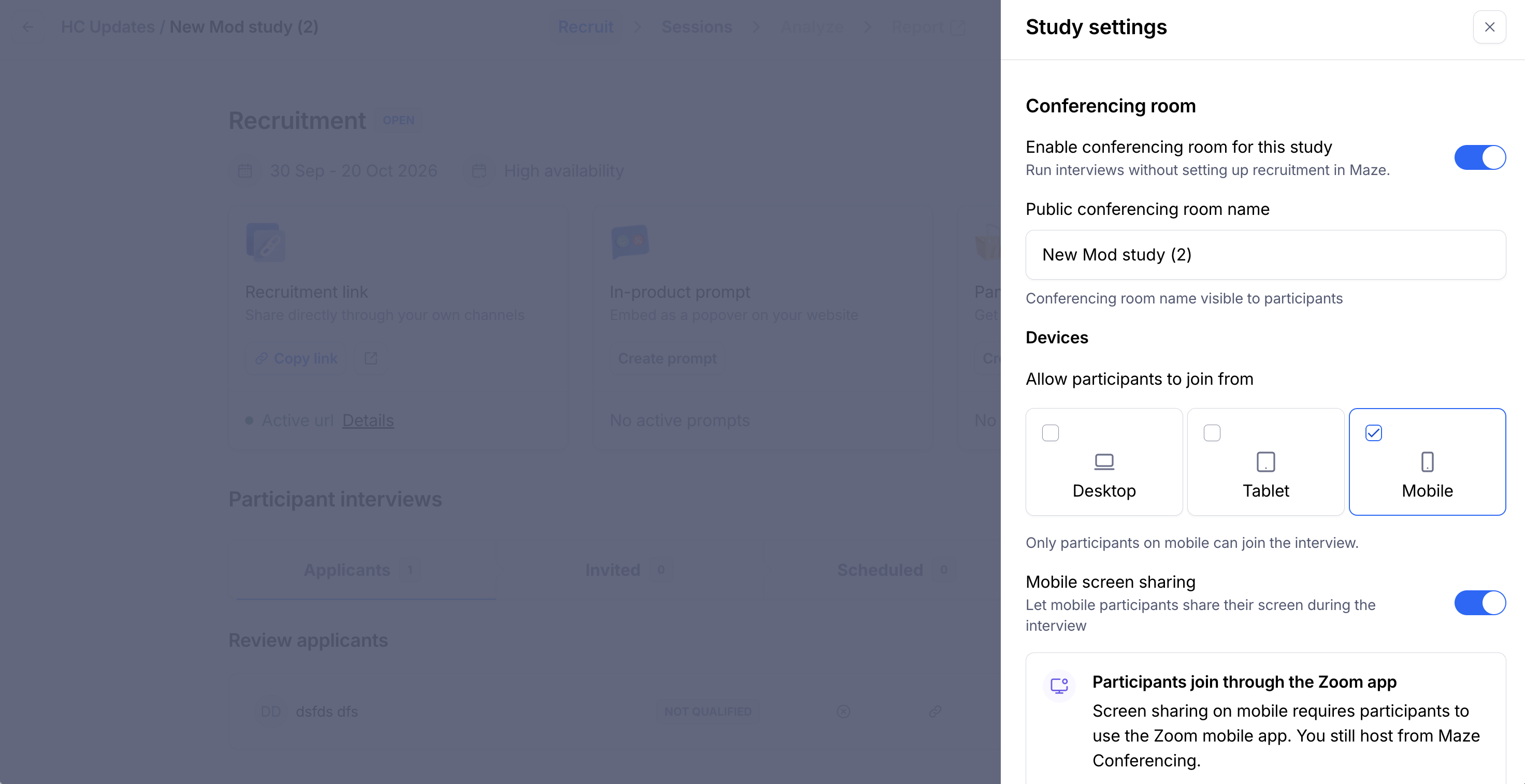
Choose the participant device for Maze conferencing
For moderated studies that use Maze conferencing, you can specify the device participants should use to join the session. This setting is useful when your study needs participants to complete tasks or share their screen from a specific device, such as a mobile phone.
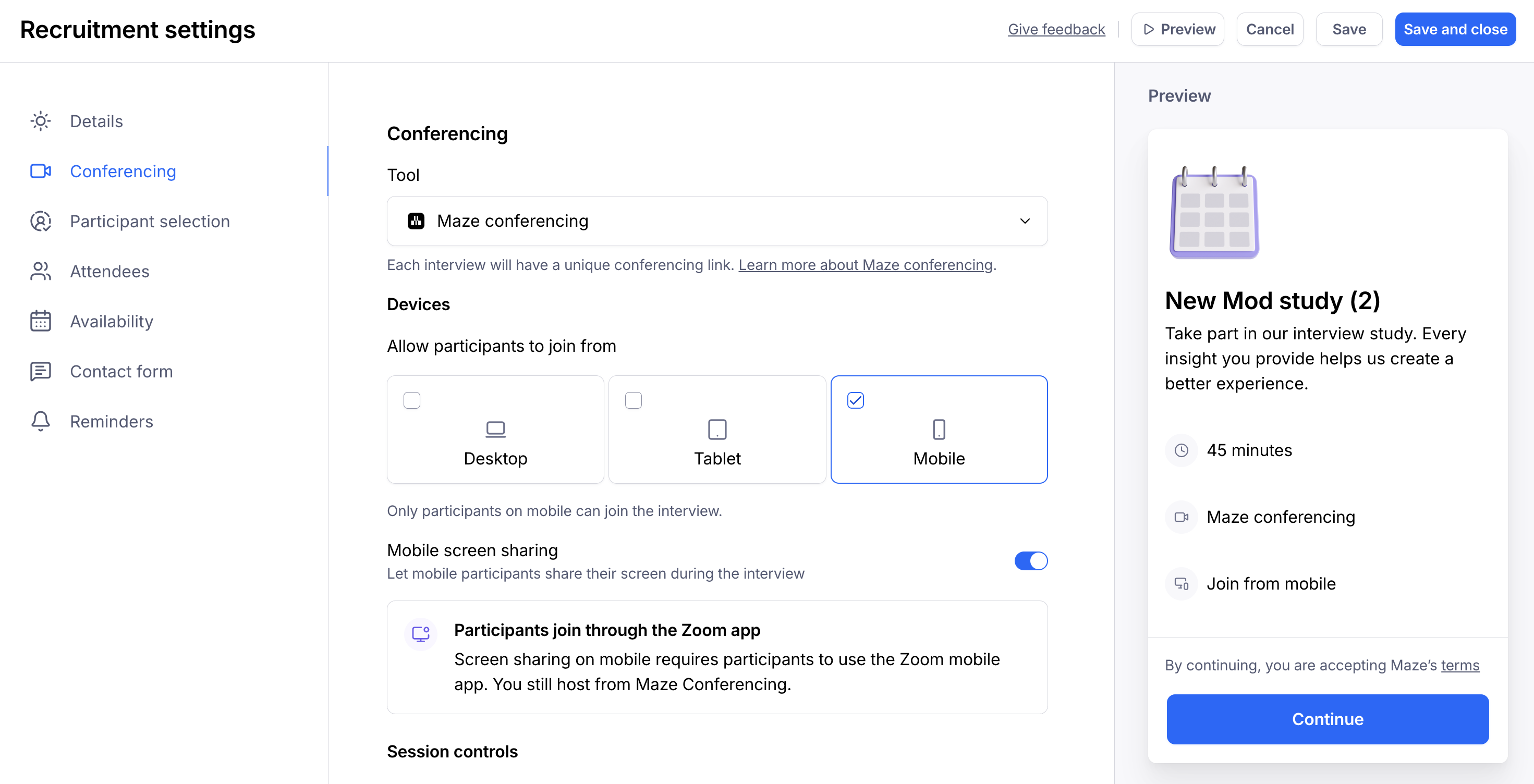
When setting up your moderated study, choose the participant device that best matches your research needs:
Any device: Participants can join from desktop or mobile.
Desktop only: Participants are guided to join from a desktop device.
Mobile only: Participants are guided to join from a mobile device.
If a participant opens the study link from a device that doesn’t match the device selected for the study, Maze will prompt them to switch to the correct device before joining the session. This helps reduce setup issues and makes it clearer which device participants should use for the session.
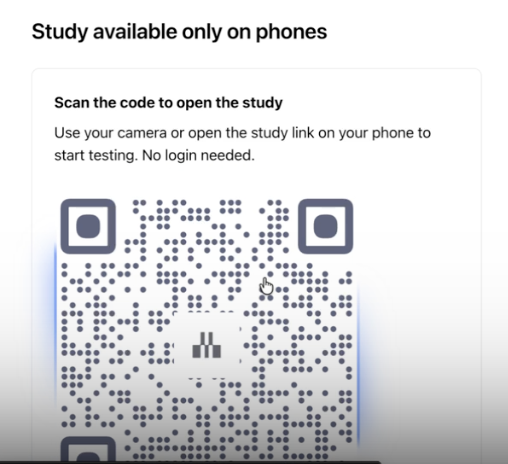
Note: Device selection for moderated studies is available when using Maze conferencing. If you’re using an external conferencing tool, include the required device in your participant instructions.
Moderated Mobile Testing with Prototypes
Use a Conferencing App (Recommended)
Create your prototype study with mobile device access enabled. Then, create your moderated study using Microsoft Teams, Zoom, Maze’s built-in conferencing, or Google Meet.
Participants must download the corresponding mobile app (e.g. Zoom) before the session—clearly state this requirement in your participant instructions. If you selected Maze's built-in conferencing, ask participants to download Zoom ahead of the session. You can also enable the Redirect to Zoom App setting in your study settings to automatically redirect participants to the Zoom app when they click the conferencing link. For Maze conferencing, you can also set the participant device to Mobile only so participants are prompted to join from a mobile device. During the session, participants join through the mobile app and share their screen directly. Send the maze prototype link via email or conference chat for participants to access on their mobile device.
The screen recording will capture participants' interactions with your prototype along with their verbal feedback. Sessions conducted through external conferencing tools require manual upload to Maze.
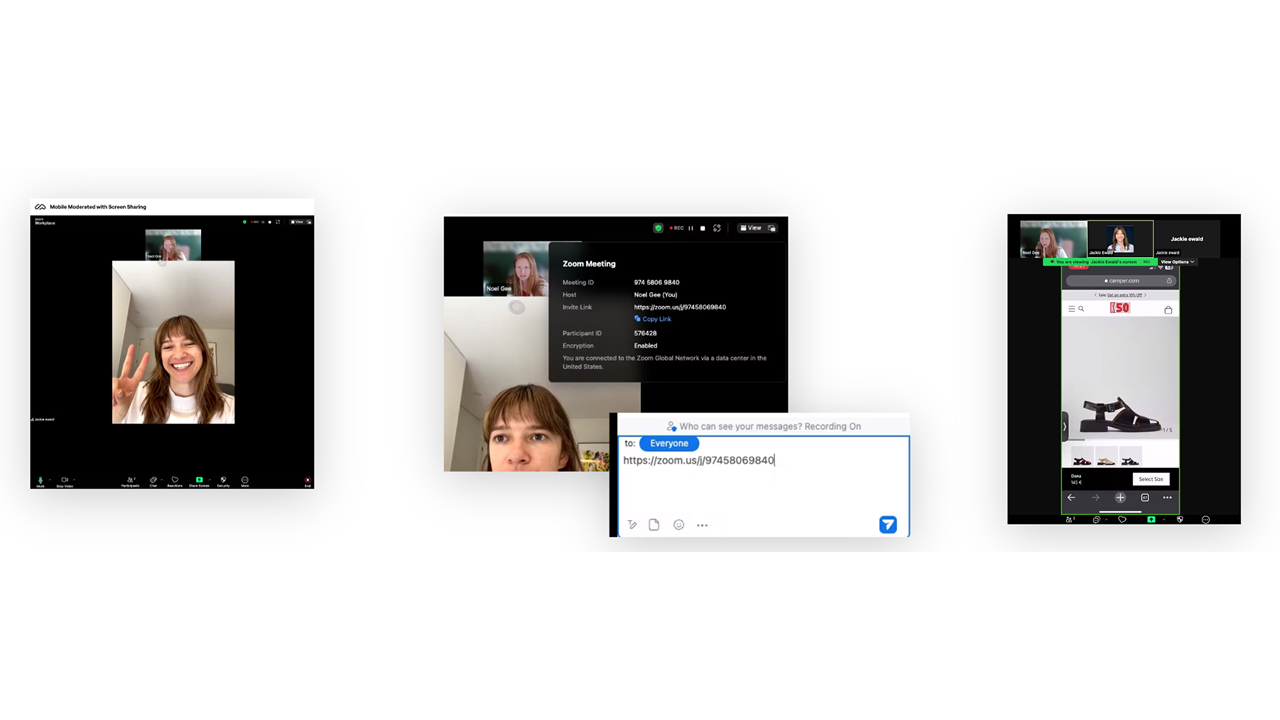
The Two-Device Alternative
Many researchers find that having participants use both a desktop and mobile device creates a better interview experience, especially for logistic onboarding. Participants join the video call on desktop for conversation and camera, then connect their mobile device for screen sharing. This prevents the cramped experience of managing everything on a small screen.
This approach still uses the external conferencing tool (Teams, Zoom, or Meet), not Maze conferencing. During the call, share the meeting ID so participants can connect their mobile device. Though it adds a step, sessions run more smoothly, especially for longer interviews with extensive discussion.
Tips for success when running moderated sessions for mobile testing
Extend session times to anticipate any technical challenges.
Before the session, share instructions and requirements with the participants. Please note that, if hiring panel participants, you will not be able to send instructions in advance as the email addresses of panel participants are not shared.
These instructions may include:
Download video conferencing apps. Please note that screen sharing isn't supported on mobile browsers. If using Maze conferencing, enabling the Redirect to Zoom App setting will direct participants to the Zoom app automatically if the app is already installed.
Join the conversation on mobile and/or desktop (depending on the researcher’s preference). If using Maze conferencing, set the participant device in the study setup so Maze can prompt participants to join from the correct device.
Activate Do Not Disturb mode to prevent notifications and calls and mitigate risk of PII exposure.
Install the application being tested, if relevant.
Still need help?
If you have any questions or concerns, please let our Support team know — we'll be happy to help!