Removing team members
Last updated: September 14, 2026
Users who no longer need access to a team can be removed by an owner or admin, or they can remove themselves directly.
What happens when I remove a team member?
Removed members will no longer have access to your team, and any projects or studies they created in your team remain available on the team.
If you're offboarding a team member, please ensure in advance that they transfer any relevant projects they may have created on their free plan to your team.
How to remove a team member
To remove users or pending invitations from your team:
Log in to your Maze account and ensure your paid team is selected in the dropdown in the upper left corner.
Click your avatar at the bottom left corner, and click Team Settings.
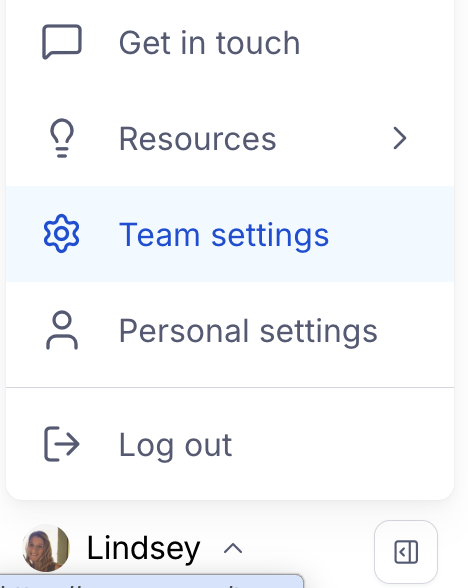
In the 'Team' tab, scroll until you see the Members list.
To the right of the member's name and email, click the trash icon.
Click Remove member.
Click Yes to confirm.

The team owner cannot be removed from the team directly. To remove the team owner, please follow the guidance in Changing the owner of your team. Once the team's ownership has been assigned to someone else, you can remove that member from the team.
How to remove yourself from a team
Log in to your Maze account and ensure you have the correct team selected in the dropdown in the upper left corner.
Hover over Settings (⚙) at the bottom left corner, and click Team Settings.
In the 'Team Info' panel, scroll until you see the Leave team section.
Click the Leave team button.

In the pop-up modal, click Leave team again to confirm.
Note: the team owner can't remove themselves from a team directly. To leave, they'll first need to transfer ownership to another team member — once that's done, the leave option becomes available to them.
How to remove an unused seat
If you've purchased additional seats for members, simply removing that member will keep the seat open. You'll still be charged for it in your upcoming billing.
To avoid being charged for an unused seat, you'll need to remove it entirely.