Collect in-depth answers with Open Questions and AI follow-ups
Last updated: November 27, 2026
Open Question blocks allow you to ask in-depth, exploratory questions.
Additionally, Team and Enterprise plan customers can harness the capabilities of GPT-4 and enable AI-generated follow-up questions to dig further into participants’ initial answers, and to analyze the overall sentiment and themes.
Enterprise customers can also let participants answer Open Questions by voice instead of typing.
Adding an Open Question block
To add an Open Question to your study:
Open your draft study, or create a new one.
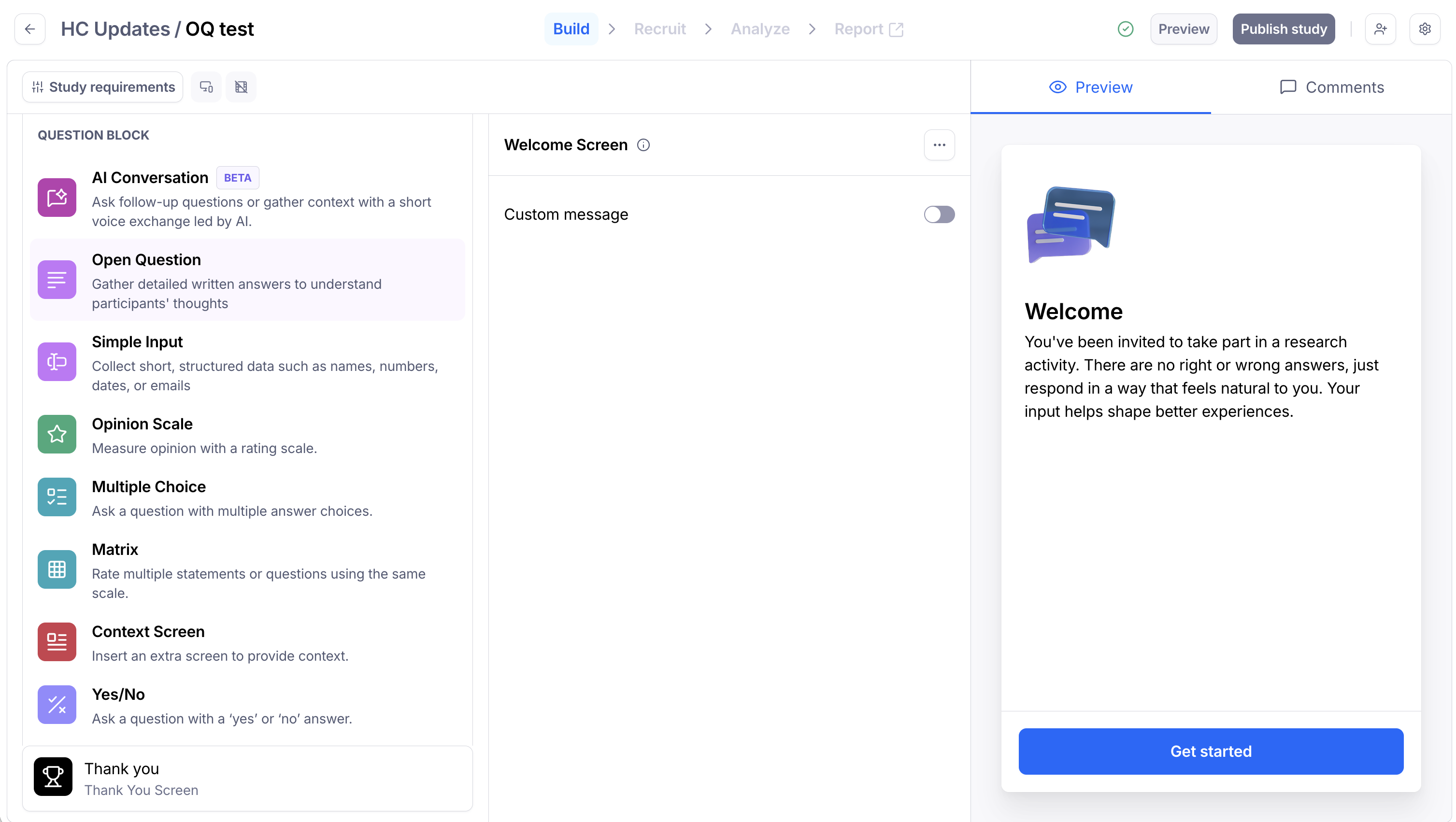
In the blocks list, click Add block, then select an Open Question block from the drop-down.
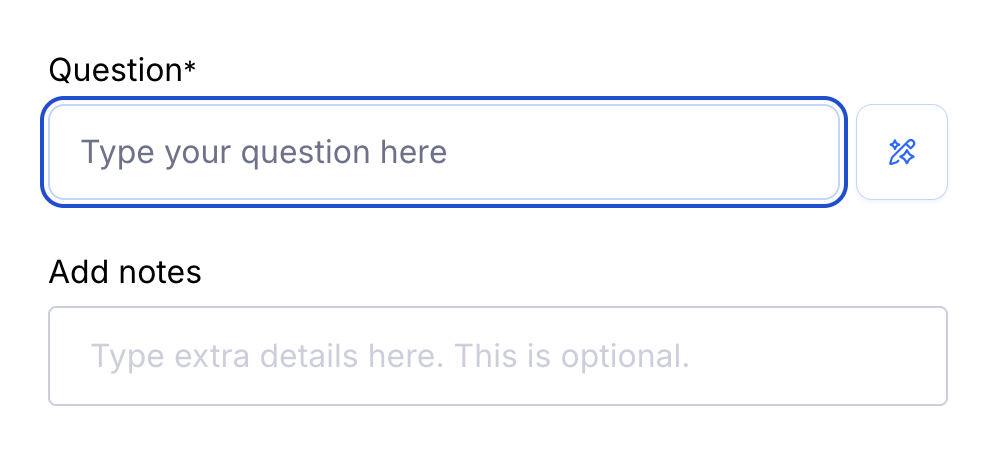
Type your Question. Optionally, add extra details in the Notes.
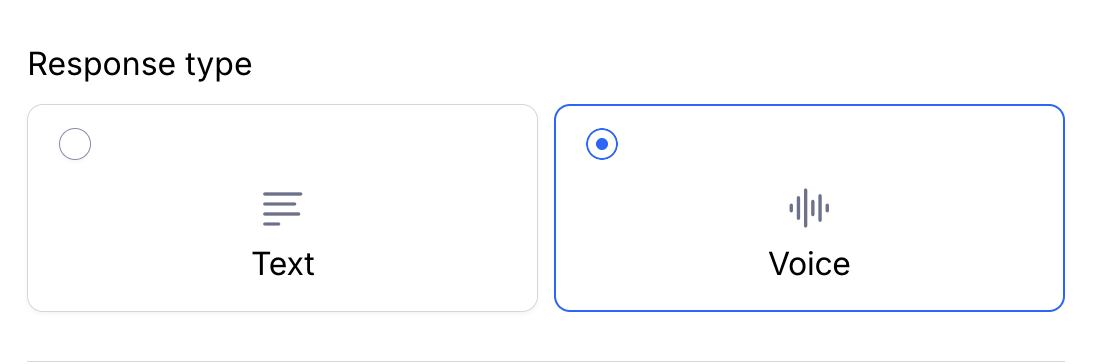
Choose a Response type. Select Voice to invite participants to answer by speaking (Enterprise plans). Learn more about voice answers
If needed, show users an image while asking a question. Maze supports GIF, PNG, and JPG files. The maximum image size is 5mb. Learn more about using images alongside your questions

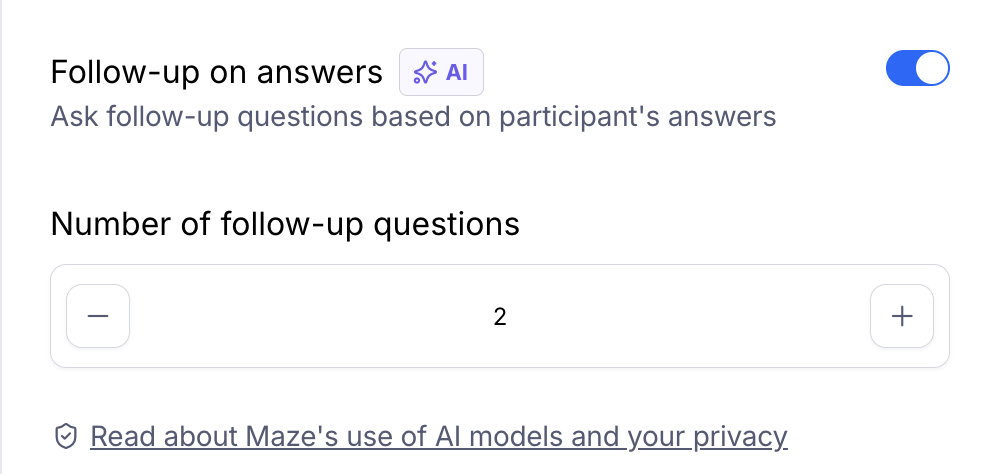
If you want the AI assistant to ask up to 3 additional questions to explore participants' answers, toggle Follow-up on answers.
If needed, enable conditional paths based on participants' responses to this block.
Paid customers can use the AI-powered assistant to improve the clarity and legibility of questions and tasks, while avoiding possible research biases (e.g. leading language). Learn more
You can see how this block will appear to testers on the right-side Preview panel.
Learn more about previewing your studies
Voice answers on Open Questions (Enterprise plans)
Set an Open Question’s response type to Voice to encourage participants to answer out loud. This works well for questions where you want unfiltered reactions or longer explanations that people are unlikely to type out.
What participants see
The question tells them they can answer by speaking.
A live waveform shows while they talk, so they know their voice is being picked up.
A recording indicator stays visible for the whole study.
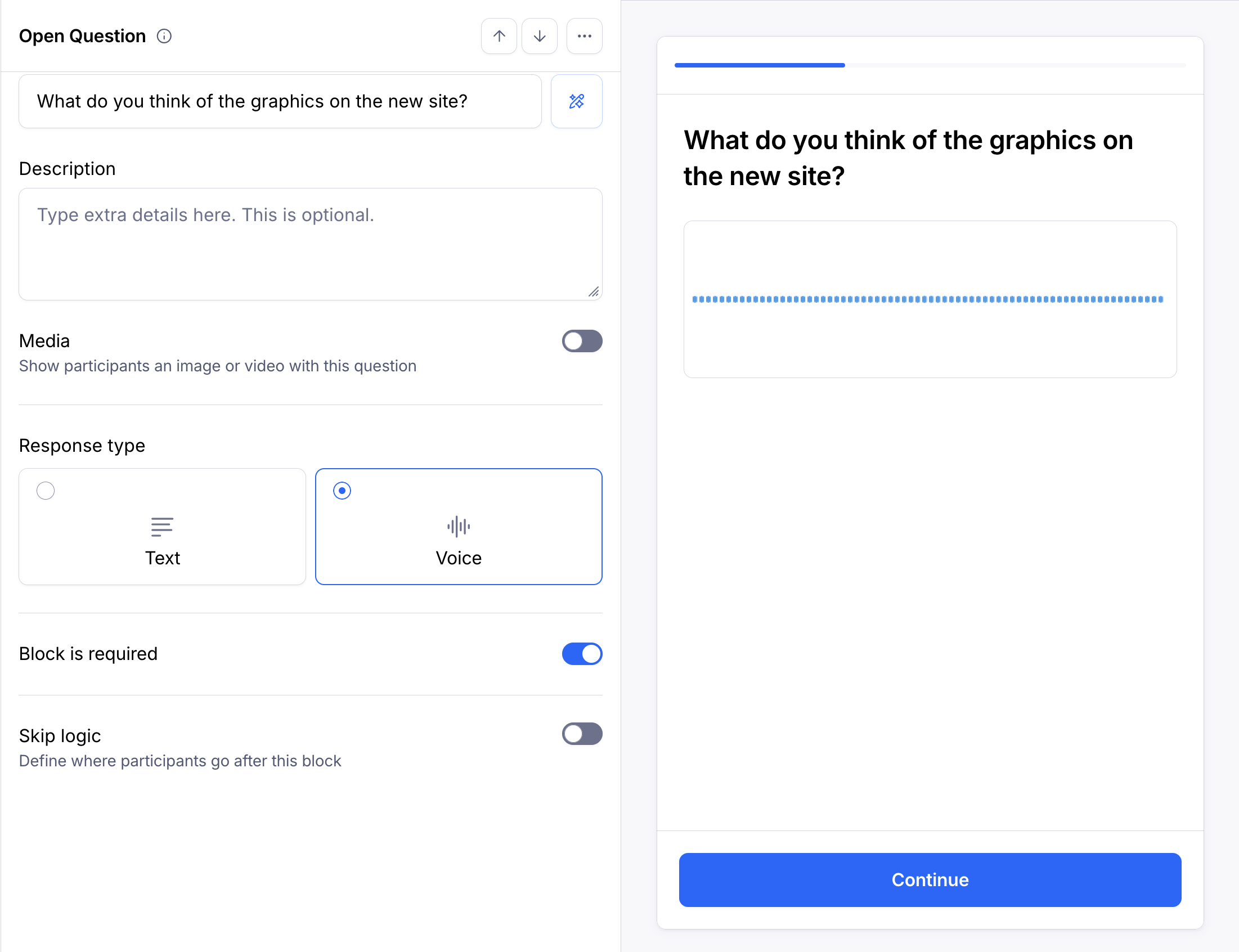
Microphone permission is required for the entire study. If any Open Question in your study uses Voice, participants are asked for microphone access at the start and are recorded throughout, not only on that question. Mention this in your welcome screen or study description so participants know what to expect.
Viewing voice answers in results
Voice answers are marked with a Voiced response indicator in your results.
Current limitations
Transcripts don’t appear in the question results yet. Because of this, filters, CSV exports, search and themes treat voice answers as blank.
Sentiment shows as Not set, and Find tags with AI isn’t available on voice questions. You can still add tags manually.
AI-generated follow-up questions (Team and Enterprise plans)
Enable follow-up questions
After adding your Open Question block, enable Follow-up on answers to generate up to three additional follow-up questions, based on each tester’s initial response.
This allows you to delve further into answers, and unveil insights that might otherwise have remained hidden.
How confident can I be about the quality of the AI-generated follow-up questions?
Previewing your follow-up questions
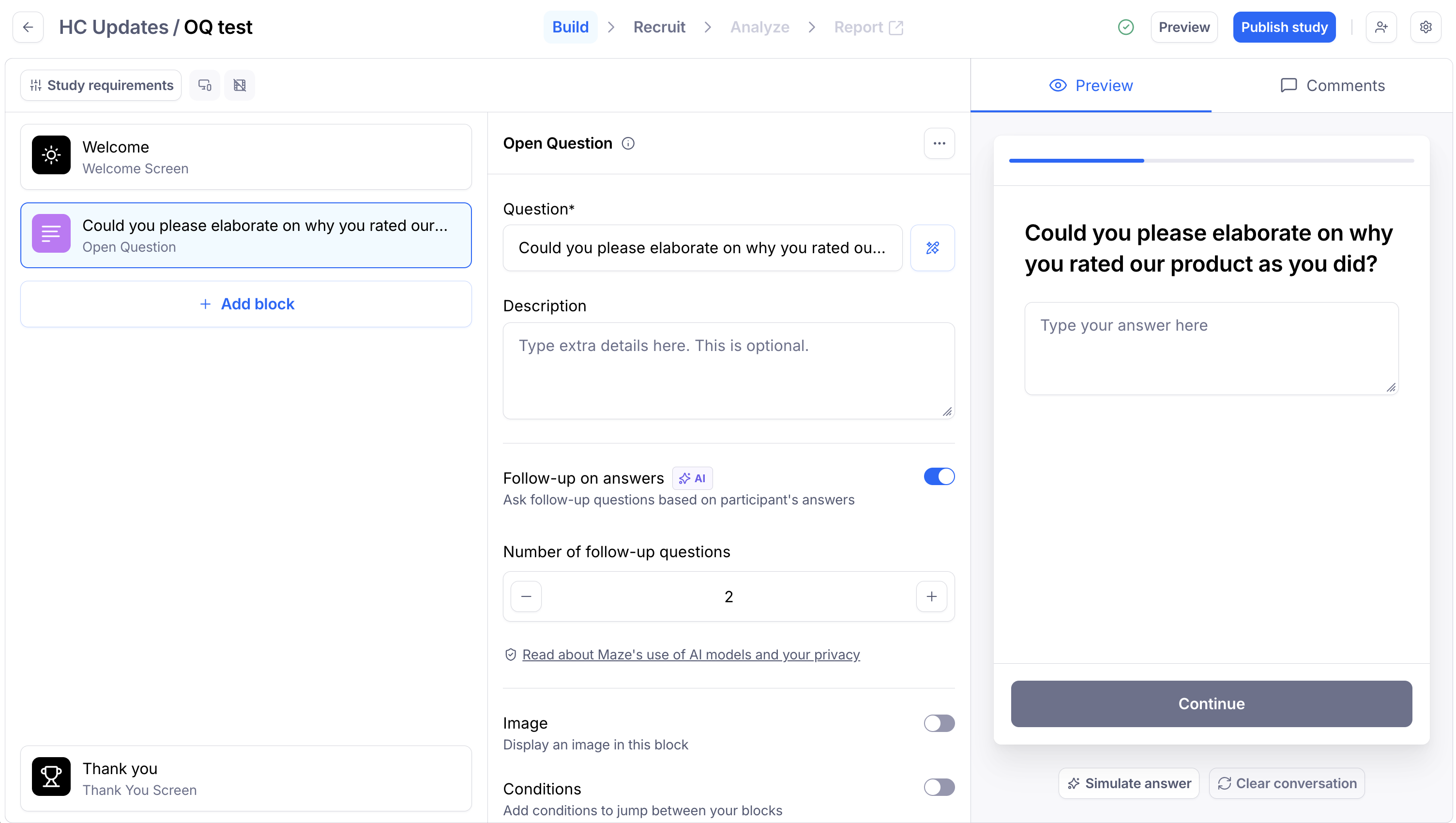
On the Preview panel on the right-hand side, you can test how the follow-ups will appear to testers.
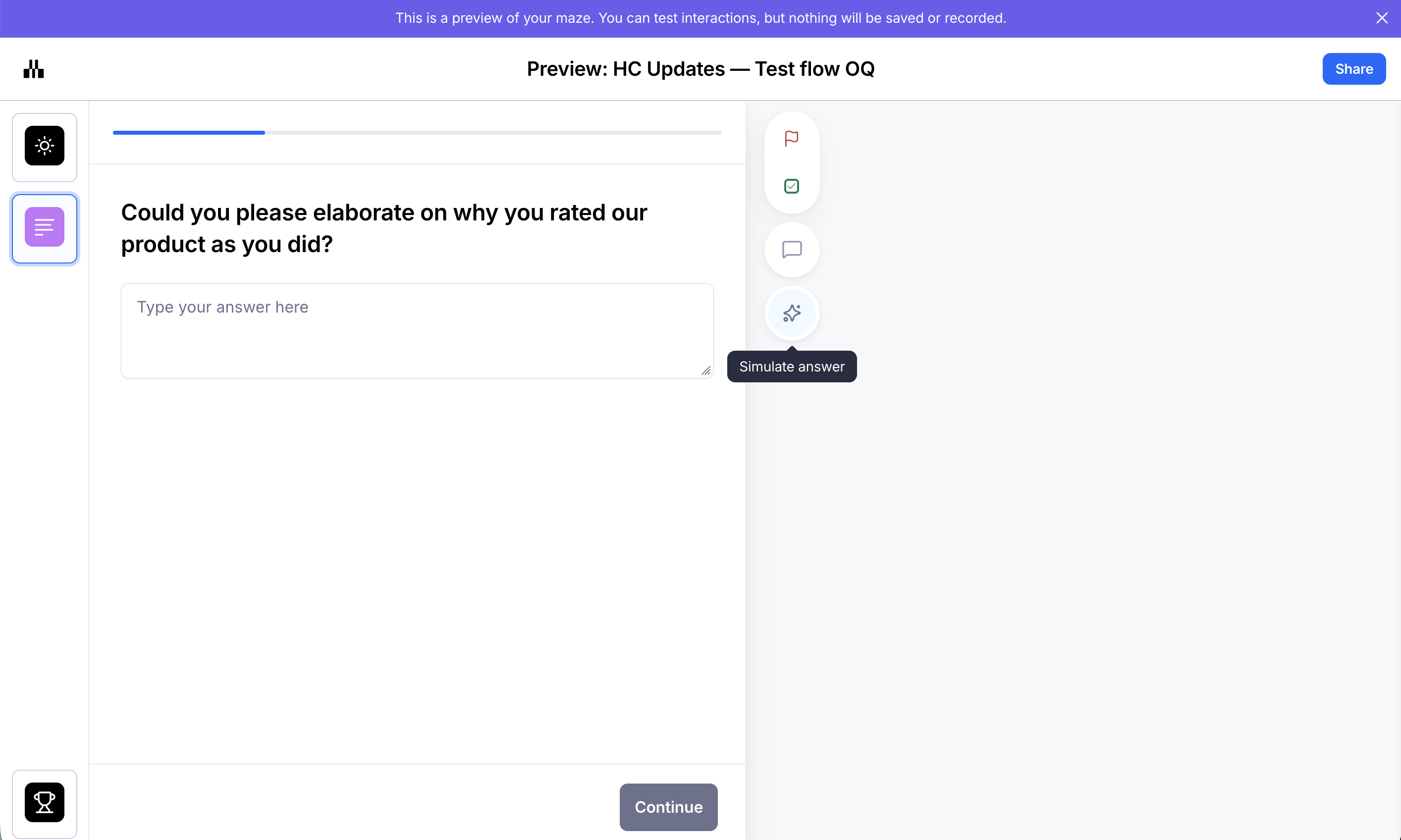
After entering your question, click Simulate answer to have the AI assistant generate an answer the same way a tester would.
The option to simulate an answer is also available in the study preview.
Learn more about previewing your studies
Testers always have the option to skip AI-generated follow-up questions.
Supported languages
The initial question in the block isn't translated; it's displayed as you wrote it in the builder. If participants answer in a different language, the follow-up question(s) will reflect the language of that first answer.
In the results, the conversation summary and themes appear in the language of your initial question. The participants' answers appear in their original language.
GPT-4 supports English as its primary language. It also handles other languages well, as it was trained on a variety of multilingual internet text, although its capabilities in each language may vary.
Generally, it performs best in languages with more extensive training data. For less widely spoken languages or those with less available training data, performance might not be as strong or nuanced. We recommend previewing and testing to confirm that the block performs well in your desired language.
It supports text generation and understanding in various languages, including but not limited to: Arabic, Chinese (Simplified and Traditional), Czech, Danish, Dutch, English, Finnish, French, German, Hungarian, Indonesian, Italian, Japanese, Korean, Malay, Norwegian, Polish, Portuguese (Brazilian and European), Romanian, Russian, Spanish, Swedish, Thai, Turkish, Ukrainian, and Vietnamese.
The exact number of supported languages can change as OpenAI continues to update and improve GPT-4. Future updates may enhance its capabilities in existing languages or add support for new ones.
Learn more in OpenAI’s official documentation
Results & reporting
Learn more about your open-question results
See how results and reporting look like in this demo report
Limitations
Title Character Limit: 200 character limit
Description Character Limit: No limit
Response Character Limit: No limit
Voice answers: see current limitations.
Still need help?
If you have any questions or concerns, please let our Support team know — we'll be happy to help!