Previewing draft and live unmoderated studies
Last updated: September 11, 2026
Previewing studies
Draft studies (Preview mode)
Previewing is a great way to ensure your study flows nicely, and that your users see what you want them to see.
Testing your study beforehand will help ensure you and your team are completely happy with the content and performance. Please note that certain changes aren’t allowed after sending a study live.
To preview a draft study:
Open the study builder.
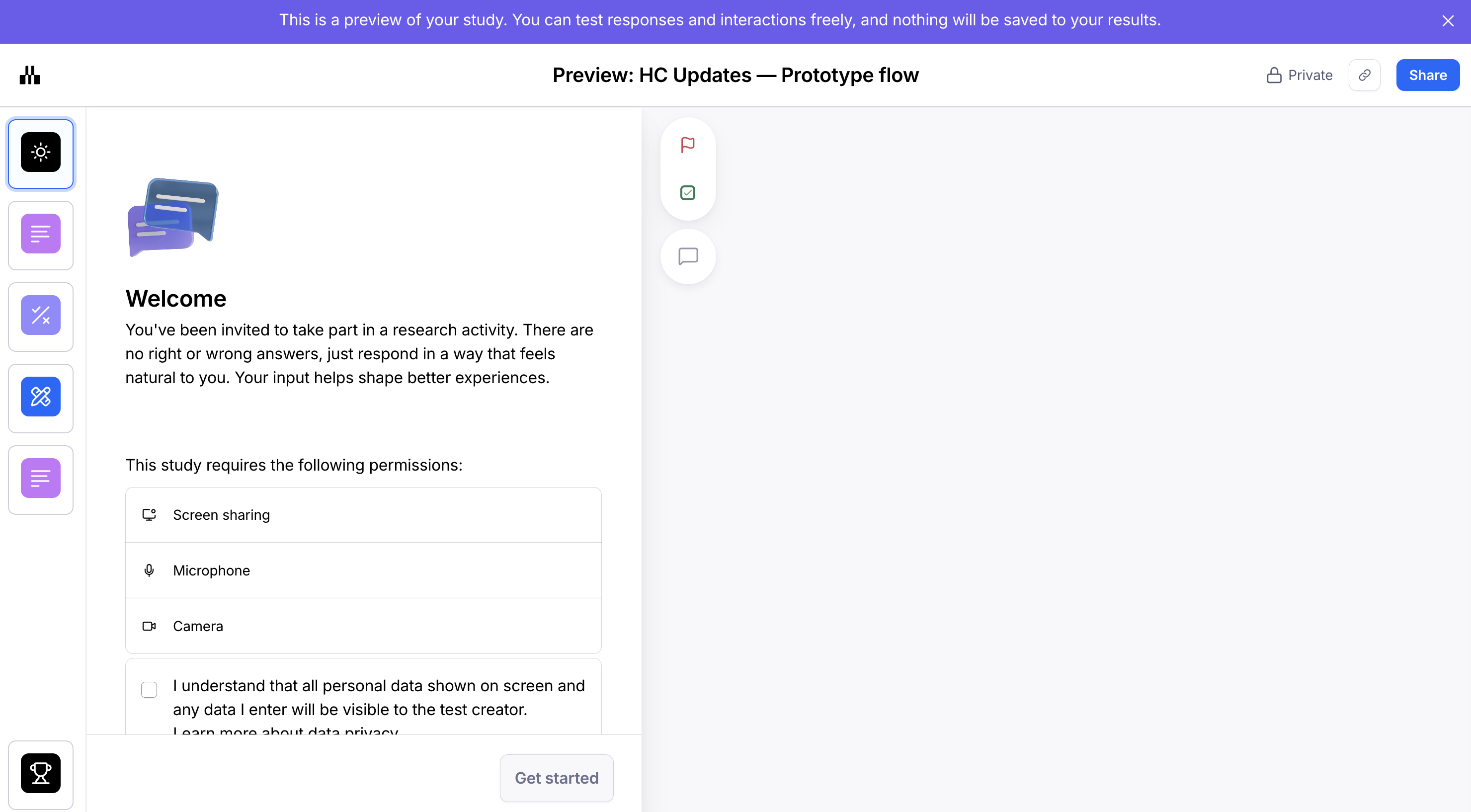
Click on the Preview button in the top right corner.
To preview a live study, you can also disable Save responses in the share link options.
This will allow you to see how your participants will experience your study without recording any data.

Live studies (notrack parameter)
You can also share a preview link after publishing your study.
When copying your study share link, disable Track participant responses or add the ?notrack=true parameter. This will allow others to preview the study without those interactions appearing in the results.
That link would look like this:
https://t.maze.co/000000?notrack=true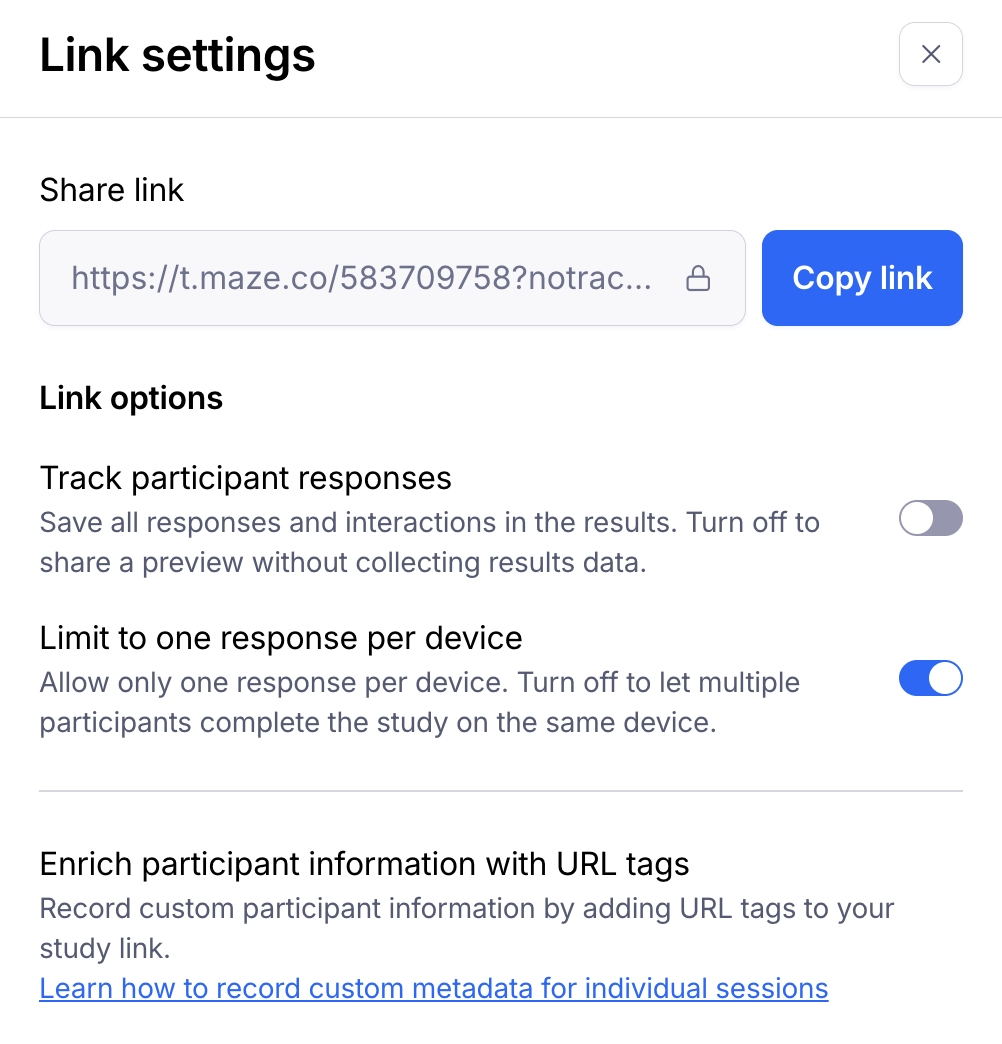
Sharing a preview link
You can also send a preview link for a draft unmoderated study. To do so, follow the steps to access the Preview mode in the study builder, then copy the preview URL, which looks like this:
https://app.maze.co/maze-preview/mazes/000000You can use this preview link to have your team members review your study, even without them having to sign in.
Controlling who can access your preview
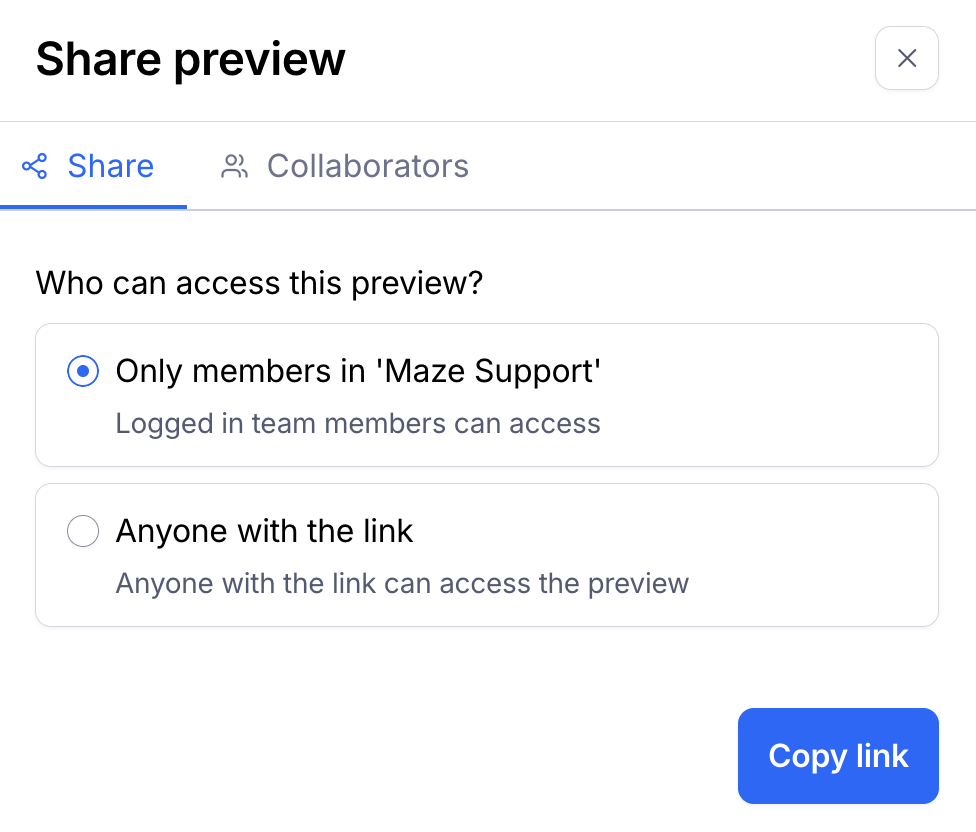
Preview links have their own privacy setting, independent of live testing. When you open a preview, you'll see a Share button in the header where you can set the visibility and copy the link.

There are two settings:
Private (default): The preview link is disabled for anyone outside your team. Team members can always access previews regardless of this setting.
Public: Anyone with the link can view the preview, including non-workspace members in private workspaces.
Changing the preview privacy setting does not affect live testing — participants can still access and complete the study as normal. Both new and existing unmoderated study previews are set to private by default.
For private workspaces with role-based access control (RBAC): If the preview is set to private, authenticated users who are not workspace members will see a "Workspace access required" message instead of the preview content.
Preview options
In the Preview mode, you'll have the option to browse through all blocks, and see them the way your participants would.
Here, you can also access collaboration features:
Still need help?
If you have any questions or concerns, please let our Support team know — we'll be happy to help!