[Prototype test] How can participants stop a prototype task in Maze?
Last updated: August 7, 2026
In addition to skipping questions, participants also have the option to stop a prototype task at any moment. This helps them move forward in the study, even if they don’t reach a success screen.
The Stop task button is only visible after starting the task. That is, after at least one interaction on the screen. This prevents participants from giving up without attempting to complete the task.
If the option to stop a mission task isn’t visible, starting the task and then clicking/tapping anywhere on the prototype screen will reveal it.
Stop a task on desktop prototypes
Mobile prototypes
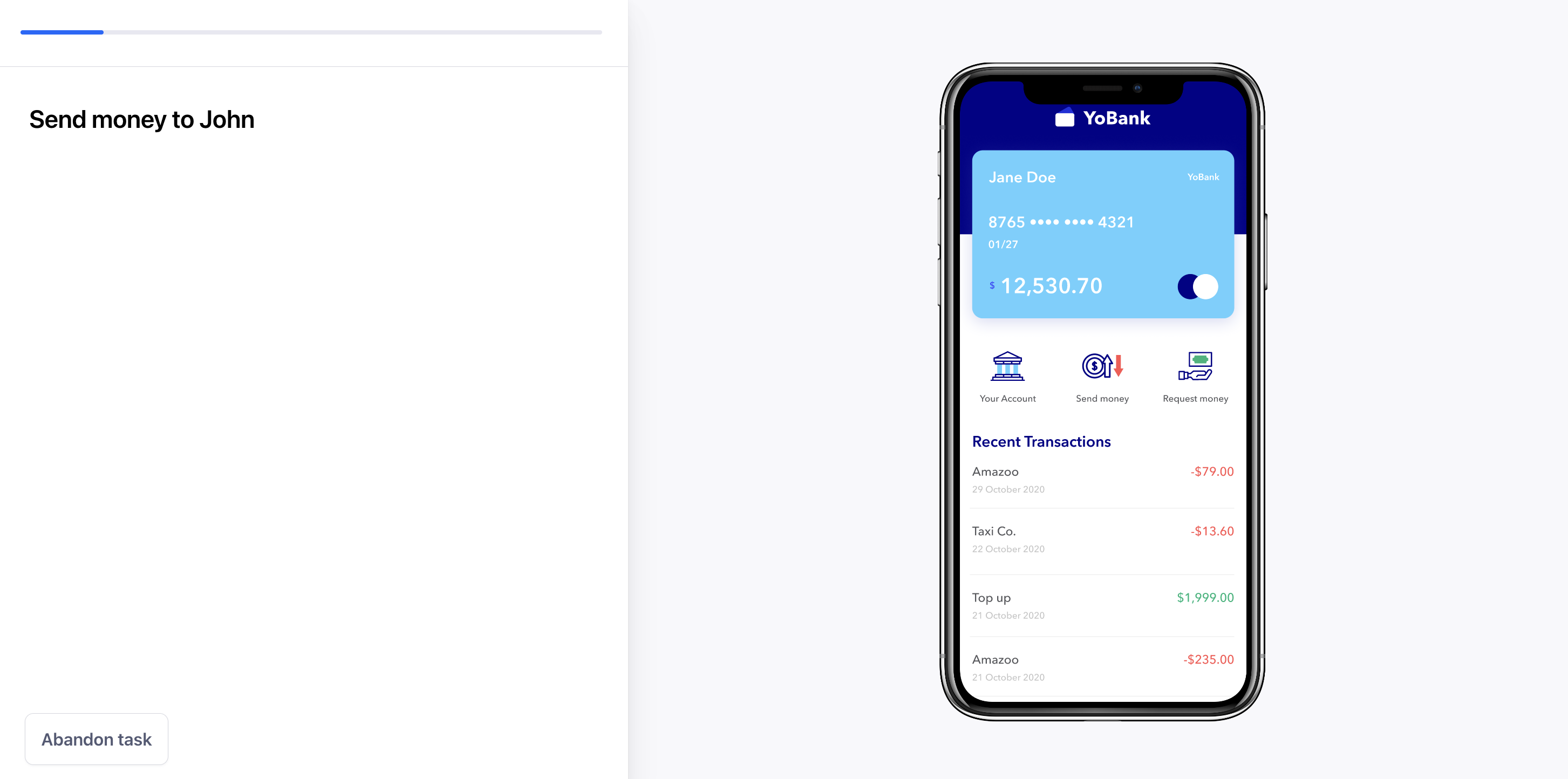
When testing mobile prototypes on desktop screens, the Abandon task button is displayed after starting the task — i.e. after clicking the Get started button to start the task, then clicking the prototype screen at least once.
Desktop prototypes
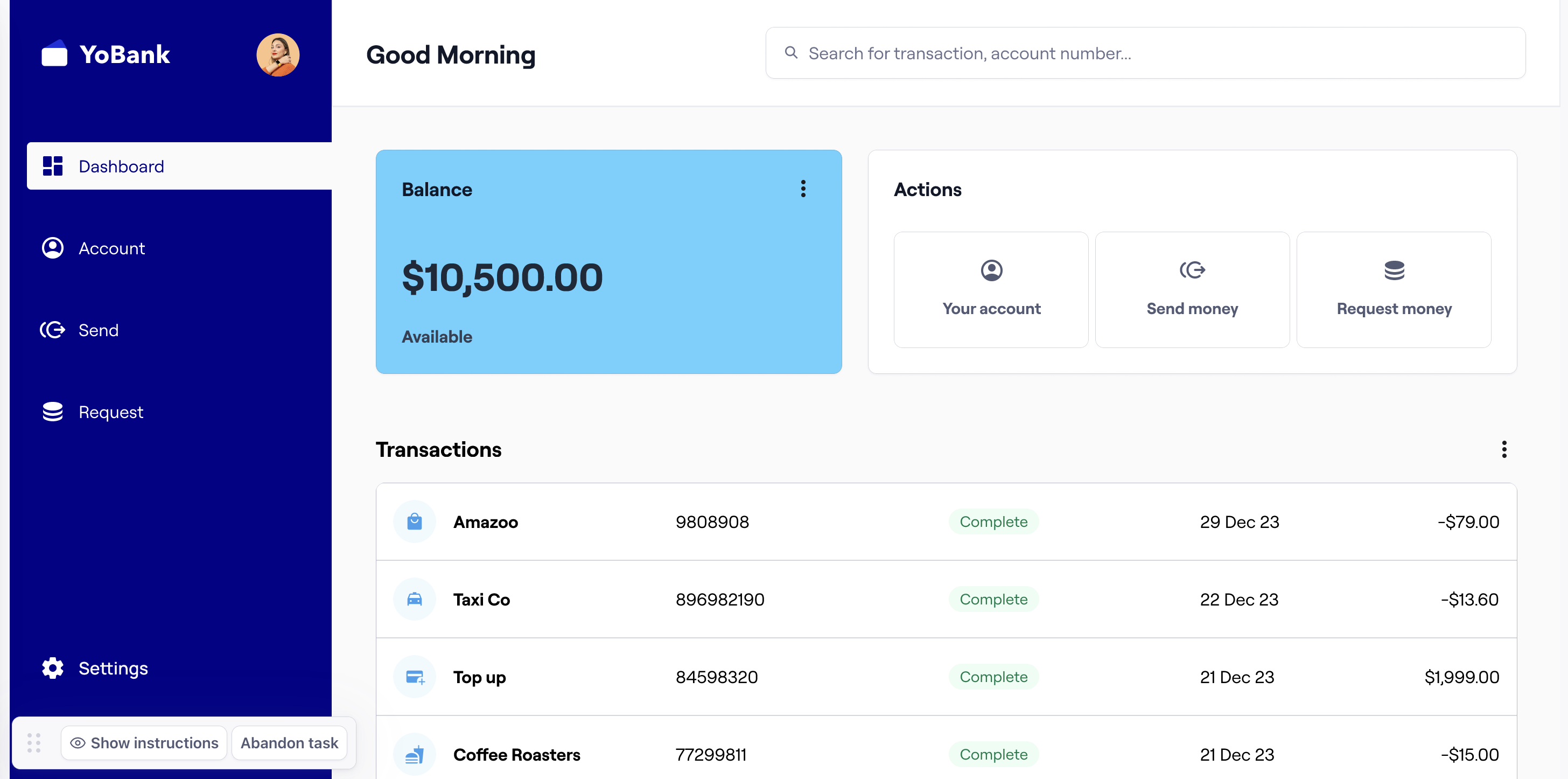
When testing desktop prototypes on desktop screens, the Abandon task button is displayed in the small instructions panel.
Stop a task on mobile devices
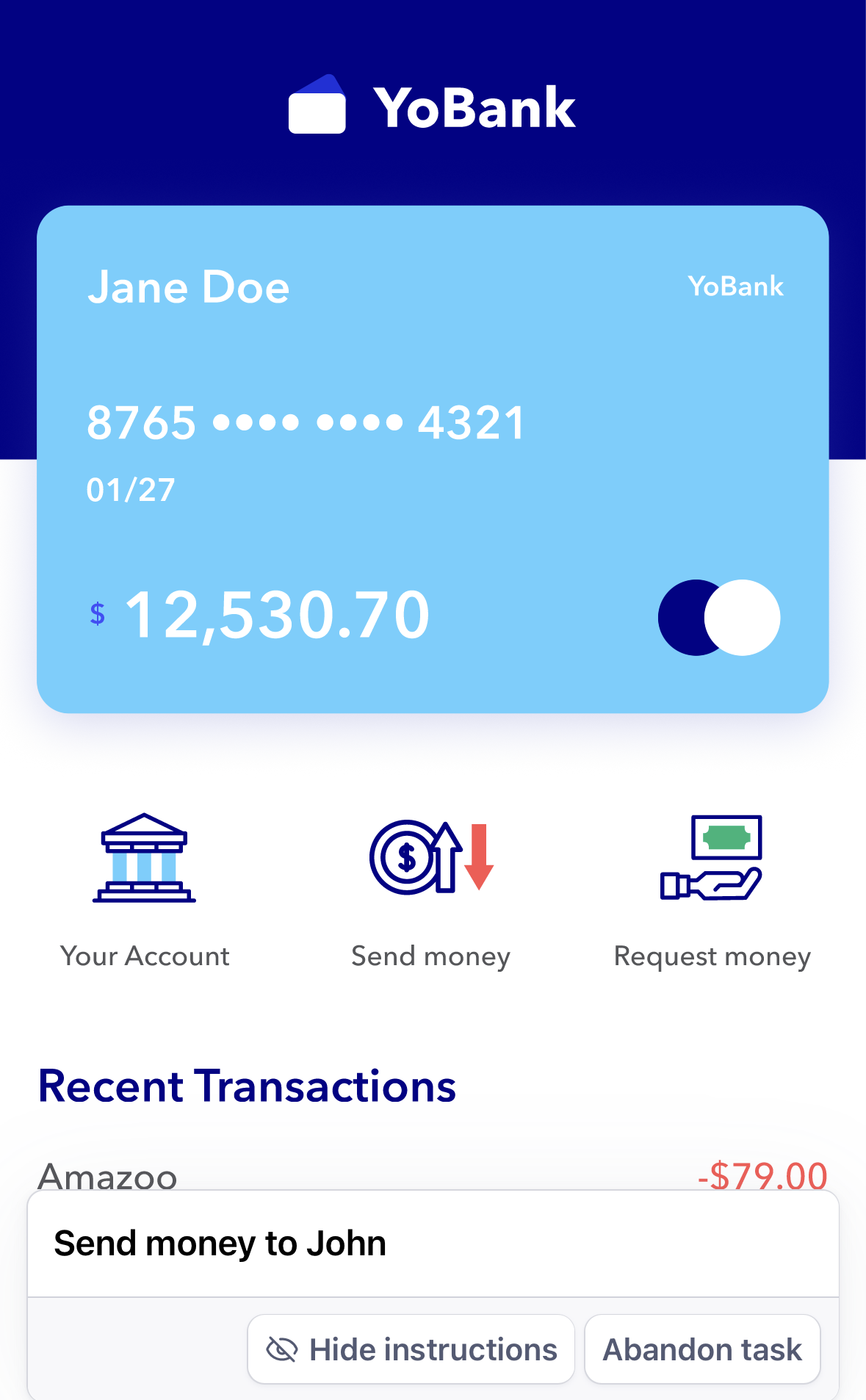
At the beginning of a prototype test on a mobile device, a panel with the task controls is displayed at the bottom.
To hide the panel in order to see the full screen, click Hide instructions.
If participants get stuck after starting the task, clicking the > button at the bottom left of the screen will reveal the instructions again, as well as the Abandon task button.
To give participants additional information and instructions about the task, including how to stop it, you can also include a Context block before the prototype block.