Why can't I place a panel order after changing my Figma prototype?
Last updated: November 19, 2026
If you edit the Figma file linked to a live study, you may see a Prototype screens changed message when you try to place a panel order. This means the changes you made in Figma altered screens or interactions Maze imported into your study, so participants can no longer complete it. Until the prototype is valid again, the study stops collecting responses and you can't place a panel order. The study owner also receives an email with the details.
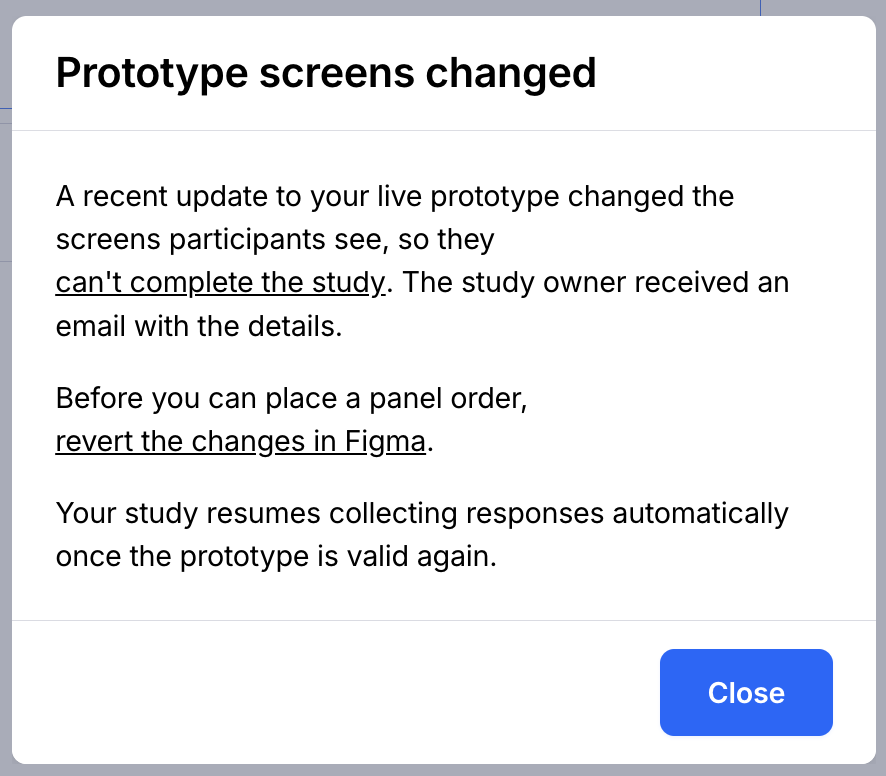
Why this happens
When you import a Figma prototype, Maze uses the screens and interactions from that version of the file. Maze displays the prototype exactly as it is in Figma, so any change you make to the file is immediately visible to participants.
If a change removes or alters screens or interactions that were part of the import, Maze treats it as a breaking change and stops the study. This happens even if you've disabled the prototype test blocks that use those screens.
Prototypes in a published study can't be refreshed, and this check can't be turned off or bypassed for an individual study.
Fix it: restore your prototype in Figma
To resume your study, revert the Figma file to the version Maze last synced.
In Maze, open the study and go to the prototype block. Note the timestamp showing when the prototype was last imported or refreshed.
In Figma, open the prototype file and go to the version history.
Restore the version that matches the timestamp from step 1, or a version that includes all the screens and interactions that existed at that time.
Return to Maze. Once the prototype is valid again, your study automatically resumes collecting responses, and you can place your panel order.
Alternative: duplicate the study and refresh the prototype
If you need to keep your Figma changes, use a new copy of the study instead of reverting:
In the duplicated draft, refresh the prototype so Maze imports the latest version of your file.
Review your blocks and success paths, then publish the study and place your panel order.
Results from the original study stay in the original study.
Testing desktop and mobile flows
A common cause of this error is removing one set of device screens (for example, desktop) from a file that also contains another (for example, mobile), to reuse the same study for a new audience.
A Figma prototype can only be set to one device type at a time, so we recommend testing different device layouts in separate studies, each linked to its own prototype. Learn more about testing multiple flows using a single Figma prototype
Still need help?
If you have any questions or concerns, please let our Support team know — we'll be happy to help!