Sharing your unmoderated study
Last updated: August 31, 2026
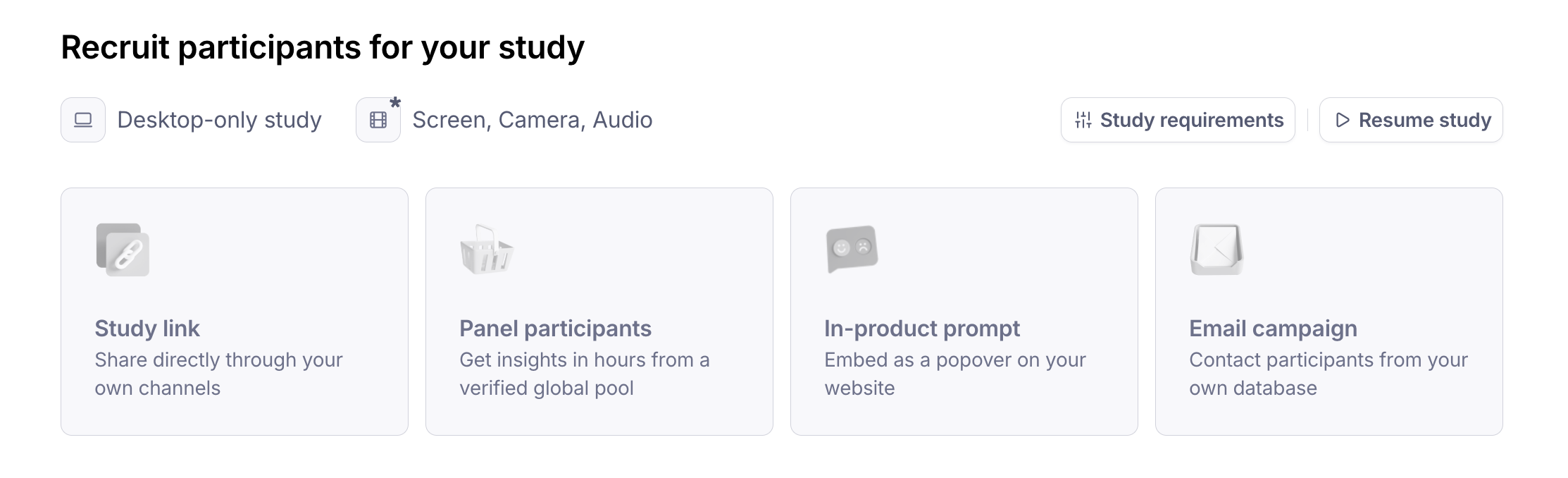
Once your unmoderated study is live, you can start testing it with people. There are different approaches to distributing your study to participants:
Copy study link: Share directly through your own channels
Hire panel participants: Recruit participants in hours from our verified global pool of panel participants. Learn more
In-product prompt: Add a popover to your website linking to the study. Learn more
Send an Email campaign: Contact participants from your own database. Learn more
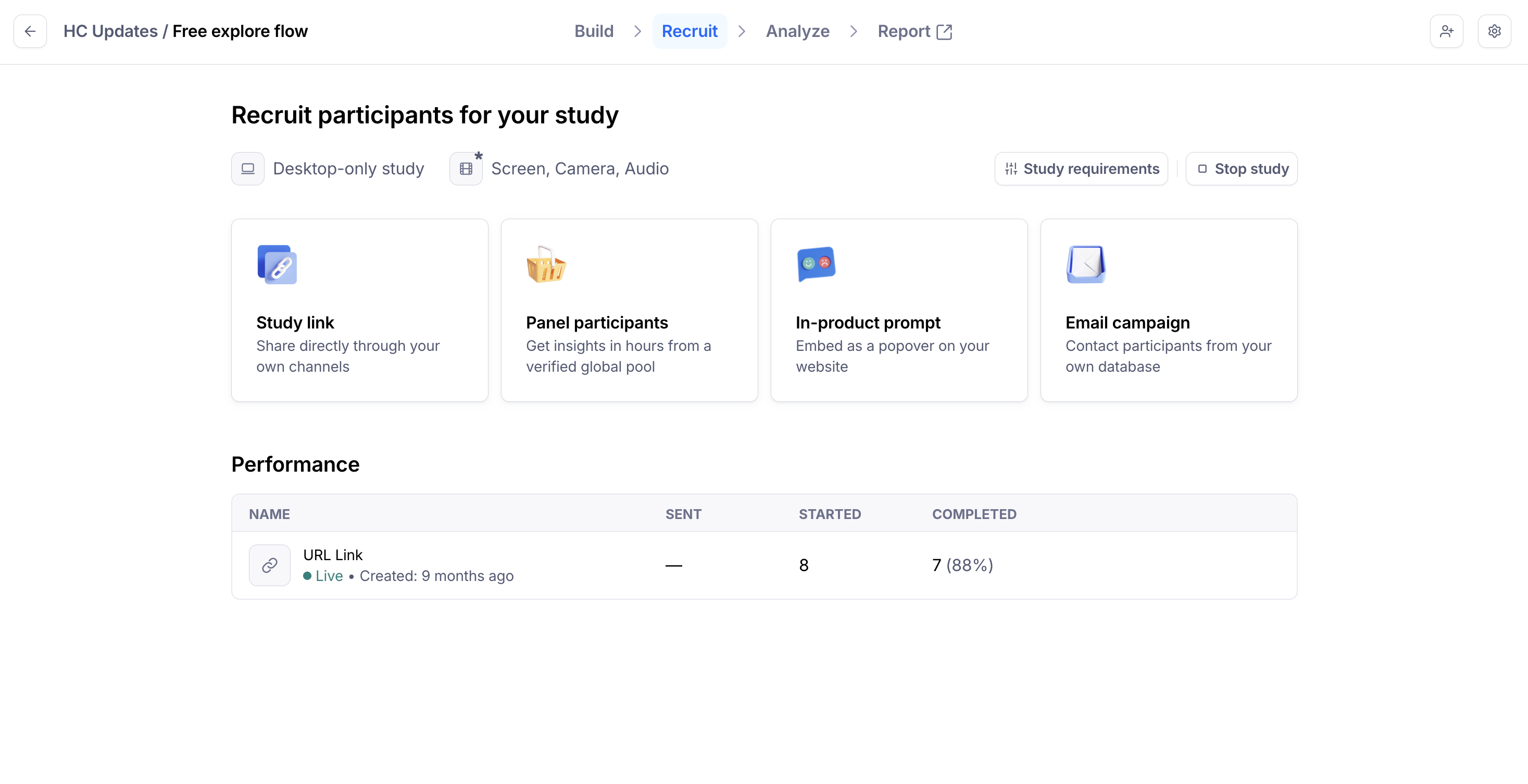
Link settings
There are two options for your study link:
To access these options, click Study link on the live study page.
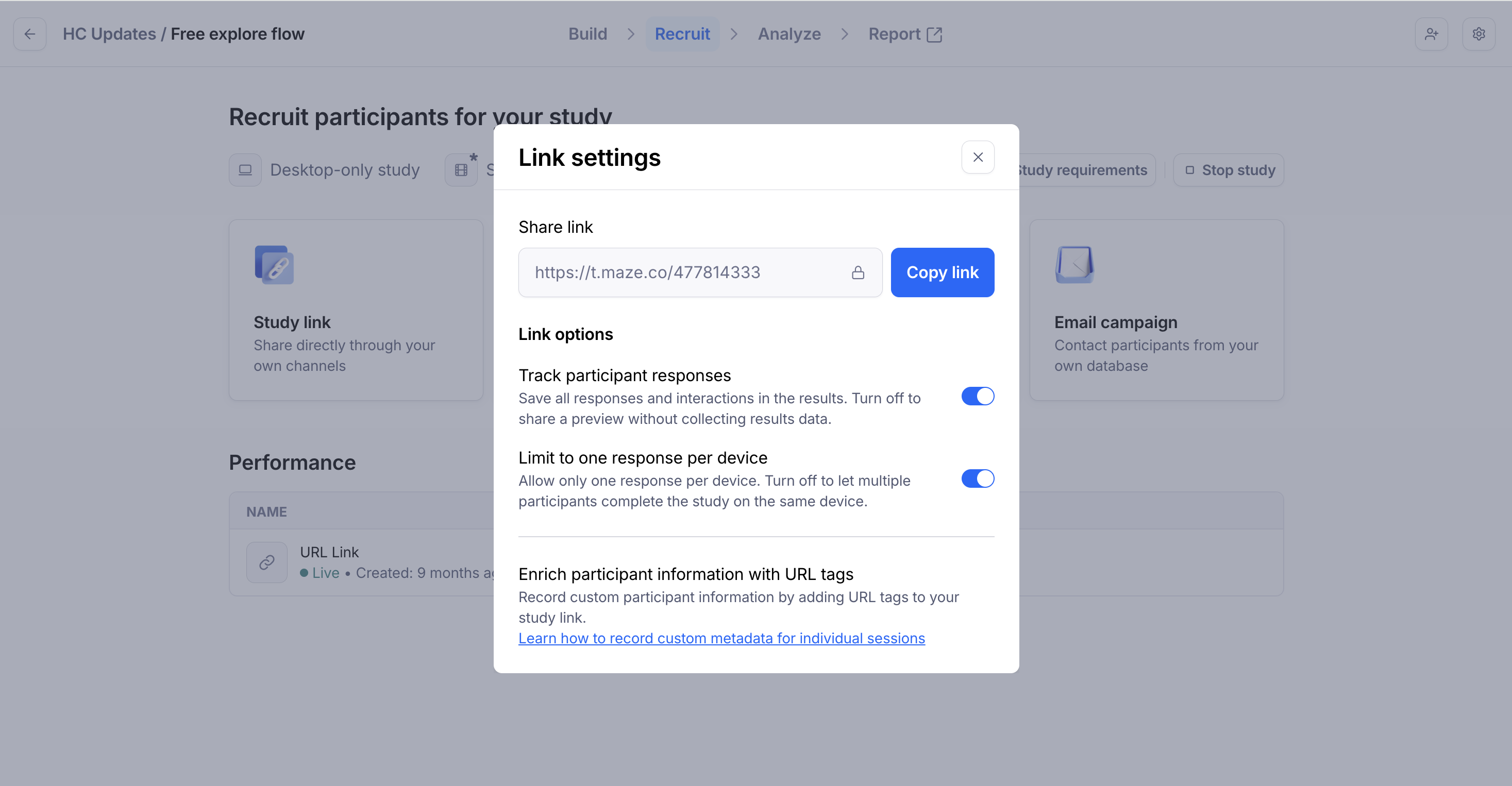
Track participant responses
Save all responses and interactions in your results. Turn this off to share a preview without collecting results data.
It might be useful to toggle off this option when sharing a preview of your live study internally (to coworkers or friends, for example) and you don’t want those interactions to be recorded.
To disable participant tracking, switch the the toggle to off in the link settings, or add the ?notrack=true parameter to your study link.
Disabling Track participant responses creates a preview link. Those responses won’t be recorded, and won’t appear in the results dashboard.
Limit to one response per device
By default, Maze allows only one testing session per device. However, you can change this behavior to test with multiple users on the same device.
This may be useful for you when doing guerrilla usability sessions or in-person testing with multiple participants on a single device.
To disable unique sessions, switch the toggle to off under Limit to one response per device, or add a ?guerilla=true parameter to your study share link.
Please note that it’s not possible to disable unique sessions on studies sent via Reach campaigns.
If you want to test on a mobile or tablet device, you can use the Maze Participate App to do this very easily. Learn more: Testing on the Maze Participate mobile app
URL parameters
You can also add URL parameters/tags to your study link to record custom metadata about individual sessions.
Learn more about URL parameters
Sharing a preview link for your unpublished study
You can also send a preview link for a draft unmoderated study. To do so, follow the steps to access the Preview mode in the study builder, then copy the preview URL, which looks like this:
https://app.maze.co/maze-preview/mazes/000000You can use this preview link to have your team members review your study, even without them having to sign in.
Controlling who can access your preview
Preview links have their own privacy setting, independent of live testing. When you open a preview, you'll see a Share button in the header where you can set the visibility and copy the link.

There are two settings:
Private (default): The preview link is disabled for anyone outside your team. Team members can always access previews regardless of this setting.
Public: Anyone with the link can view the preview, including non-workspace members in private workspaces.
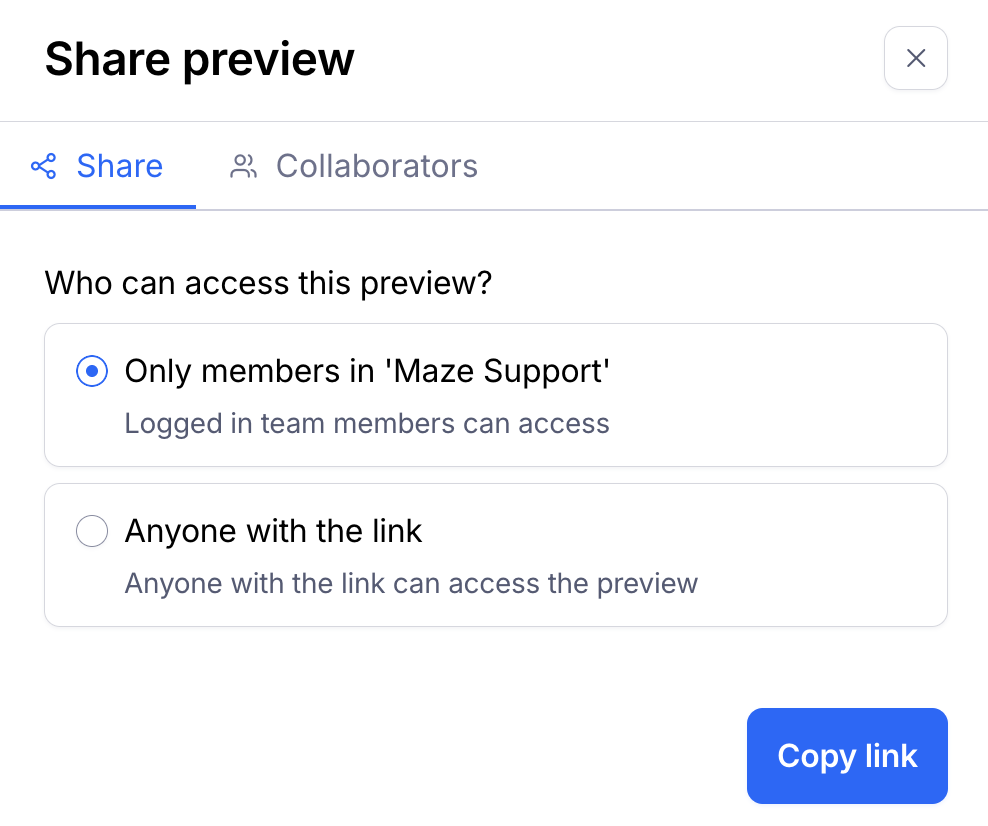
Changing the preview privacy setting does not affect live testing — participants can still access and complete the study as normal. Both new and existing unmoderated study previews are set to private by default.
For private workspaces with role-based access control (RBAC): If the preview is set to private, authenticated users who are not workspace members will see a "Workspace access required" message instead of the preview content.
Why are my sharing options disabled?
Sharing options aren’t available for studies where result collection has been stopped.
Instead, you’ll see the following tooltip:
Share option disabled for stopped study. Please start the study to enable sharing.Before sharing your study, you’ll need to restart the study once again.