Adding tags/parameters to your study URL
Last updated: September 4, 2026
Maze allows you to add tags/parameters to your unmoderated study URL to record custom metadata on individual sessions.
Use cases
Communication. You can use parameters to identify the source of your participants (e.g. social media, website, ads)
Participant identification. If you already know who your participants are, you can use URL parameters to generate a unique participant link and pass in identifiable data about the participant (such as name, gender, etc.) in your results. This approach works best if using a third-party service to send out the study links that allows you to pipe the identifying information into the share link. Learn more about generating custom URLs
Completion tracking. If you need to track who completed your study (for example, for compensation purposes), you can pass an external participant ID as a URL parameter.
Language settings. You can force the testing UI to be translated into any supported language by adding a language parameter to the URL. Learn more about changing the language of the test interface
Disable participant tracking. This can be useful when sharing/testing your live study internally, and you don’t want those interactions to be recorded. To disable participant tracking, add the
?notrack=trueparameter to your study link. Learn more about sharing optionsDisable unique sessions. This can be useful when testing with multiple users on the same device. To disable unique sessions, add the
?guerilla=trueparameter to your study link. Learn more about sharing options
Before you start
You can only use tags when sending the study URL to your own participants. URL tags aren’t available when using Maze’s panel of hired participants.
URL tags aren’t supported when sending out Reach campaigns.
The tags
id,createdAt,emailanduserIdare already in use. Please don’t use them as they won’t register your information.
How to add parameters to your study URLs
Maze uses a simple nomenclature to help you record data. To add your own URL parameters, you’ll use the following nomenclature: ?key=value
This is an example of a study share link:
t.maze.co/74641933You’ll manually add your parameters to the URL.
This is the same study share link with a custom parameter:
t.maze.co/74641933?source=slackBy sending that second URL to a participant, Maze records the following additional information in the Results dashboard:
Source: Slack
Generating custom URLs
You don’t need to add tags manually to each link you send.
If you send your test links via a third-party tool, they may have features that allow you to pipe the custom data in to the URL dynamically.
For example, you could send out URLs that include the following (example) syntax:
t.maze.co/74641933?name={{firstName}}&gender={{gender}}While we don’t directly support or endorse them, there are several products you may use to generate and distribute custom URLs, including:
You can chain as many static and/or parameters as needed — Maze automatically associates that data with your participant. For example:
t.maze.co/74641933?source=slack&name={{firstName}}&participantid={{Id}}...To pass this information back to the original panel provider, you can set up a redirect at the end of the study.
Finding parameters data in the Results dashboard
Once a participant completes a task, the recorded data appears on the Results dashboard which can be accessed from the Analyze tab. Learn more about the Maze results dashboard
Here’s how to view the parameters data:
Once you’ve started receiving responses, open your Results dashboard.
Navigate to the Participants tab.

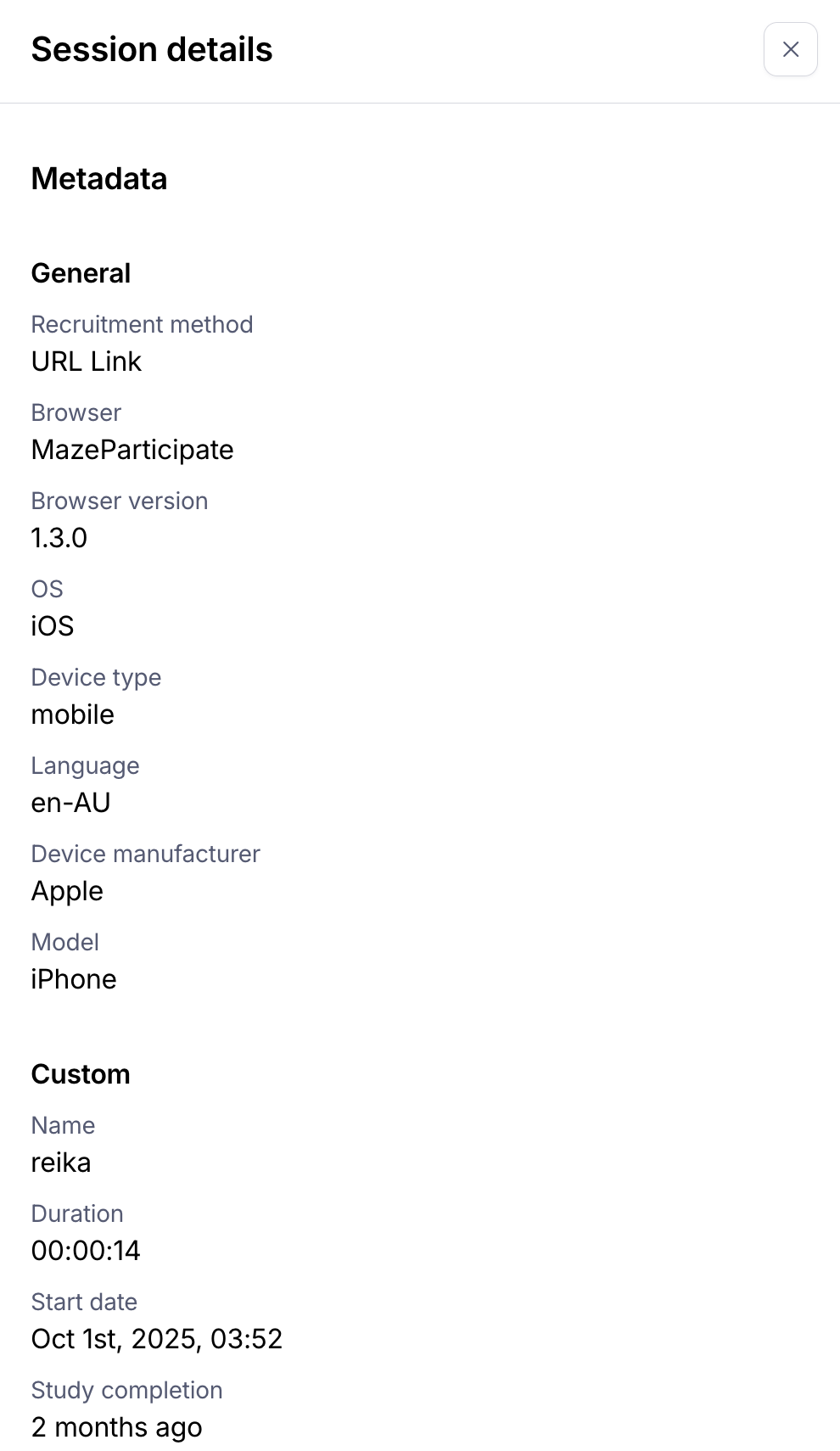
To the right of the participant number, click Details to reveal the metadata recorded for that participant.
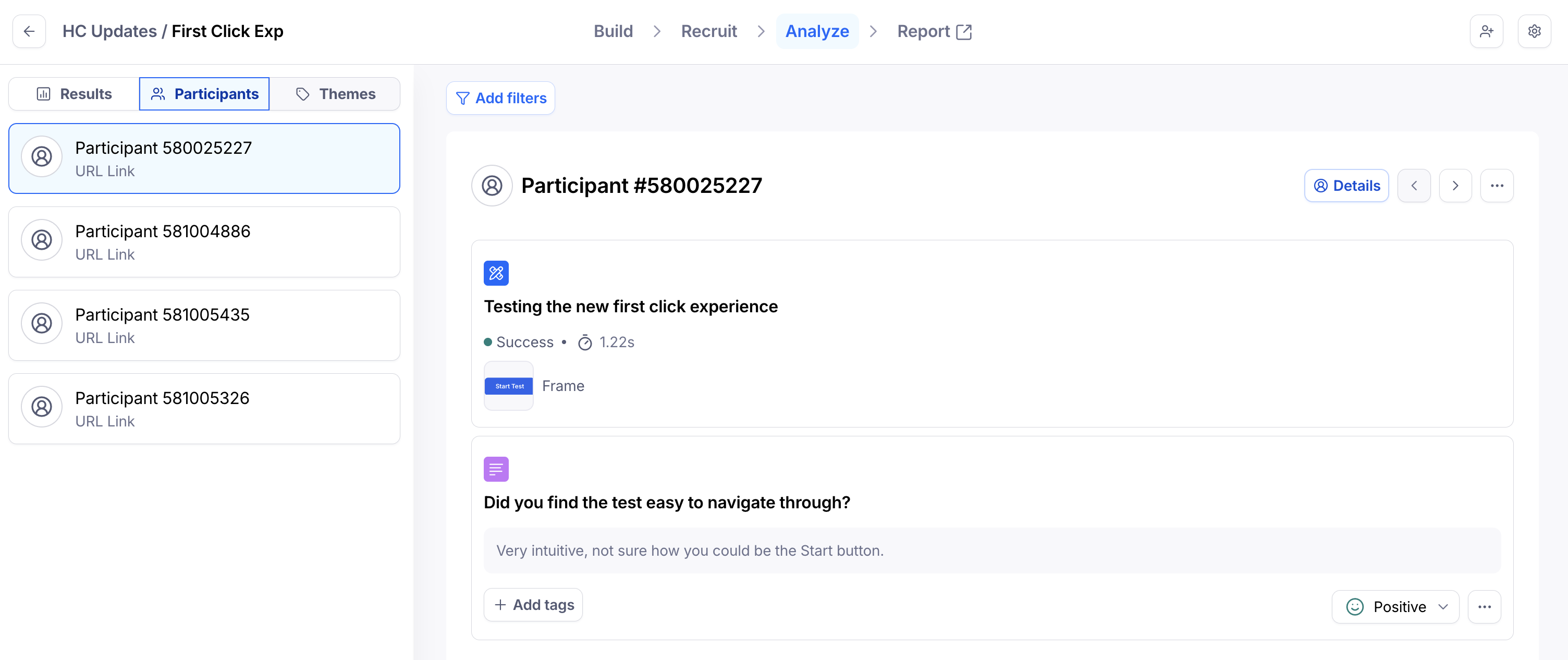
Any data passed from the parameters will be visible under the Custom section.
It isn’t directly possible to apply recorded metadata as filters in the Results dashboard. However, if you’re on a paid plan, this data is accessible in the full .csv export. You can use the filter function in your spreadsheet application (such as Google Sheets filters) to achieve this.
Exporting
If you’re on a paid plan, the data passed in the URL parameters is also available in the full .csv export.
You’ll find it in a single JSON object, under the meta column in the exported file.
Still need help?
If you have any questions or concerns, please let our Support team know — we'll be happy to help!