Sharing and exporting your maze reports
Last updated: August 4, 2026
Team members can share reports with external stakeholders who don’t have a Maze account. You can use a public link, embed the report in your preferred tools, or download it as a PDF.
Who can use this feature
Users on all plans can access reports and share/embed them using a public link.
Exporting reports as PDF requires an Enterprise plan.
Private reports are an Enterprise plan feature.
Only team members can download reports. Collaborators do not have access to this feature. Learn more about the available roles and permissions
How to share reports
To share a live version of the report, open the report page of your published study and click Share report. The report viewer will always view the latest version of the report, even if new responses have been added to the results.

Sharing a private report link (Enterprise plan)
If you're on the Enterprise plan, your reports are private by default, so that only authenticated team members can open them.
To make a report private, select Only members in 'Team'. If the project is located in a private workspace, this option appears as Only members in 'Private workspace'.
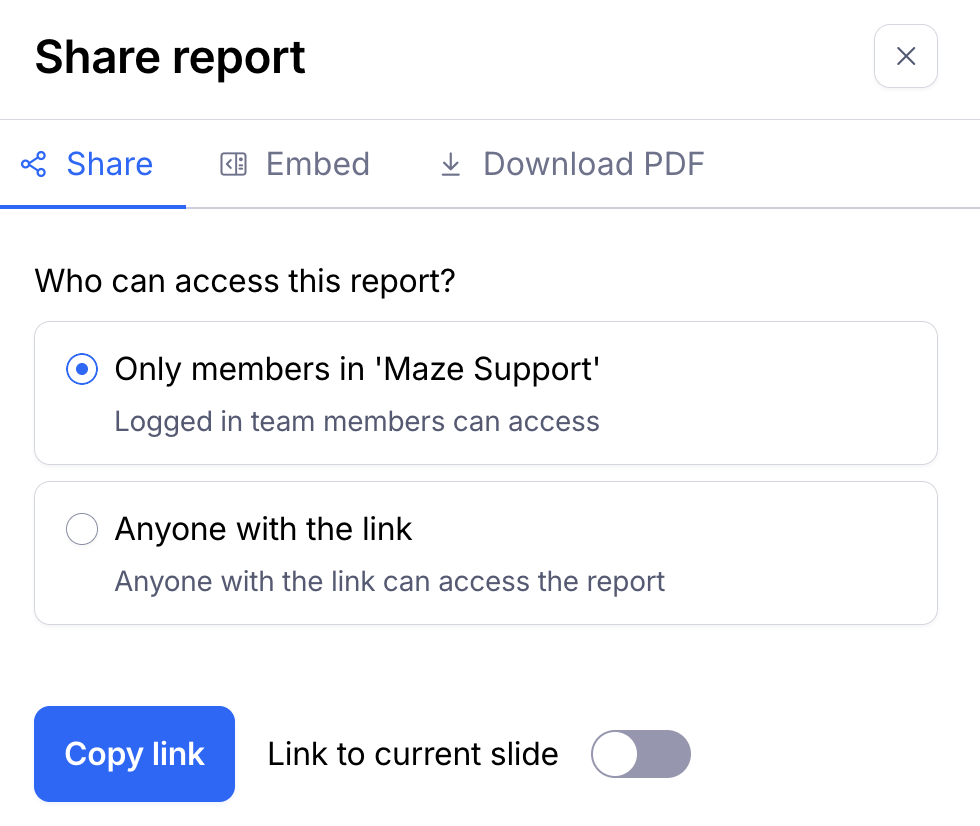
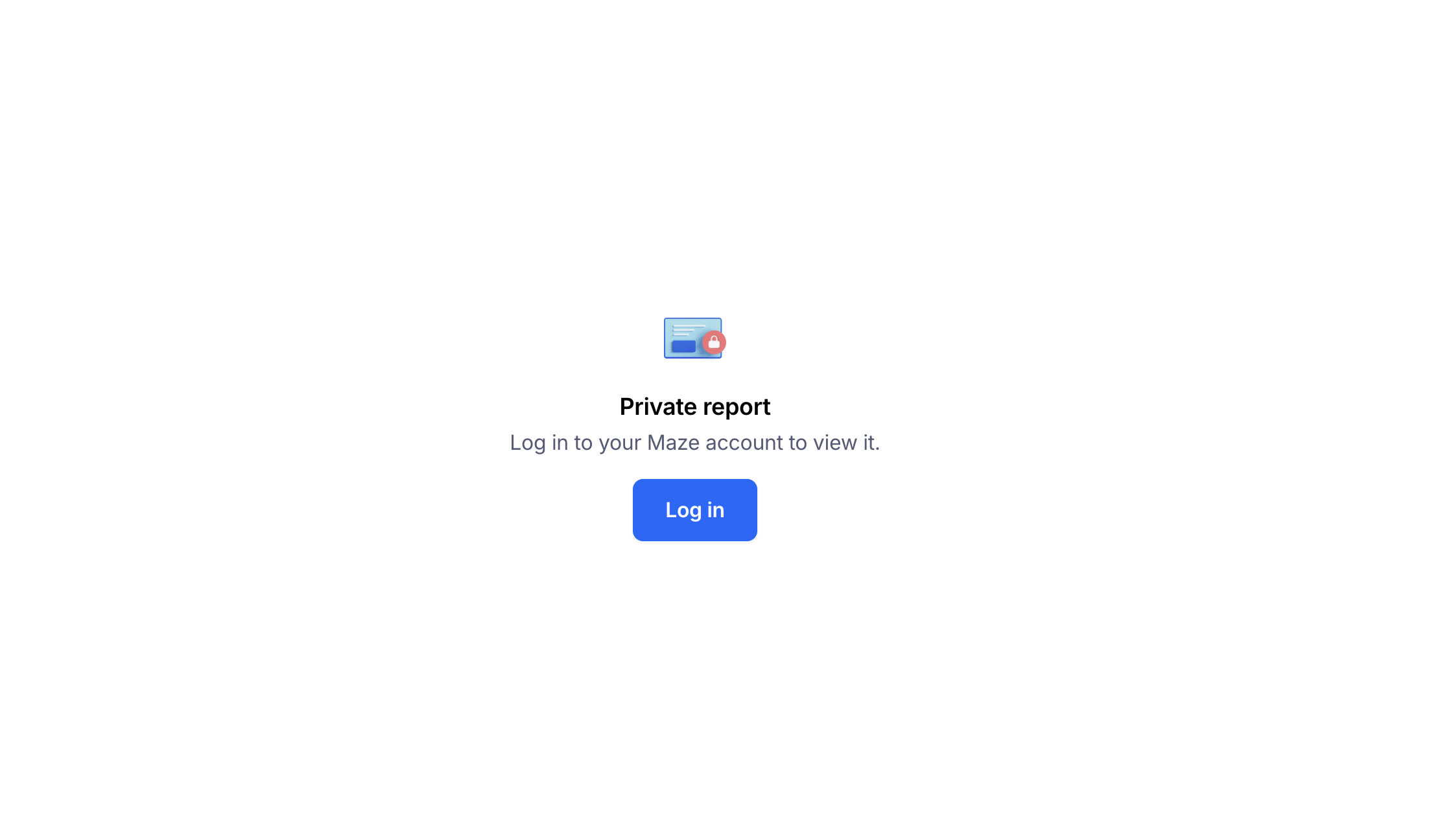
When opening a private report, unauthenticated users will be prompted to log in in order to view it. Only authenticated team members can view the report.
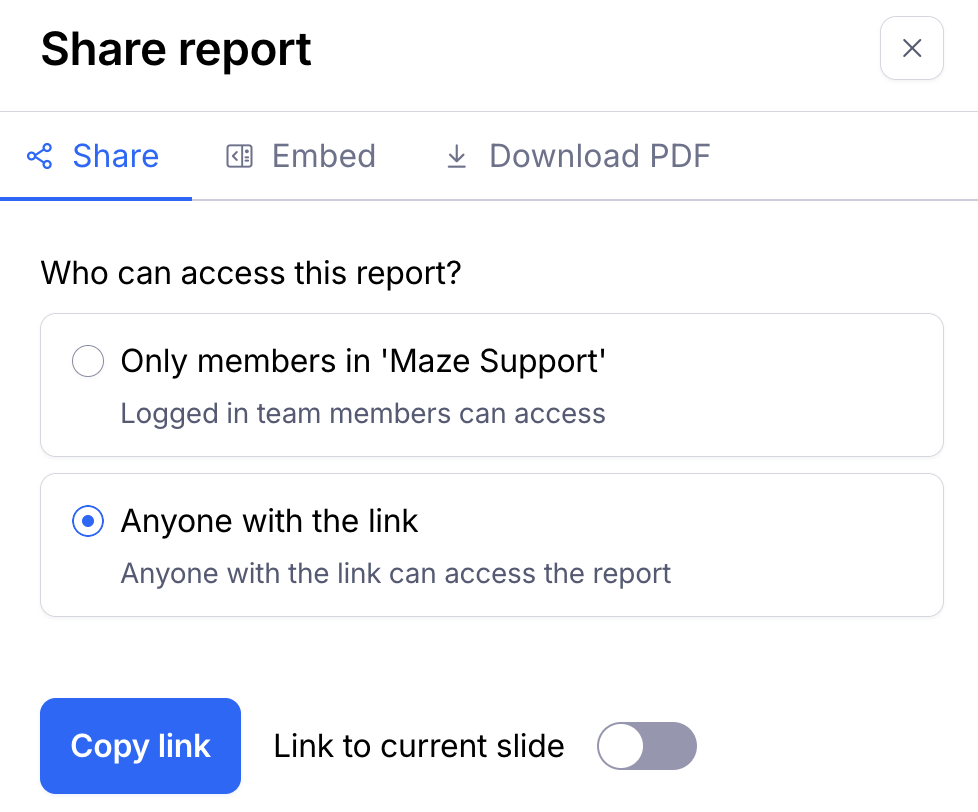
Sharing a public report link
To make the report publicly accessible, without the need of a Maze account, select Anyone with the link.
This is the default option if you're not on the Enterprise plan.
How to embed reports in other applications
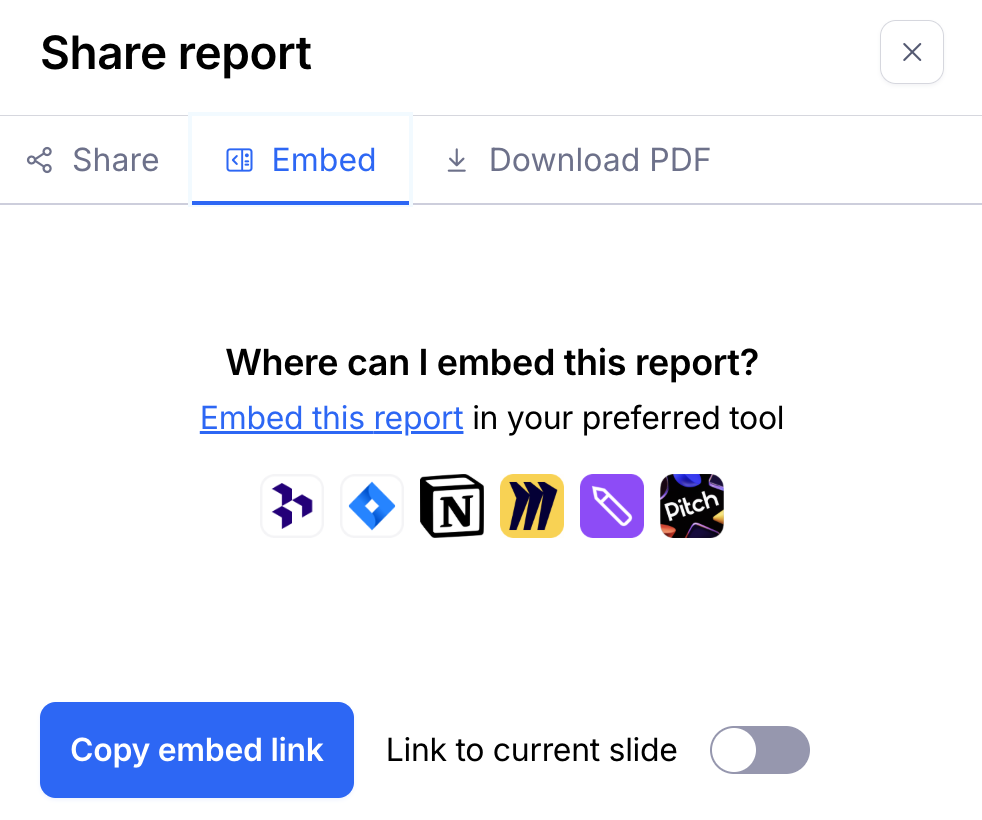
Embedding a report allows your team to view the content of report slides directly from your team's tool of choice.
Learn more about embedding your report links
How to download a PDF version of the report
Before you start:
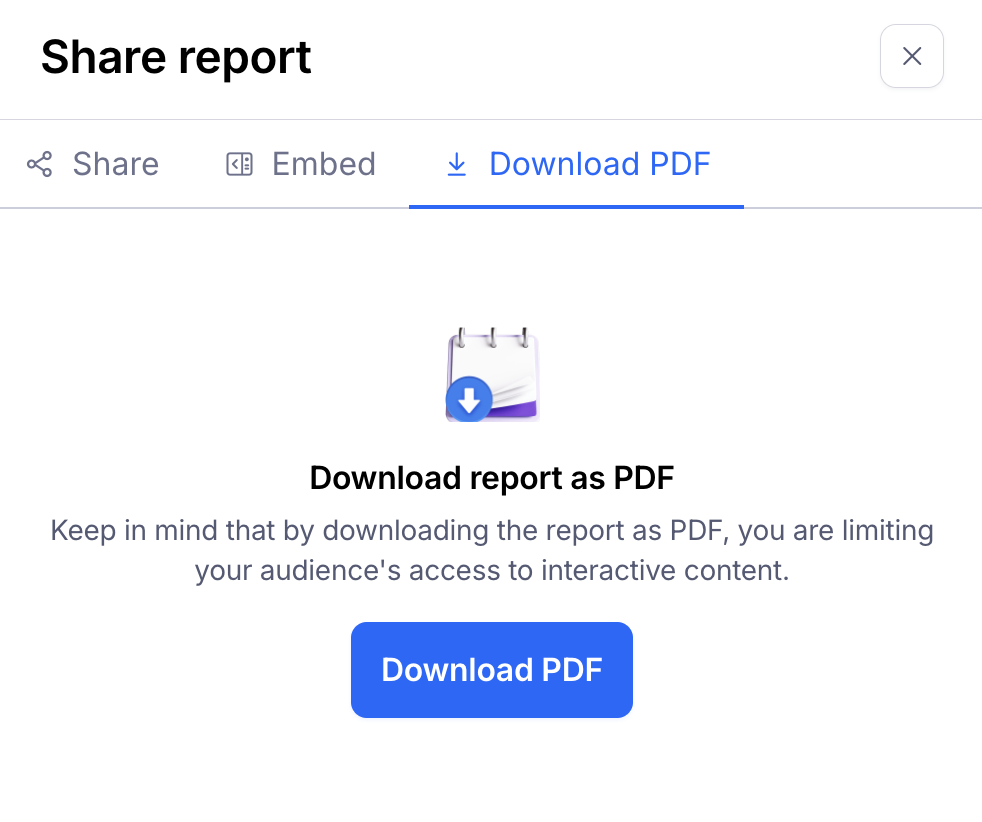
When downloading as a PDF, you won’t be able to use the interactive features of the report. For the full live version, please refer to the online version of the report.
Open question slides will only show up to 15 quotes.
To export an offline version of the report as a PDF:
Open the report page of your published study.
Click Share report.
In the share modal, open the 'Download PDF' tab, then click the Download PDF button.
Still need help?
If you have any questions or concerns, please let our Support team know — we'll be happy to help!