Filtering your results
Last updated: August 4, 2026
It’s often helpful to refine the results data to help answer specific questions. Filters allow you to narrow down your results data based on participant metadata or by block answer/outcome.
Who can use this feature
Results filtering is available on the Enterprise plan.
Apply filters
Please note:
Filters work at the user level, not at the team level. That means that a filter is only visible to the individual user who applied it.
Applied filters can’t be saved for later. Refreshing or moving away from the page will remove any applied filters.
To apply a filter to your results:
Navigate to the Analyze tab and then select the Results tab to open the Results dashboard.
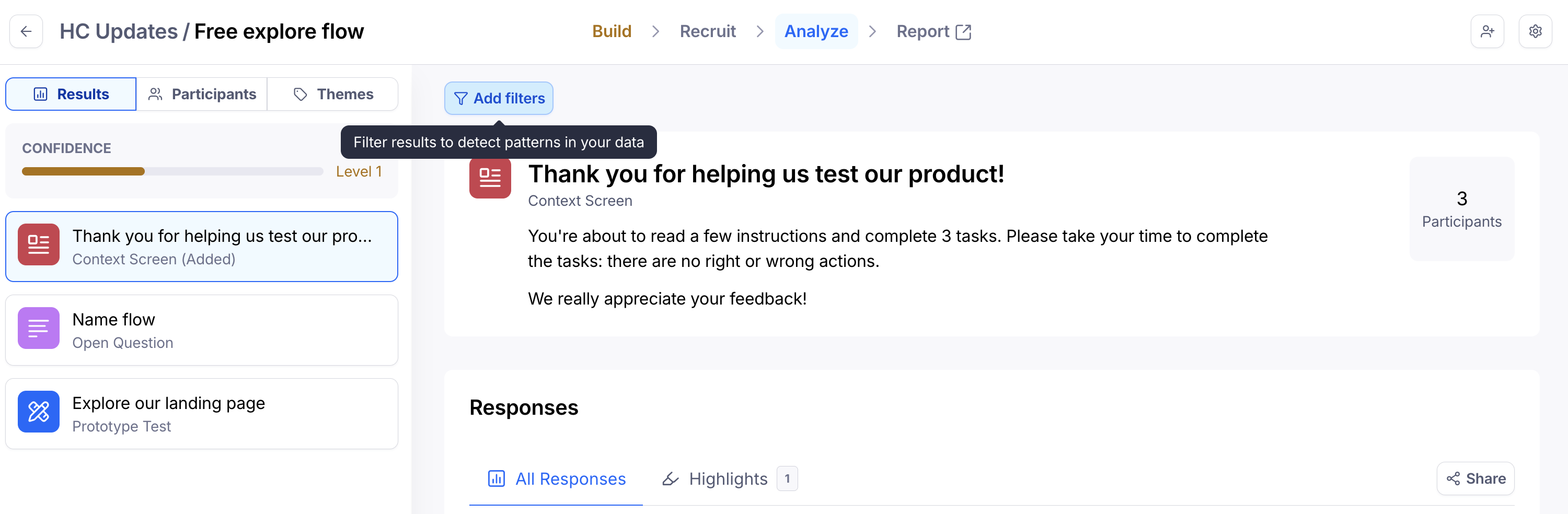
At the top of the results data, click Add filters.
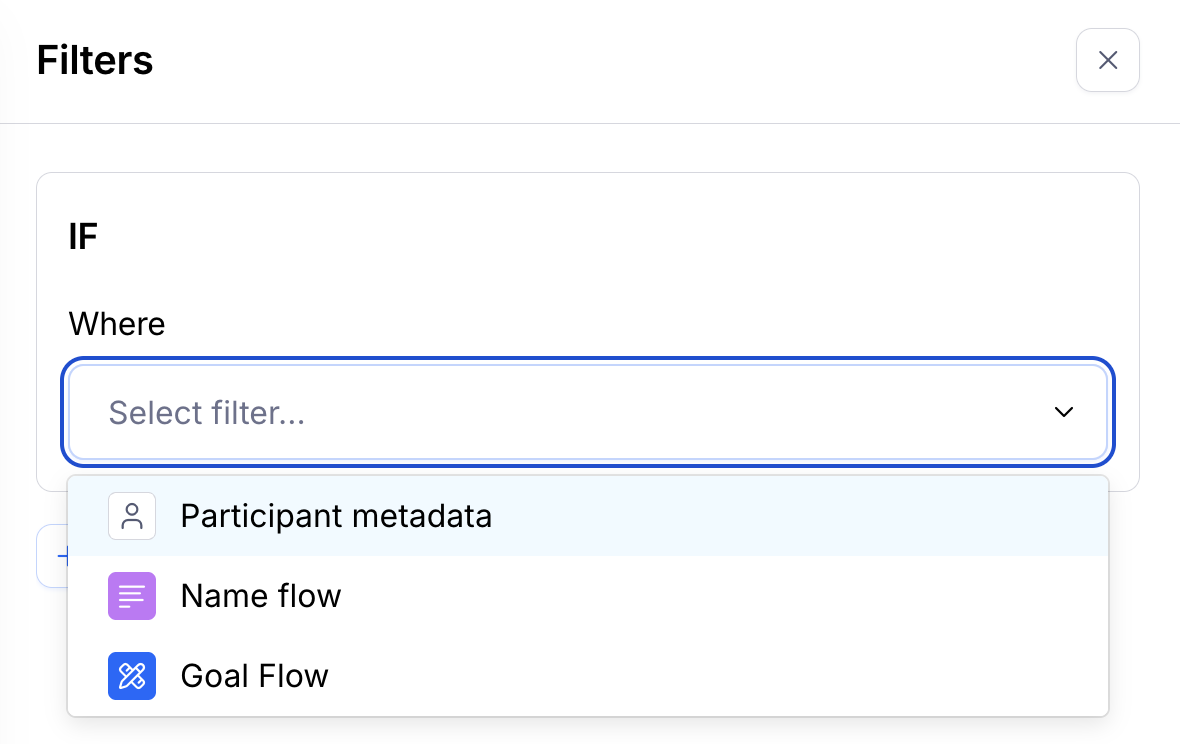
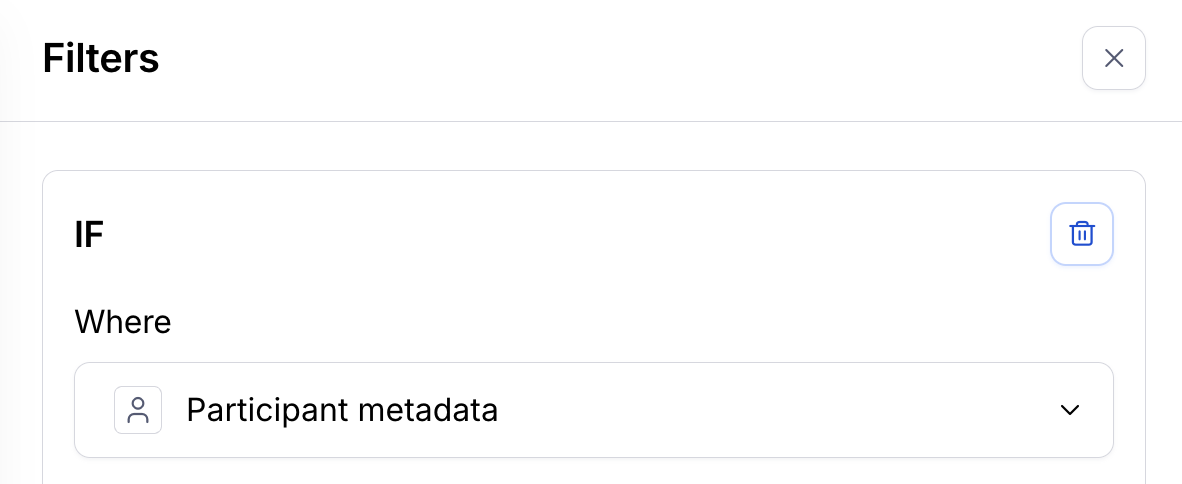
Select either ‘Participant metadata’ or a block in the Where field. Please note that certain block types can’t be used to filter by outcome. Learn more
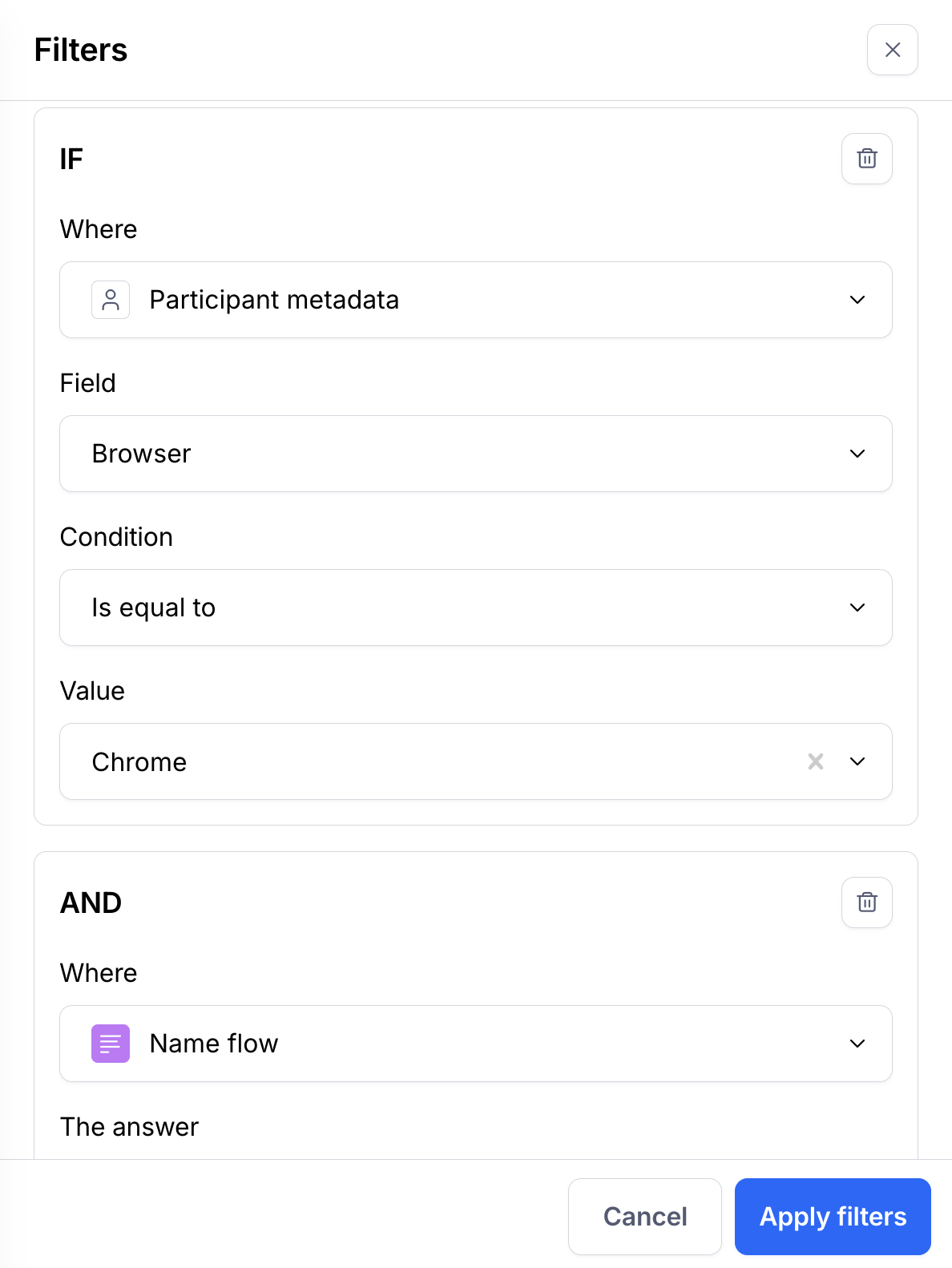
To select an additional filter, click + Add filter. This will create an AND condition for your filter. Currently it isn’t possible to add OR conditions.
When you’re ready to view the filtered results, click Apply filters.
Remove filters
To remove a filter you’ve previously applied:
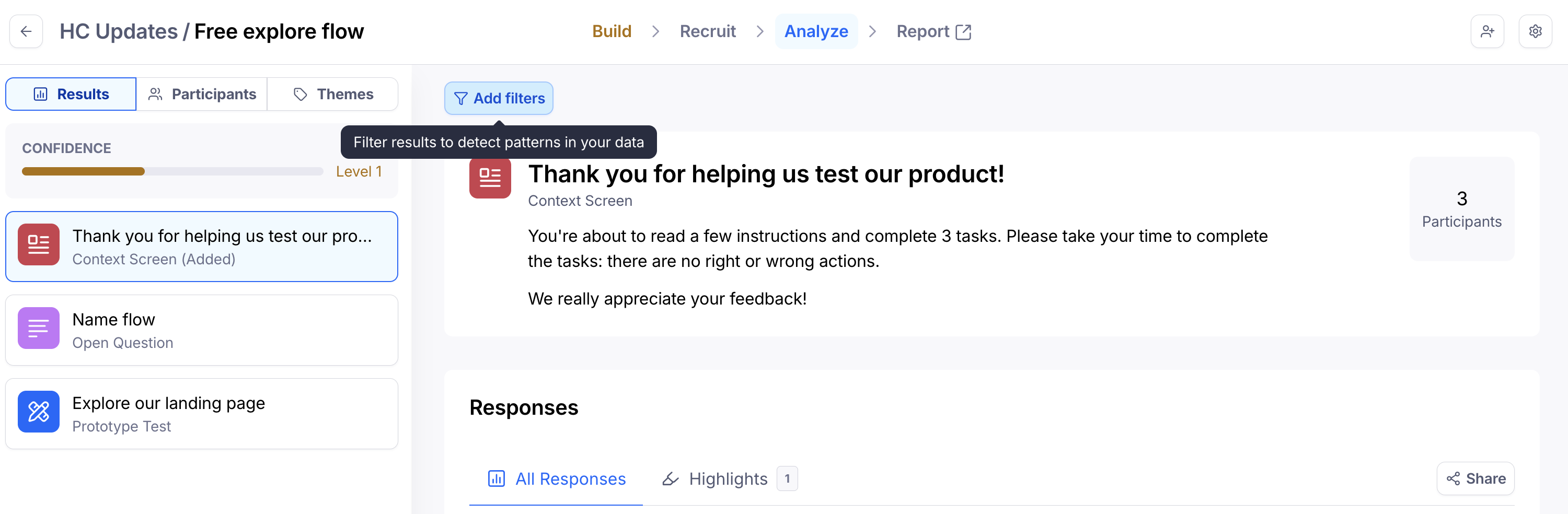
At the top of the results data, click Add filters.
Click the Delete icon next to the filter you'd like to delete.
Click Apply filters.
Filter options
You can filter by participant metadata or by block answer/outcome.
Please note that certain block types can’t be used to filter.
Participant metadata
You can filter by the following participant metadata:
Device and browser
Browser
Browser version
Device type
Device manufacturer
Model
OS
Identifiers
Language
Participant ID
Session details
Duration
Recruitment method
Study completion
Start date
At the moment, it isn’t possible to use custom metadata as a filtering option.
Prototype Test
Prototype test filters allow you to filter by outcome. The outcome options will look slightly different depending on whether the task was set up using success paths, or screen-based success.
If you’ve defined a success screen for your prototype:
Didn’t succeed: The participant didn’t reach any of the final screens you specified.
Succeeded: The participant completed the task by reaching one of the final screens you specified.
Misclicked: During the test, the participant clicked/tapped outside a clickable area (i.e. hotspot). In a live product, a misclick would have taken the user to an “incorrect” page.
If you’ve defined specific success paths:
Didn’t succeed: The participant didn’t reach the last screen of any of the paths you’ve set.
Succeeded directly: The participant completed the task via an expected path.
Succeeded indirectly: The participant completed the task via an unexpected path, but still reached the final screen.
Took a specific path
Misclicked: During the test, the participant clicked/tapped outside a clickable area (i.e. hotspot). In a live product, a misclick would have taken the user to an “incorrect” page.
Filters aren’t available for free explore prototype tests, since there isn’t a way to determine the outcome in these types of tasks.
Yes/No
Yes/No block filters allow you to see only responses from testers who selected either “Yes” or “No” to a specific question.
Opinion Scale
Opinion Scale block filters allow you to filter responses within a range—e.g. only see responses from testers who answered between 1 and 2.
Multiple Choice
Multiple Choice block filters allow you to filter either by a single choice, or by a combination of choices.
Open Question
Open Question block filters give you the option to filter responses that
Contain or don’t contain a specific text string
Are associated with a specific sentiment (Positive, Negative, or Neutral)
Have been skipped
Blocks that can’t be used to filter
Results filtering isn’t available for the following blocks:
These blocks are disabled in the filters list with the following message:
This block doesn’t support filters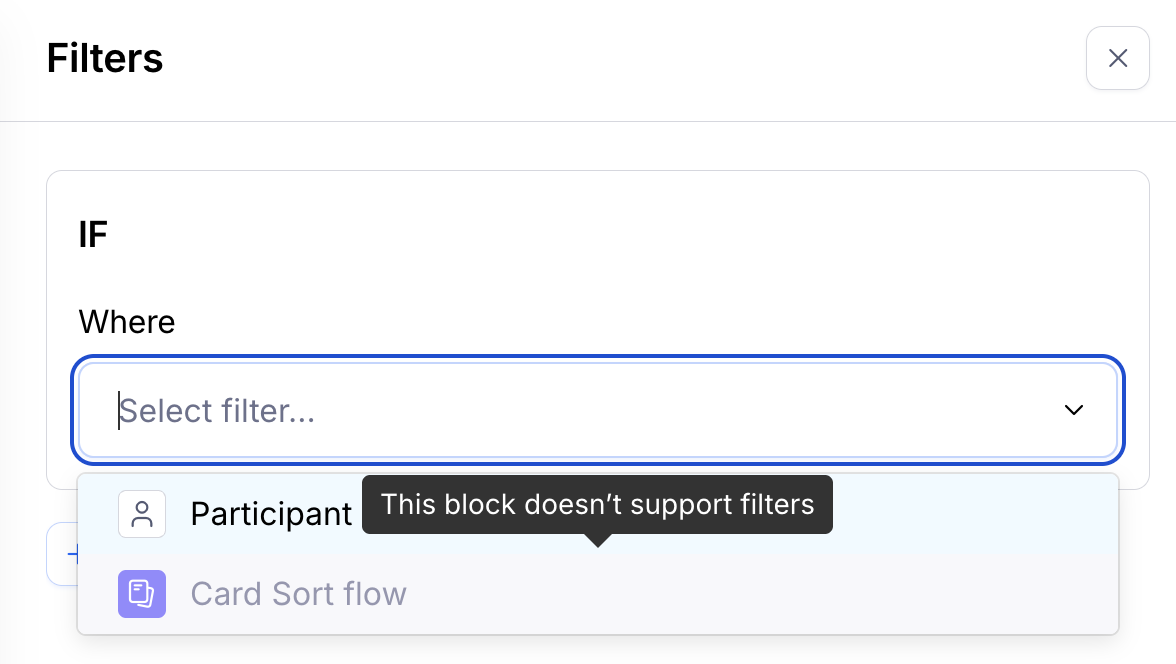
Still need help?
If you have any questions or concerns, please let our Support team know — we'd be happy to help!