Testing password-protected Figma prototype
Last updated: October 30, 2026
Who can use this feature
Testing password-protected Figma prototype is available to users on the Enterprise plan.
Current limitations
Researchers: You must be an editor in Figma to import a password-protected prototype.
Participants: Incognito mode isn’t supported. If participants open the study in an incognito window, they’ll be able to input the password, but they won’t have access to the prototype.
Participants: Safari isn’t fully supported. Instead, participants should use Chrome, Firefox, or Edge.
Researchers: Importing a password-protected prototype
To import a password-protected prototype:
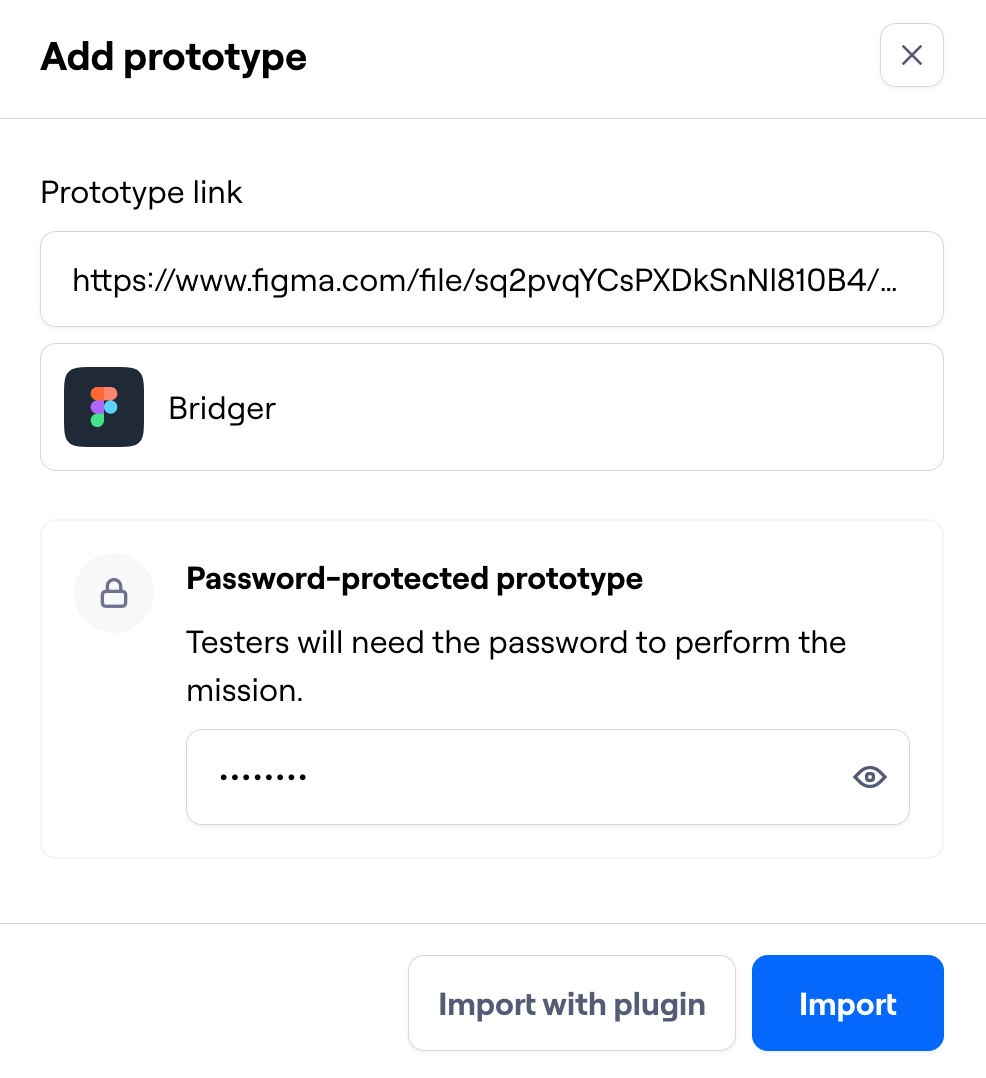
Add a prototype test block and import your Figma prototype.
If a password-protected link is detected, you’ll be prompted to enter the password.
Participants: Interacting with a password-protected prototype
Here’s how a password-protected prototype looks like to participants:
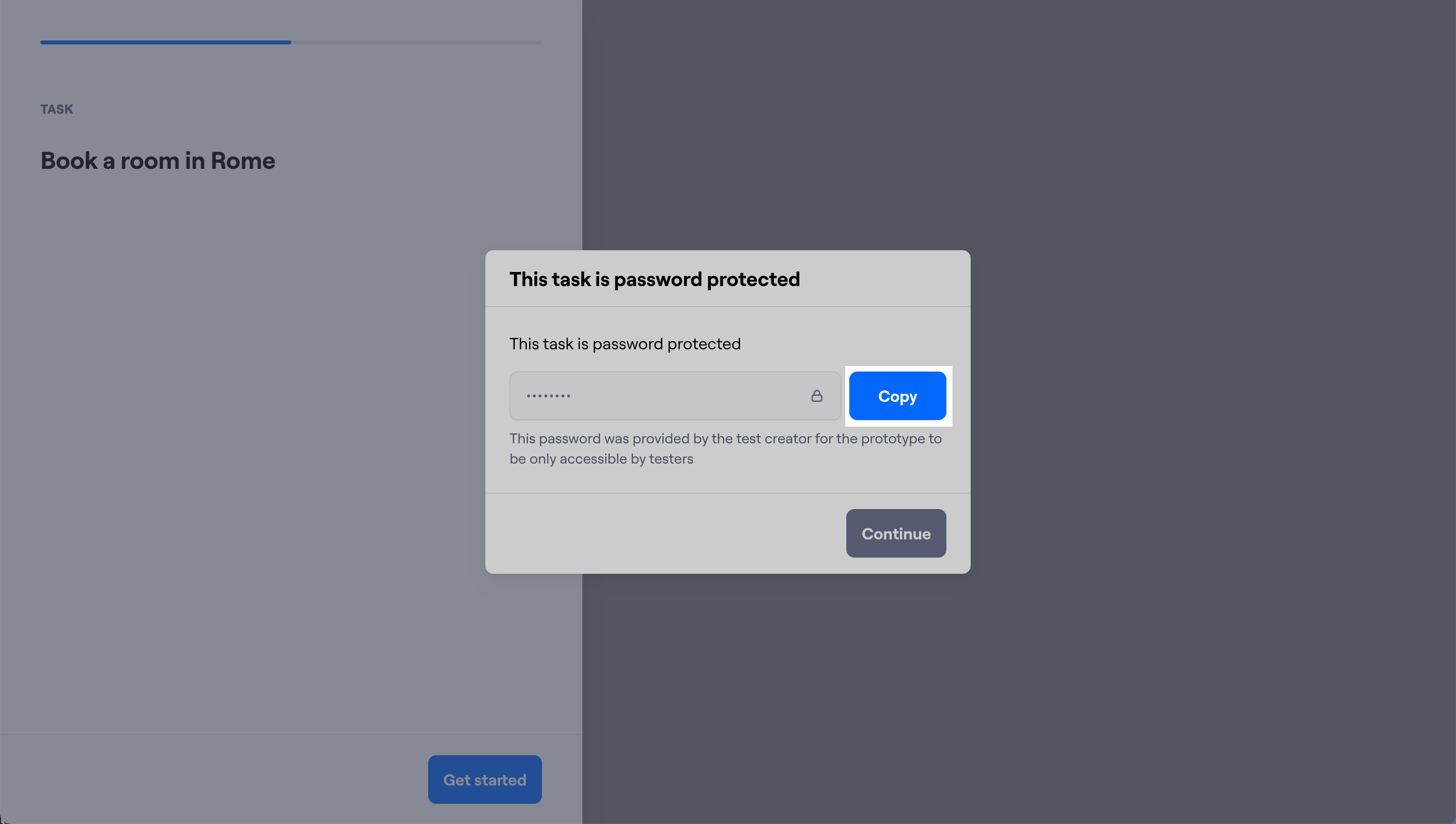
Upon starting the prototype task, participants will see a screen warning them that the prototype is password-protected. They must click the Copy button to copy the password, before clicking Continue.
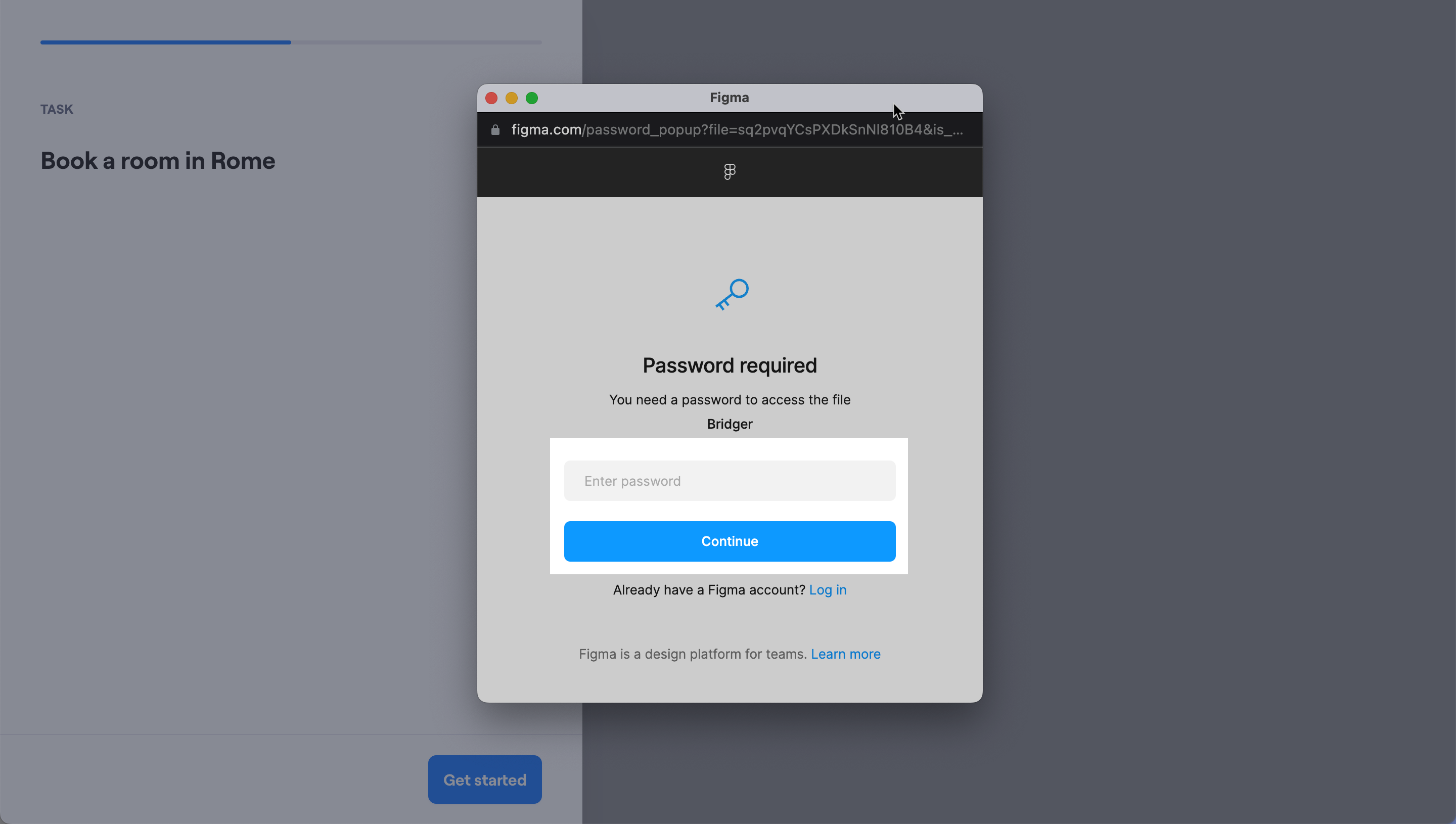
A Figma pop-up will open. In this pop-up, participants should paste the password copied in the previous step and click Continue.
Once that is done, they’ll be able to interact with the screens to complete the task.
Still need help?
If you have any questions or concerns, please let our Support team know — we'd be happy to help!