Importing a Figma prototype
Last updated: April 23, 2026
Collect actionable design and usability insights to build better products.
If you use Figma to design and build your prototypes, you can import them into Maze to test your designs with users.
Create a testing page
To take advantage of the fast and efficient testing provided by Maze, we recommend creating a dedicated page for testing. This ensures shorter loading times and decreased payload for participants.
Learn how to create a lightweight page to test in Maze
Setting the correct permissions in Figma
File permissions
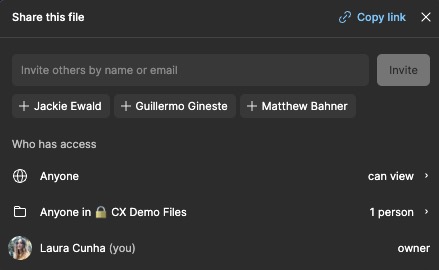
You must set a supported permission for your Figma file. Otherwise, the import will fail.
Updating these settings after import will prevent participants from opening the study.
Learn more about the supported permissions for importing and testing Figma prototypes
Password protection
Importing password-protected Figma share links into Maze is available to Enterprise plan customers.
Learn more about importing password-protected files
Importing a Figma prototype into Maze
Before you start:
To import a Figma prototype, you must have a Figma account.
To import your prototype into Maze:
Open the study where you want to use the Figma prototype.
Add a prototype test block. Learn all about prototype testing in Maze
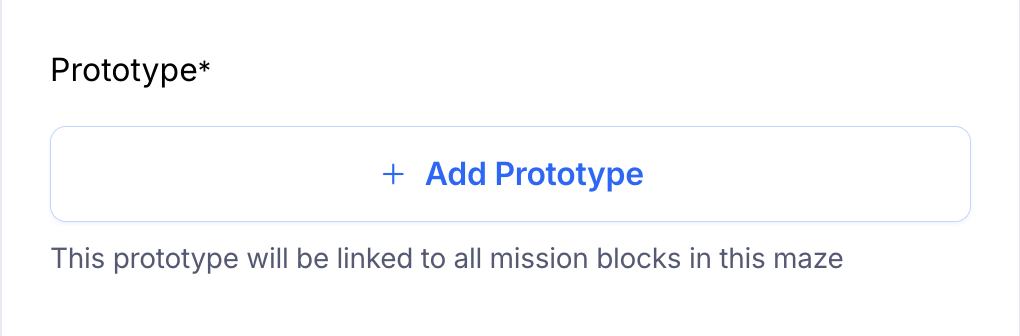
Click Add prototype.
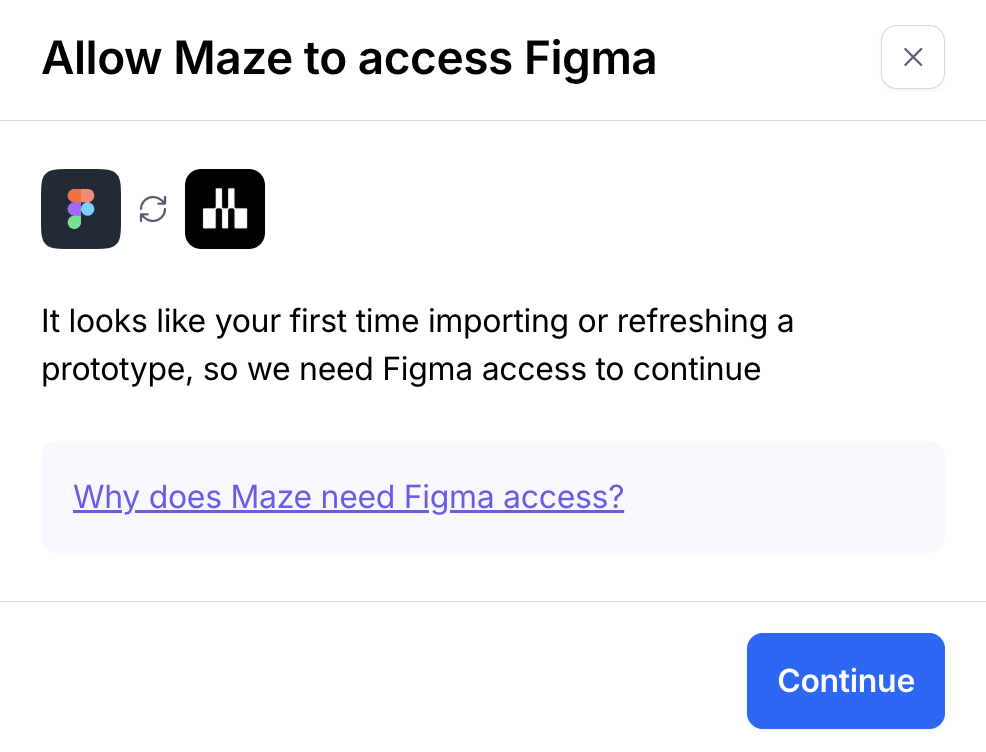
If importing for the first time, or have disconnected Maze from Figma, you'll be prompted for Figma access. Click Continue and follow the flow to login to Figma and Allow access. What Figma data can Maze access?
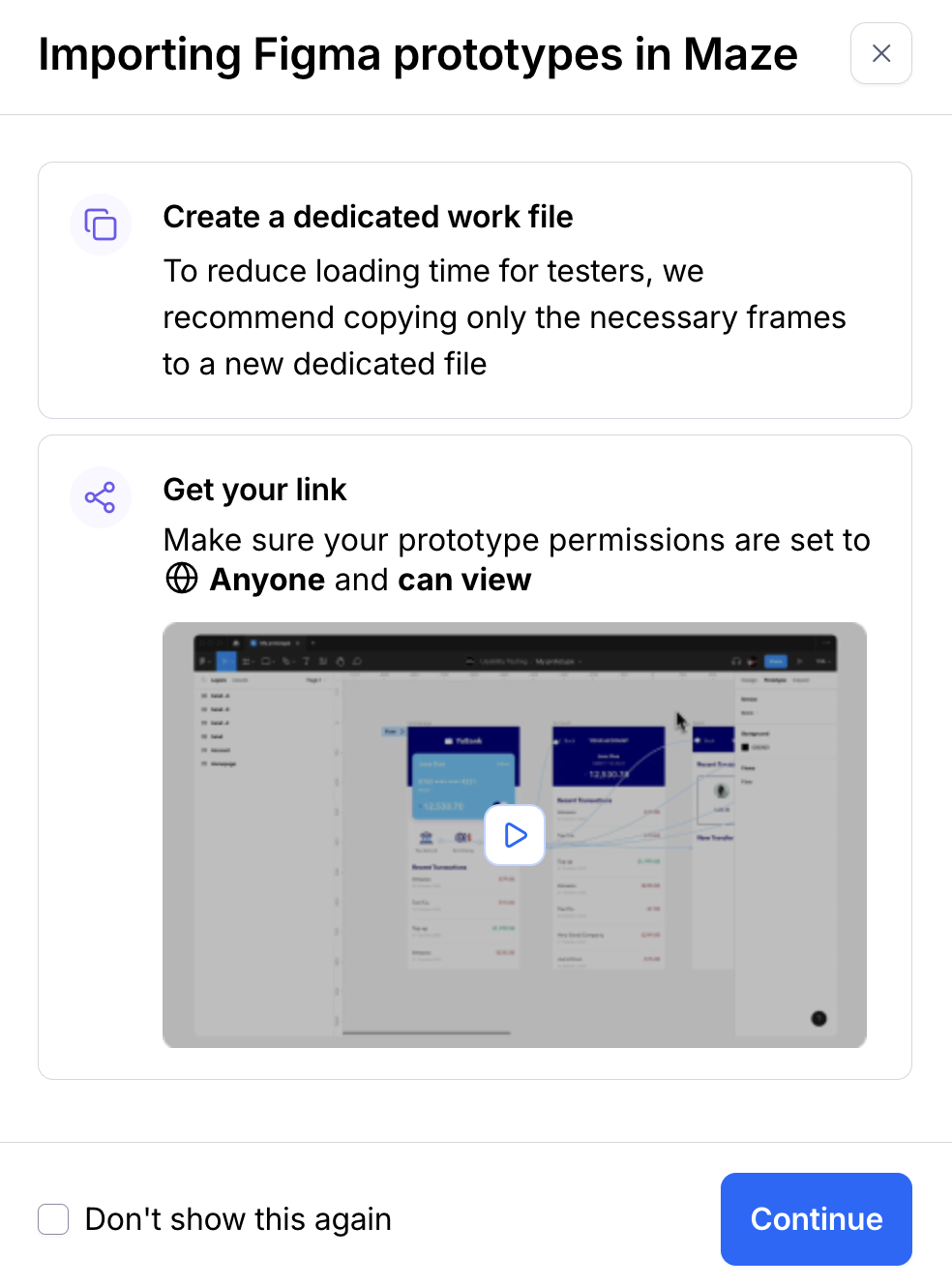
Review the import instructions and click Continue.
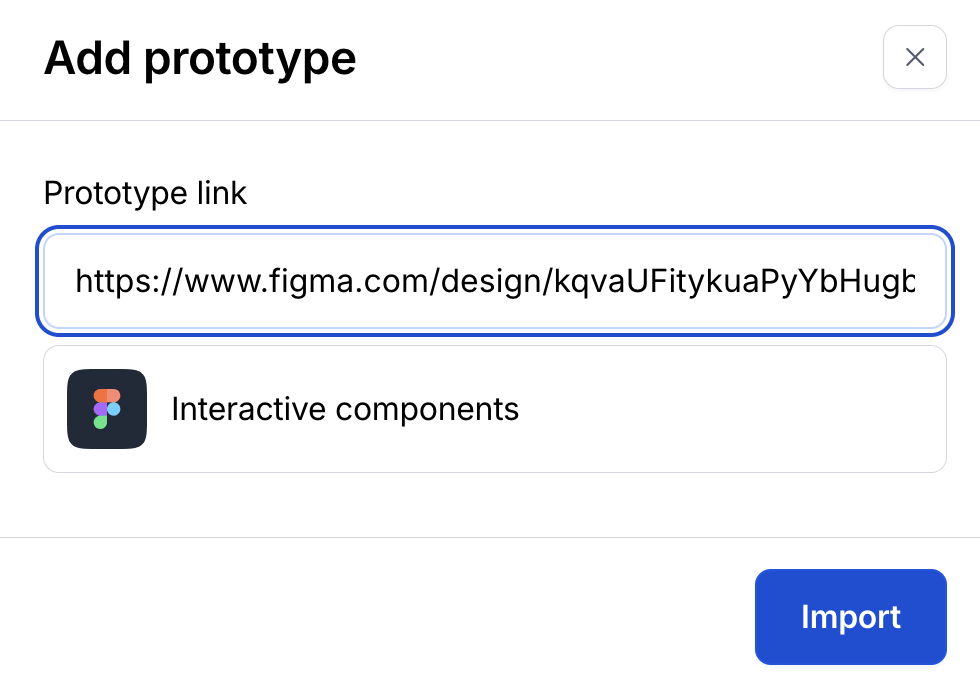
Paste your Figma prototype link. Please ensure that your file permissions are set to Anyone and can view. Learn more about the supported Figma permissions
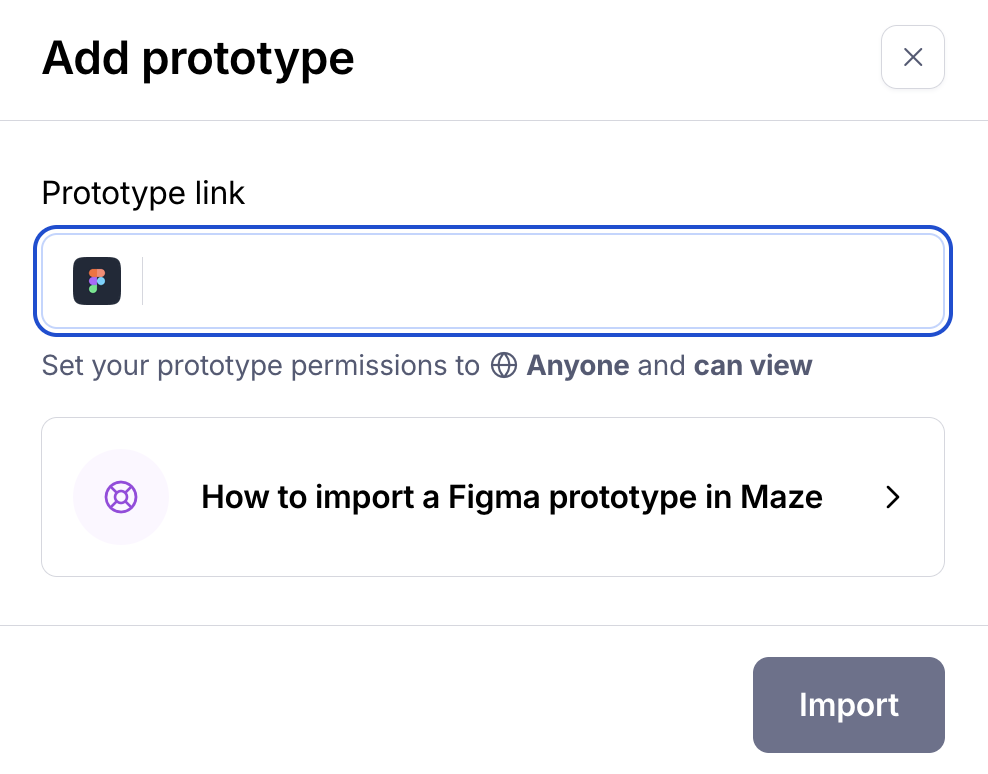
Once the prototype finishes loading, click Import.
You can also add other block types to your test as needed—e.g. to include any follow-up questions. Learn about the blocks you can use in Maze
Note: This flow for importing prototypes is only for Unmoderated studies. If you need to share a prototype link or any other testing assets in a Moderated study, the best way to do so is via your Zoom (or selected conferencing room) chat.
Maze settings
Click the Settings icon in the top right corner to access the study settings—e.g. prototype scale, maze password protection.
Troubleshooting
When importing and using Figma prototypes, you might run into certain issues. Follow our advice to ensure your prototype works as expected in Maze.
Learn more about troubleshooting Figma errors
Still need help?
If you have any questions or concerns, please let our Support team know — we'll be happy to help!