Showing images and videos alongside your questions
Last updated: November 17, 2026
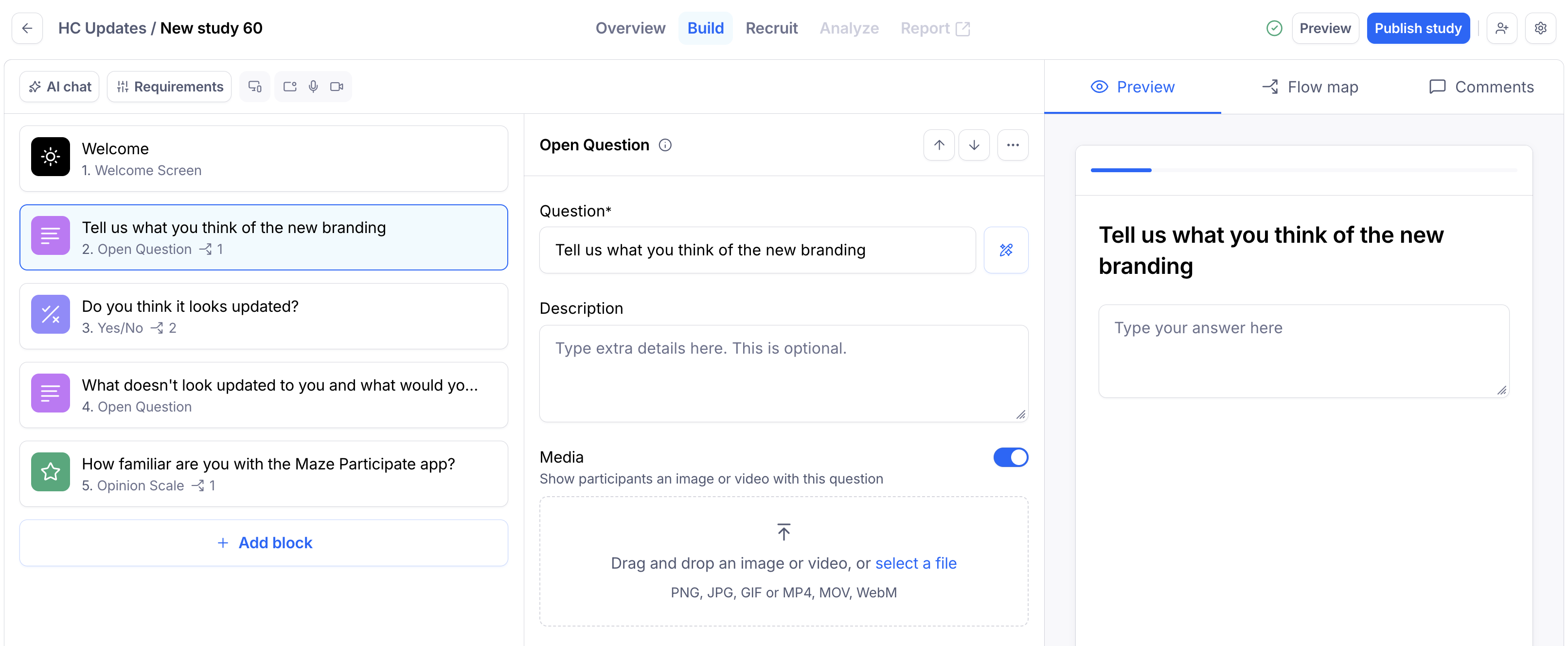
You can easily display images or prototype screens next to a question. This can be helpful to:
Design surveys: Use this technique to conduct surveys while showing your designs to users. You can collect open-ended user feedback by asking what users think about a particular screen or design.
Test visual or graphical elements: You can also use images to test if an illustration, an image, an icon, etc., evokes the right reaction from users. Visual elements are a key aspect of design. Validating them with users allows you to know if they’re appealing and bring your message home.
Analyze copy in a design: You can also use images when testing the copy on a page. For example, you can ask participants to read the text and then say what they think the page is about. This method can help you identify if your copy works and is easy to understand. Similarly, you can ask how the copy makes them feel by asking which words spring to mind when they first see a design.
Show a video without sending participants elsewhere: Upload a clip so participants watch it inside the study, rather than following a link to an external host. Examples include a concept or feature walkthrough, an ad or explainer to react to, a short intro from your research team, or think-aloud instructions.
Supported blocks
You can add an image or a video to: AI Conversation, Open Question, Opinion Scale, Simple Input, Multiple Choice, Matrix, Context Screen, Yes/No, and Welcome and Thank you screens (paid plans only).
5-Second Test supports images only.
On an AI Conversation block, the video becomes the stimulus for the conversation. You can’t publish the study until the video has finished processing.
Before you start
Images: GIF, PNG, or JPG, up to 5 MB.
Videos: MP4, MOV, or WebM, up to 500 MB and 5 minutes long.
Each block shows one visual, either an image or a video. Adding a video replaces an existing image, and adding an image replaces an existing video.
Videos don’t support captions or subtitles.
Adding an image or video:
Open the relevant block in your draft unmoderated study.
In the Media card, drag in a file or upload one from your device. Maze detects whether it’s an image or a video from the file type.
If you’ve linked a prototype to the study, you can also pick a prototype screen to use as an image.
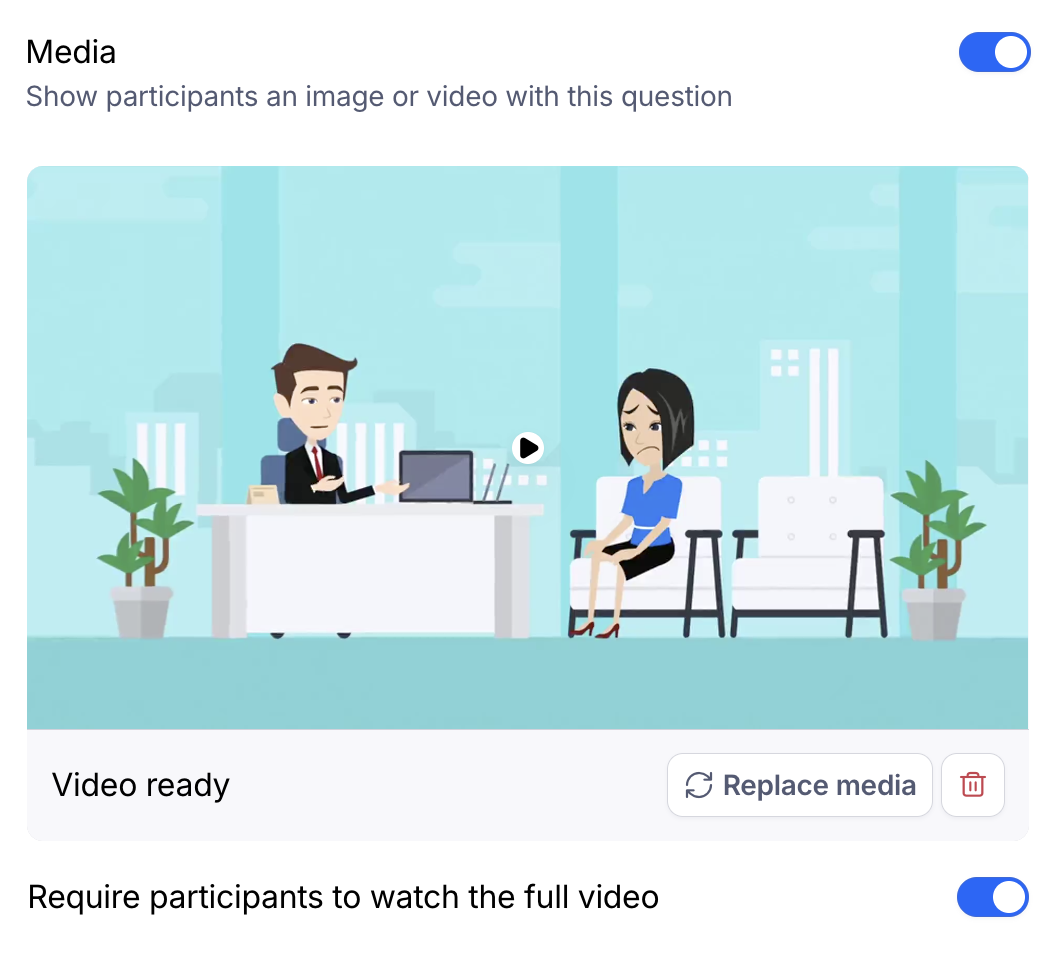
For videos, Maze processes the file after upload. The block shows the processing status until the video is ready.
Require participants to watch the video
Toggle on Require participants to watch the full video to keep the Continue button disabled until the video finishes playing. If the video can’t play on a participant’s device, Continue unlocks automatically so they aren’t blocked from finishing the study.
Building with AI
The AI Study Builder and Maze MCP can both add videos to blocks.
Preview/ results
If you want to see what the study looks like before publishing, click Preview on the top menu of the study builder.
Learn more about previewing your studies
In the testing interface, the image or video will appear next to the question. Videos also appear alongside the block in your results, the same way images do.
Troubleshooting
Why can’t I add an image to a block in Maze when using Chrome on macOS?
My video failed after uploading. Maze checks video length after processing, so a file over 5 minutes can upload successfully and then fail. Trim it to 5 minutes or less and upload it again.
Still need help?
If you have any questions or concerns, please let our Support team know — we'll be happy to help!