Interacting with tests where Clips are enabled
Last updated: August 7, 2026
Clips allow you to capture audio, video, and screen recordings of asynchronous user tests, without having to schedule and run live moderated research sessions.
This article walks you through what participants will see when interacting with a study with Clips recordings enabled.
Enabling audio, camera, and screen permissions
If you've enabled Clips in your study, participants will see a note outlining the permissions required in the study, and whether they're optional or required for continuing the test.
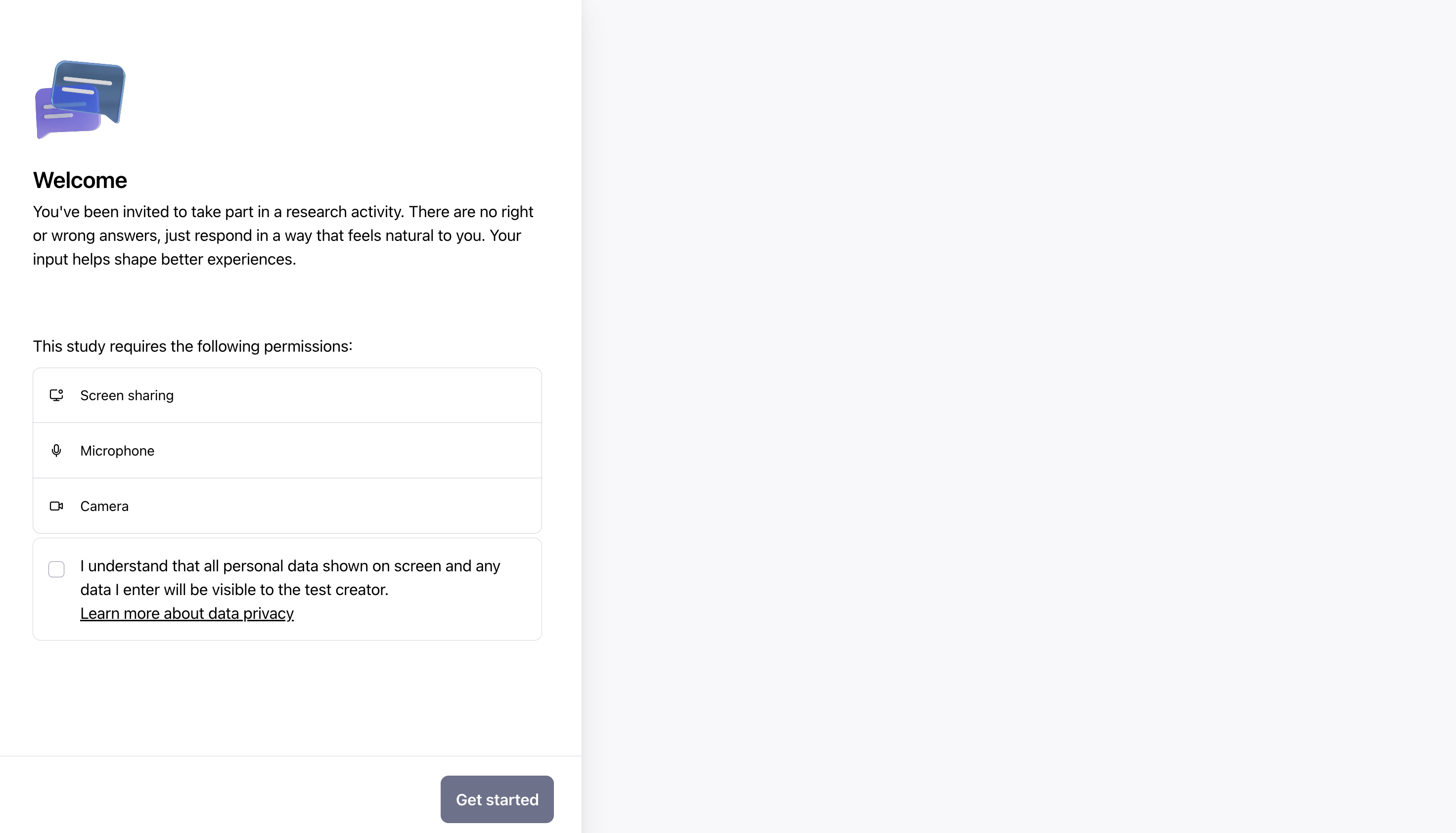
Once participants click on Get started at the beginning of the test, they'll be asked to confirm their microphone, camera and screen sharing settings.
This prompt will vary slightly, depending on the browser and device being used.
For more about permissions when testing on mobile, check out the section below: Interacting with Clips on mobile devices
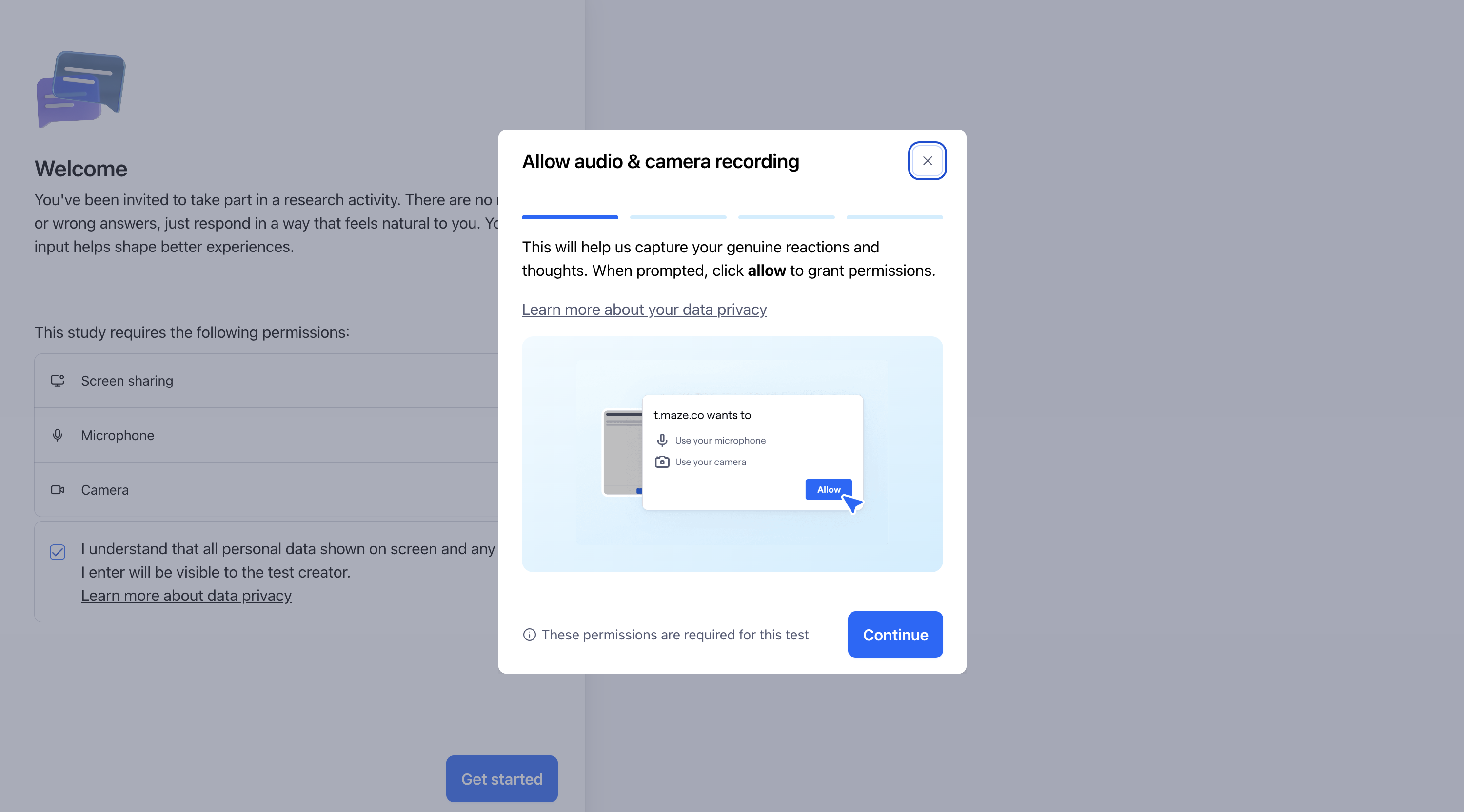
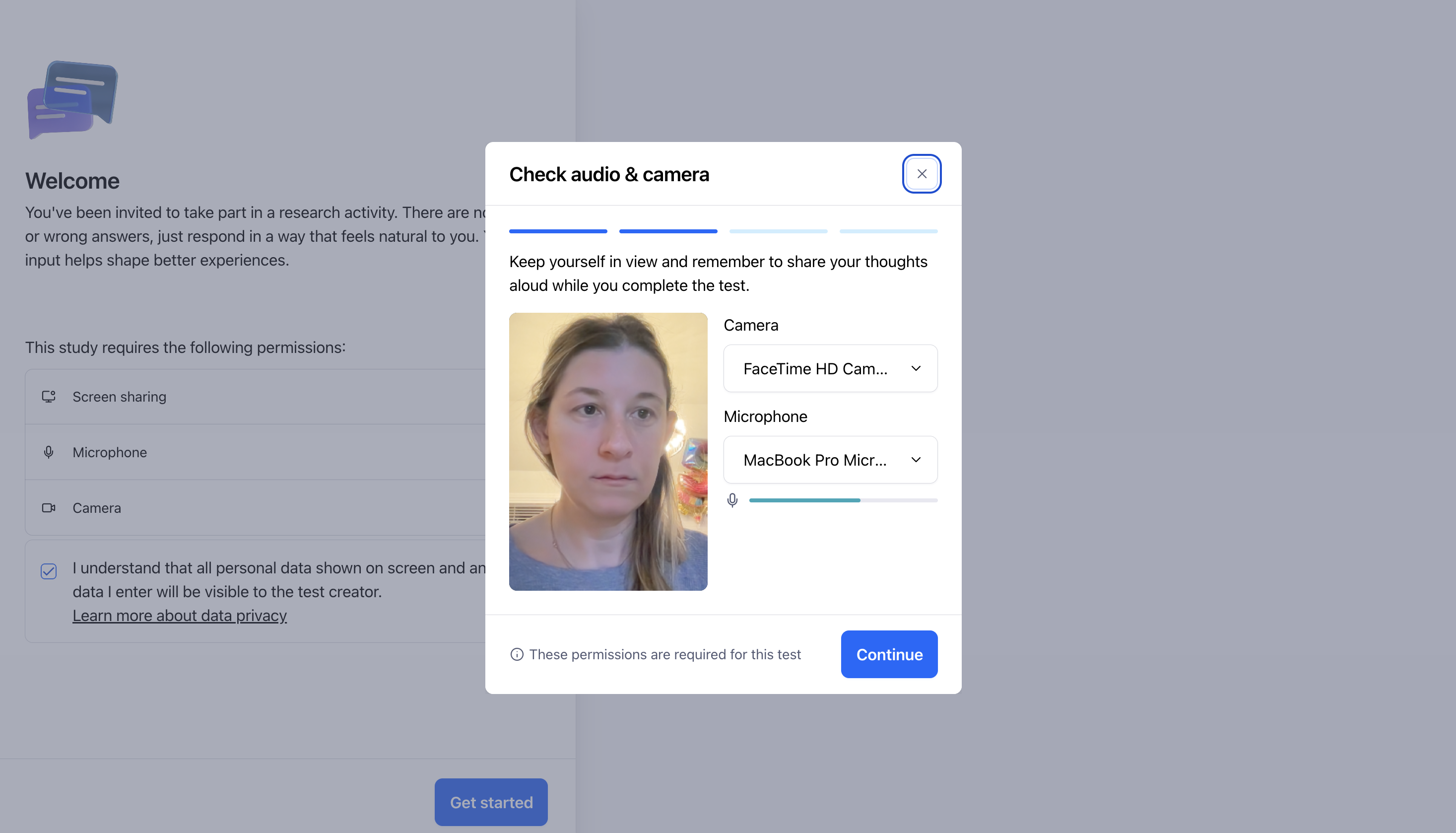
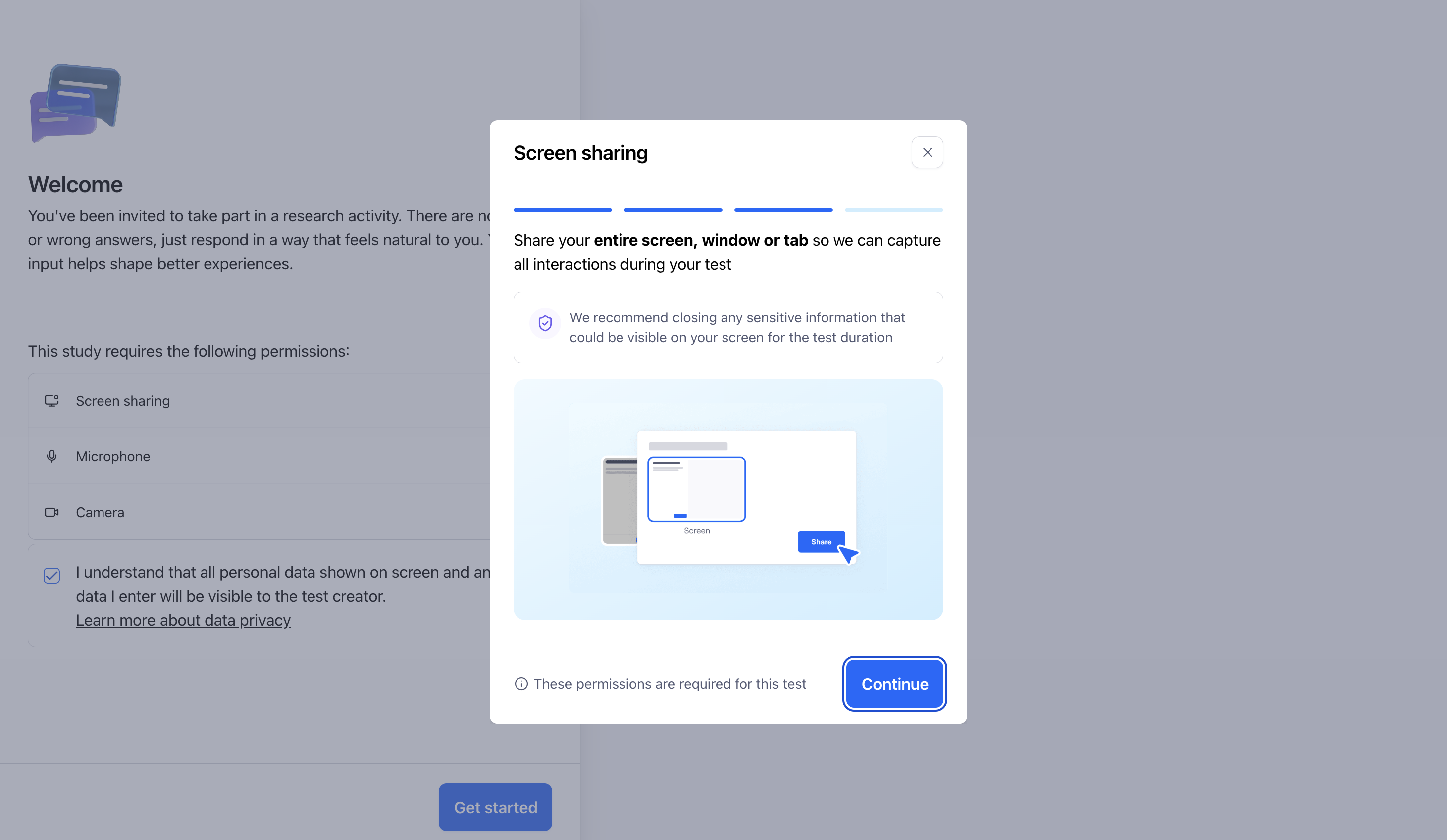
In the next step, Maze will prompt participants to allow screen sharing and select a screen sharing option.
If using Chrome on macOS, participants should make sure that Chrome has screen recording permissions. Why can't I record my entire screen in Clips?
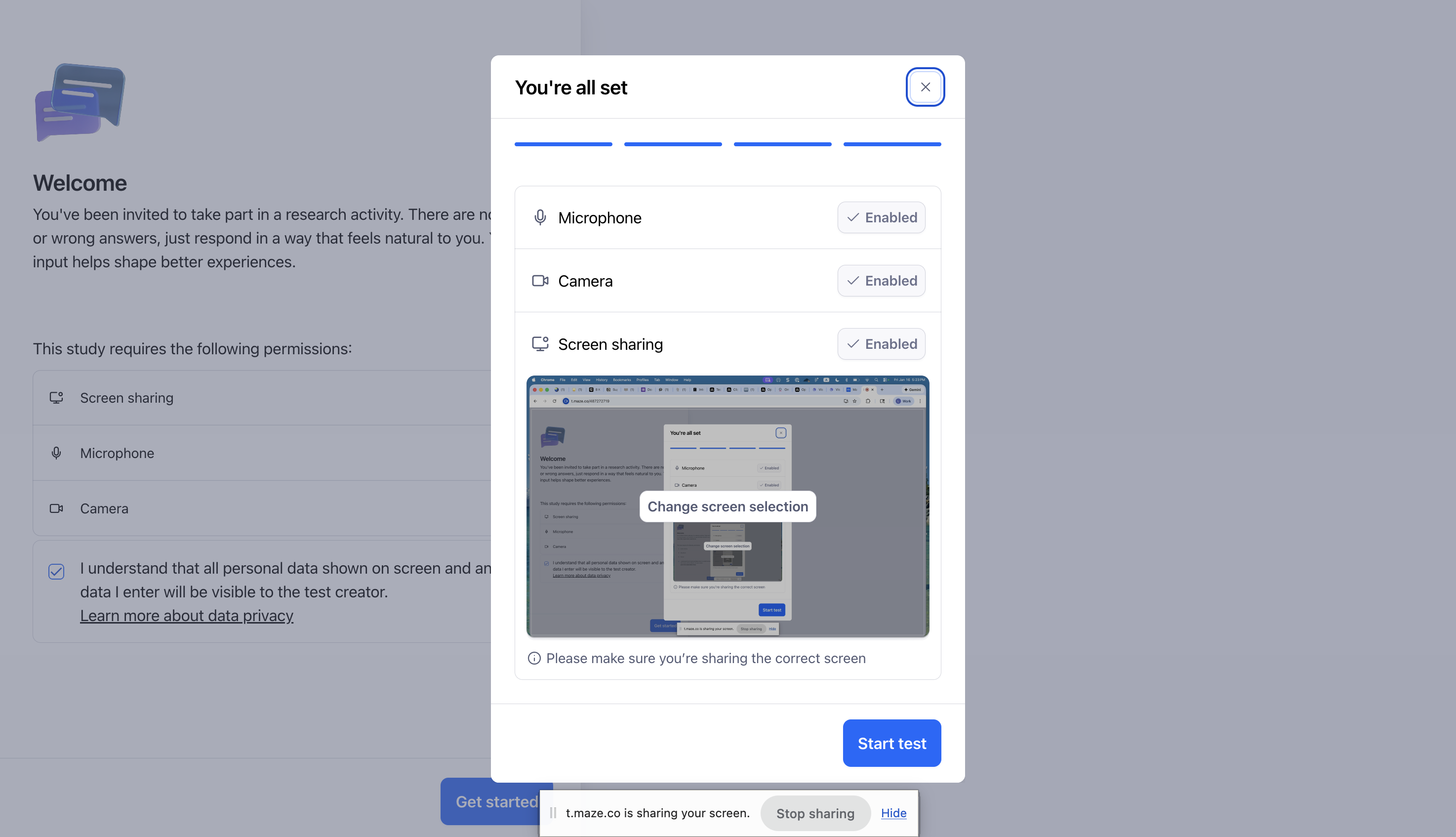
Finally, a modal will appear, confirming the recording settings for the study. Clicking Start test will direct them to the first block in the study.
If you've previously blocked recording permissions in your browser, you must manually enable them again before continuing with the test. Why do I see a “We couldn’t access your camera and microphone” warning?
Thinking out loud
In the Clips settings, there’s an option to enable additional think aloud education.
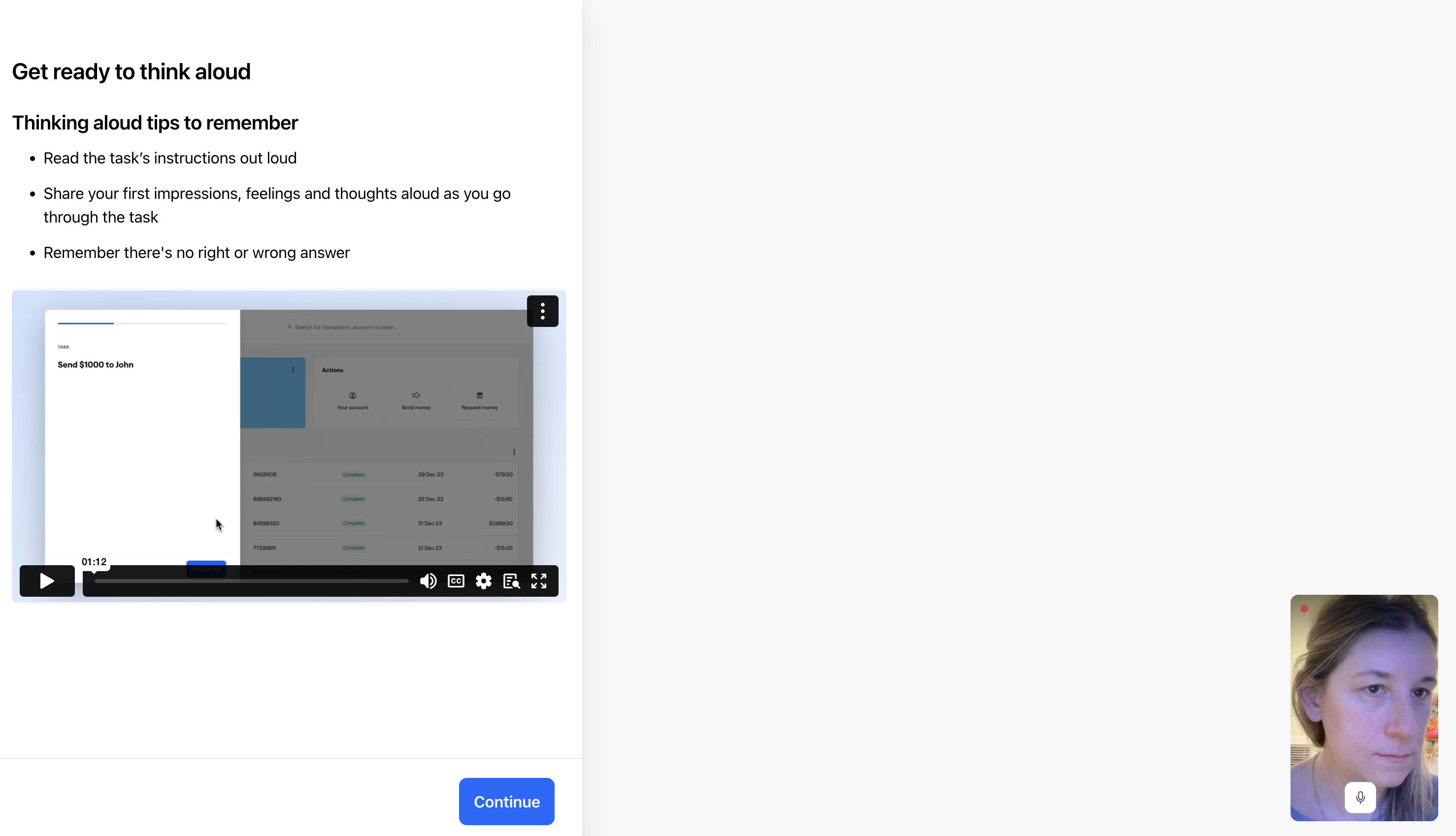
When this option is enabled, participants will see an additional screen with tips on how to voice their thoughts during the test. This can be helpful, especially when testing with participants who aren’t as familiar with unmoderated user research.
If this option is enabled, before starting the test, participants will see a screen with a short instruction video and a list of written tips.
Interacting with Clips on mobile devices
Screen recording isn't supported when testing in a browser on a mobile device. Maze detects when your participants are using a browser on a mobile device, and disables screen recording for those participants.
Screen recording however is supported if using the Maze Participate App. More details here.
Mute & Pause recording during testing
Your participant's privacy is paramount. For this reason, at any point during the recording of a task, they have the option to:
Mute the audio: To mute the audio, they should click the microphone icon:

If the participant has muted the audio, a muted icon will appear. Clicking this button again will unmute the audio.

Pause the recording: It's possible to pause the task and recording altogether. To do so, participants should hover over their camera image and click the pause button to go back to the task, they should click the Resume task button.

Uploading recordings at the end of the study
At the end of the test, the session recording might take a few minutes to upload. Once the upload is complete, the participants may close the test window/tab.
Closing the tab before the upload is complete may result in clips not being available for that participant.