Supported permissions for importing and testing Figma prototypes
Last updated: August 6, 2026
Before importing your prototype, you need to correctly set your permissions in Figma in order to load the prototype.
The setting we recommend you set the file to is Anyone can view, but Maze supports other permissions settings, outlined in the table below.
If the wrong settings are applied, the import will fail. Updating these settings after import will prevent participants from opening the study.
Figma sharing settings
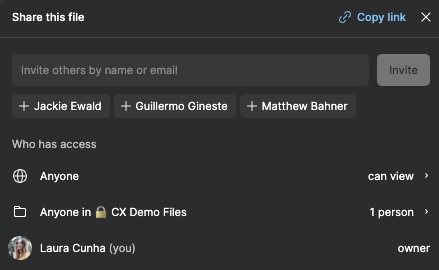
Open your Figma file.
Click the Share button at the top right corner.
Select Anyone can view.
Permissions matrix
While Anyone can view is the recommended setting, Maze supports other permissions settings, outlined here.
Permission setting | Works with Maze | Notes |
|---|---|---|
Anyone can view can edit | ✅ |
|
Anyone can view prototypes | ✅ | The person who's importing needs to have access to the file in Figma |
Anyone + Password required can view can edit | ✅ (ORG customers only) | |
Anyone + Password required can view prototypes | ✅ (ORG customers only) | The person who's importing needs to have access to the file in Figma |
Anyone at company with the link can edit Anyone else with a prototype link can view prototypes | ✅ | The person who's importing needs to have access to the file in Figma |
Anyone at company with the link can edit Anyone else with a prototype link cannot access | - |
|
Anyone at company with the link can view Anyone else with a prototype link can view prototypes | ✅ | The person who's importing needs to have access to the file in Figma |
Anyone at company with the link can view Anyone else with a prototype link cannot access | - |
|
Anyone at company with the link can view prototypes Anyone else with a prototype link can view prototypes | ✅ | The person who's importing needs to have access to the file in Figma |
Anyone at company with the link can view prototypes Anyone else with a prototype link cannot access | - |
|
Anyone at company can edit Anyone else with a prototype link can view prototypes | ✅ | The person who's importing needs to have access to the file in Figma |
Anyone at company can edit Anyone else with a prototype link cannot access | - |
|
Anyone at company can view Anyone else with a prototype link can view prototypes | ✅ | The person who's importing needs to have access to the file in Figma |
Anyone at company can view Anyone else with a prototype link cannot access | - |
|
Anyone at company can view prototypes Anyone else with a prototype link can view prototypes | ✅ | The person who's importing needs to have access to the file in Figma |
Anyone at company can view prototypes Anyone else with a prototype link cannot access | - |
|
Only people invited to this file | - |
|
The person who's importing needs to have access to the file in Figma means that for that permission setting to work, the Figma account of the person importing must have access to the prototype. If you try to import a prototype that you don’t have access to with those settings, you'll see the following error:Your Figma account (example@email.com) doesn't have access to this file. Make sure your have access to the file.
For instance, if your permissions are set to Anyone at company with the link can view or Anyone else with a prototype link can view prototypes and you’ve been given the link to the Figma file to import by someone that has access to the file, but your own Figma account doesn’t have access, you won’t be able to import the file.
However, once the file is imported, participants can run the test without issues.
Troubleshooting
Still need help?
If you have any questions or concerns, please let our Support team know — we'll be happy to help!