Exporting your results
Last updated: August 4, 2026
As participants complete your study, you’ll start seeing insights in the Results dashboard. It’s possible to download your results data.
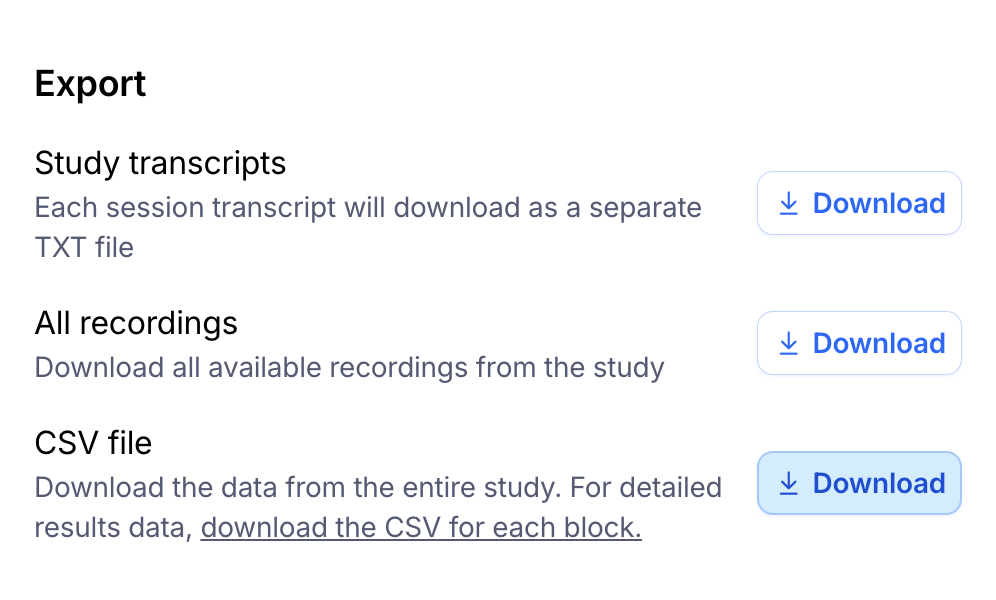
Download the data from your entire study as a CSV file (paid plans)
CSV exports of the entire study are available for users on a paid plan.
To export the data of your entire study as a CSV file:
Open the study you want to export the data for.
Click the gear icon at the top right corner to reveal the Settings menu.
Under the Export section, next to CSV file, click the Download button
Download data for each block as a CSV file
To see more details about your participants’ answers in each block, we suggest downloading that data at the block level, instead of exporting the entire study.
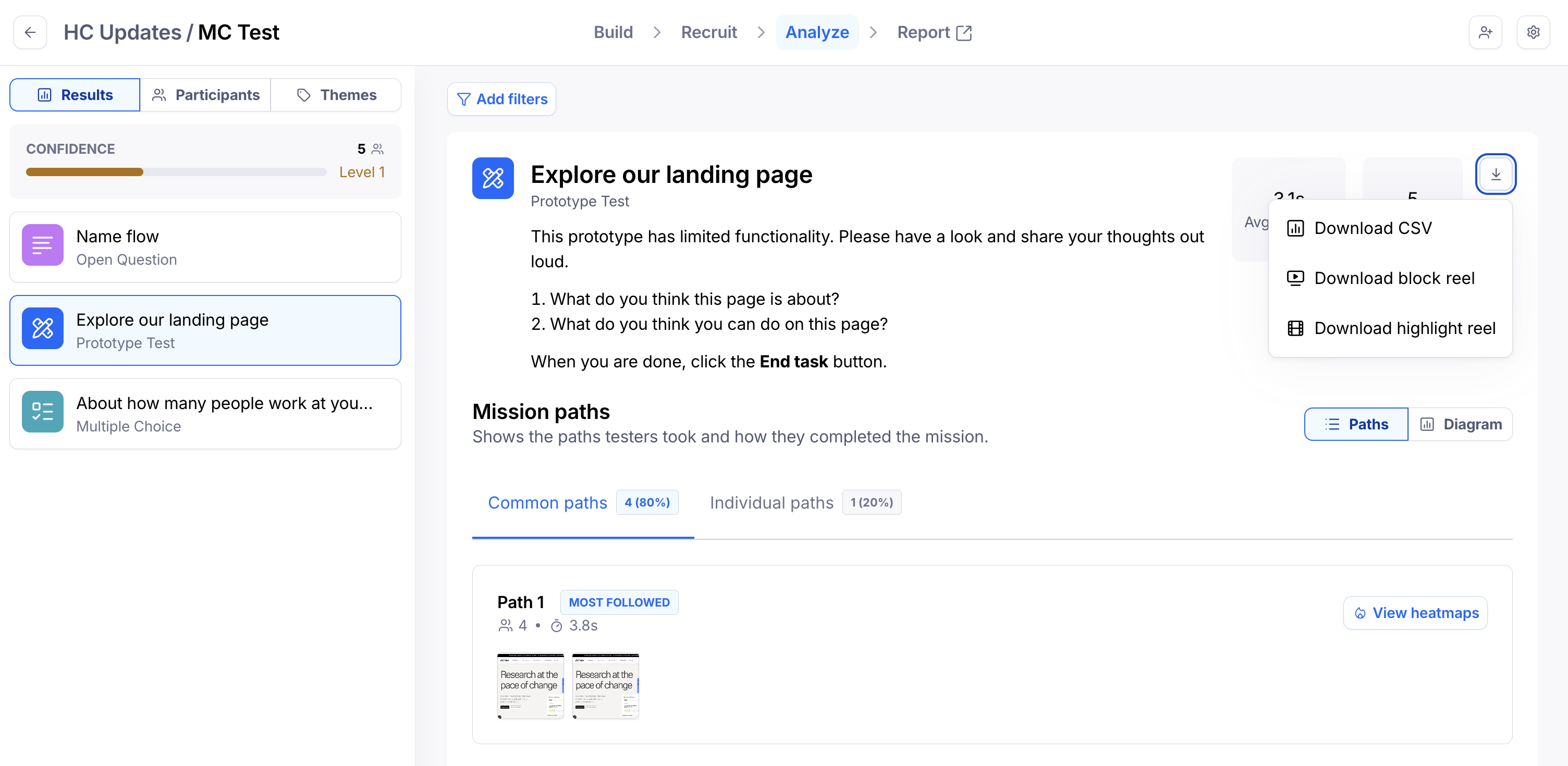
To export a CSV file with the results for a specific block:
Open the Results dashboard of the study you want to export the data for.
Select the relevant block from the list on the left.
Click the download icon and select Download CSV.
Available data
Here’s the data available in the full CSV file:
Study ID: The unique identifier for the study
Block ID: The unique identifier for the block used
Block type: The type of block being used (e.g. prototype test, open question...)
Block title: The title of the block being used
Block description: Any description details that were added to a block
Participant ID: The unique identifier for the participant
Started At: The date and time when the participant started the study
Completed At: The date and time when the participant finished the study
Misclick rate: The percentage of clicks in a non-clickable area
Duration (ms): The time in milliseconds it took the participant to complete the study
Device type: The device type (e.g. mobile, tablet…) used by the participant
OS: The operating system used by the participant to complete the study (e.g. Mac OS, Android)
Vendor: The device vendor used by the participant (e.g. Apple, Samsung)
Model: The device model used by the participant (e.g. Macintosh, iPad)
Browser: The browser type used by the participant (e.g. Chrome, Firefox)
Browser Version: The version of the browser used by the participant
Language: The language of the browser used by the participant
Source: From where the participant opened the study (e.g. link, panel, prompt)
Mission type: Defining if your task was path-based or not
Path: The unique identifier for the path taken
Screen ID: The unique identifier for the screen a participant landed on
Screen duration: The time in seconds the participant took on a given screen
Direct Success: True/False of path completion
Indirect Success: True/False of path completion
Give up: True/False of path completion
X Coordinate: the horizontal position (left-right movement along the horizontal axis) in % of screen width and height
Y Coordinate: the vertical position (up-down movement along the vertical axis) in % of screen width and height
Total click count: All clicks registered
Total misclick count: All misclicks registered
The following fields may or may not be available depending on how participants were sourced:
Reach Email: If the participant started the study from a Reach campaign, the email in which they received it’ll be listed here
Campaign ID: If the participant was recruited from the hired participant panel, the campaign identifier will be listed here
Campaign Provider: If the participant was recruited from the hired participant panel, the panel provider will be listed here (i.e. Prolific).
Prompt ID: If the participant started the study from an in-product prompt, the prompt identifier will be listed here
Cohort Provider: Amplitude will be listed in this field if you’ve selected a specific Amplitude cohort to show your prompt to
Cohort User ID: The unique user identifier used by the cohort provider (i.e. Amplitude).
Other relevant exports
Download click heatmaps
To save image files of every click heatmap, hover over the heatmap and click Save as image.
Learn more about exporting your heatmaps
Export Clips recordings and study transcripts
You can download individual Clips from the Results page as well as study transcripts.
Learn more about exporting Clips recordings
Learn more about downloading study transcripts
Additionally, it’s also possible to create share links to selected Clips recordings.
Learn more about sharing Clips recordings
Download reports
You can easily share public links to your maze report. Paid plan users can also download a PDF copy of the report for offline viewing.
Learn more about sharing and exporting your reports
Still need help?
If you have any questions or concerns, please let our Support team know — we'll be happy to help!