Hiring panel participants for unmoderated testing
Last updated: October 7, 2026
One of the ways to get your unmoderated study tested is by hiring participants from the Maze panel.
Maze uses third-party providers for its panel features. We partner with Prolific, Bilendi, Respondent, and Terac for unmoderated panel testing. For details on moderated panel testing, please see Hiring panel participants for interview studies.
This article covers sourcing panel participants for unmoderated testing. Learn other ways to share your unmoderated study.
Who can use this feature?
The Maze panel is available on all plans.
All team members can place panel participant orders.
Before you start
There’s no hard limit to the number of blocks an unmoderated study can have. However, it’s only possible to hire panel participants for unmoderated studies with a maximum estimated length of 45 minutes. This limitation is in place to guarantee that participants are compensated fairly for their time. Learn more about length limits for panel orders
Double-check that your questions and tasks are clear, and use context screens whenever needed. Learn best practices for introducing your unmoderated study to participants
Always review and test your unmoderated study thoroughly before placing an order. It’s important to verify your test can be completed fully before placing an order. For example, if people can’t complete a prototype test or there’s a problem with your conditional logic, your results may not be as usable as they could’ve been.
End-of-test redirects aren’t supported for Maze panel orders. Panel participants won’t see the CTA at the end of the test.
The only way you should screen participants is by using the Screener block or the targeting filters available when placing the order. If you exclude panel participants from completing your test using your own custom knock-out/screening questions or conditional logic, you’ll pay for each participant session. Participants from our panel are entitled to compensation for participating and mustn’t be screened out in this way, and shouldn’t be reported.
Consent is obtained from panel participants through their acceptance of terms of service from the panel provider in use (Prolific).
Pricing
You can order between 1 and 250 participants for individual studies.
It’s also possible to purchase credit bundles at app.maze.co/credits:
50 credits: USD$250
100 credits: USD$500
500 credits: USD$2500
For unmoderated studies, we charge 3 credits per response from our Core Network. For participants Recruited through our Extended Network, we charge 5 credits per response for B2C audiences and 9 credits per response for our B2B audiences.
Credits aren’t dependent on the number of blocks in the study—i.e. the cost is the same if your study has 5 or 10 blocks.
How many participants do I need?
The number of participants you need depends on the type of research you're running. Maze recommends testing with:
At least 10 participants for unmoderated studies
At least 10 participants for AI-moderated studies
At least 5 participants for moderated studies
Learn more about the ideal number of participants
Filters
Intro:
The Maze panel is powered by multiple providers. Our Core Network is powered by Prolific, while our Extended Network is powered by Respondent, Bilendi, and Terac. Visit each provider’s website to learn more about their participants.
Advanced filters:
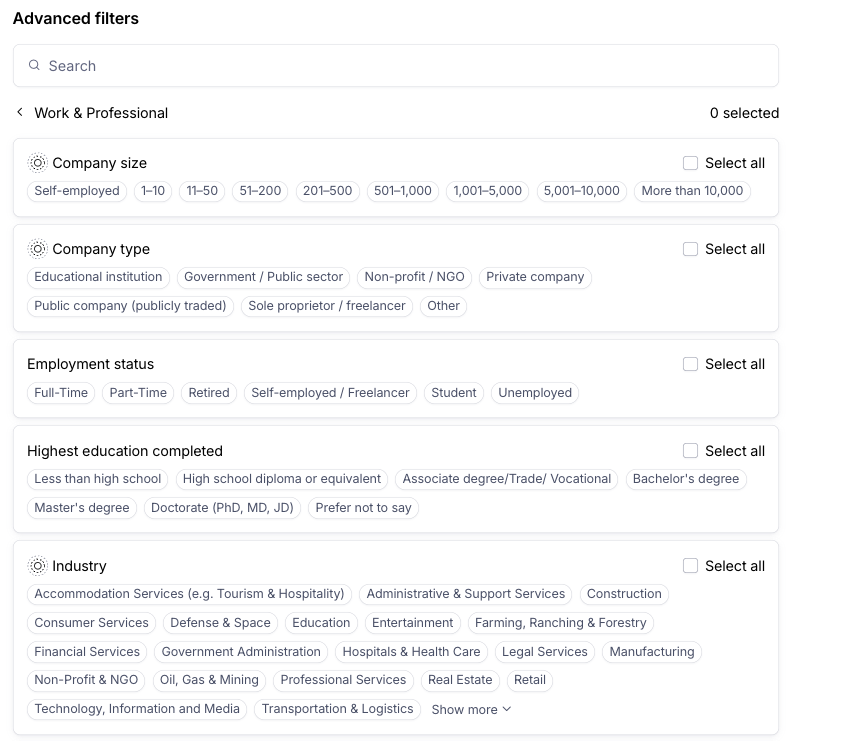
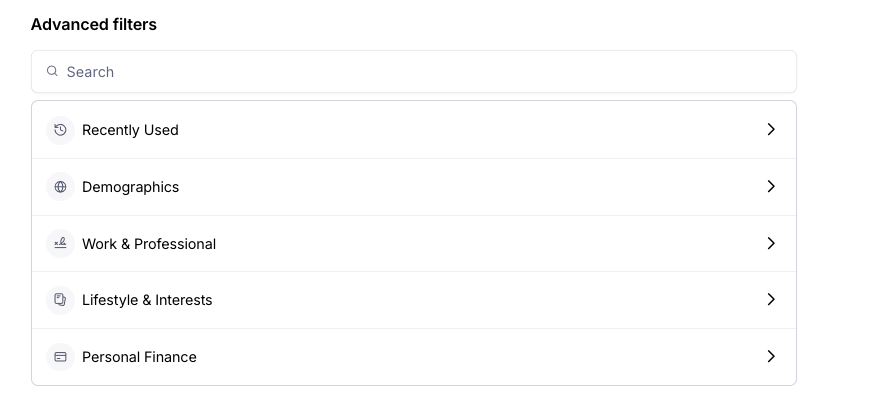
Demographics, Work & Professional, Lifestyle & Interests, and Personal Finance. Advanced filters are available for Enterprise plan users.
Placing an order
Before placing a panel order, you need to create an unmoderated study and publish it. If you need help creating a study, read our guide to get started.
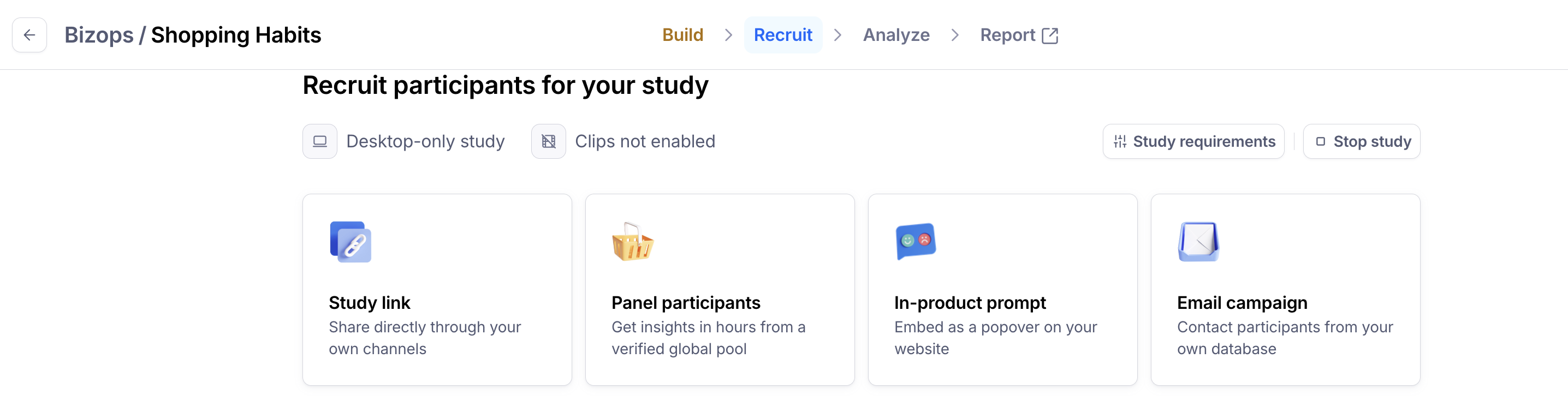
On the Recruit page of your published study, click Panel participants
Step 1: Filters
Select the Number of responses you want to include in your order. How many participants do I need?
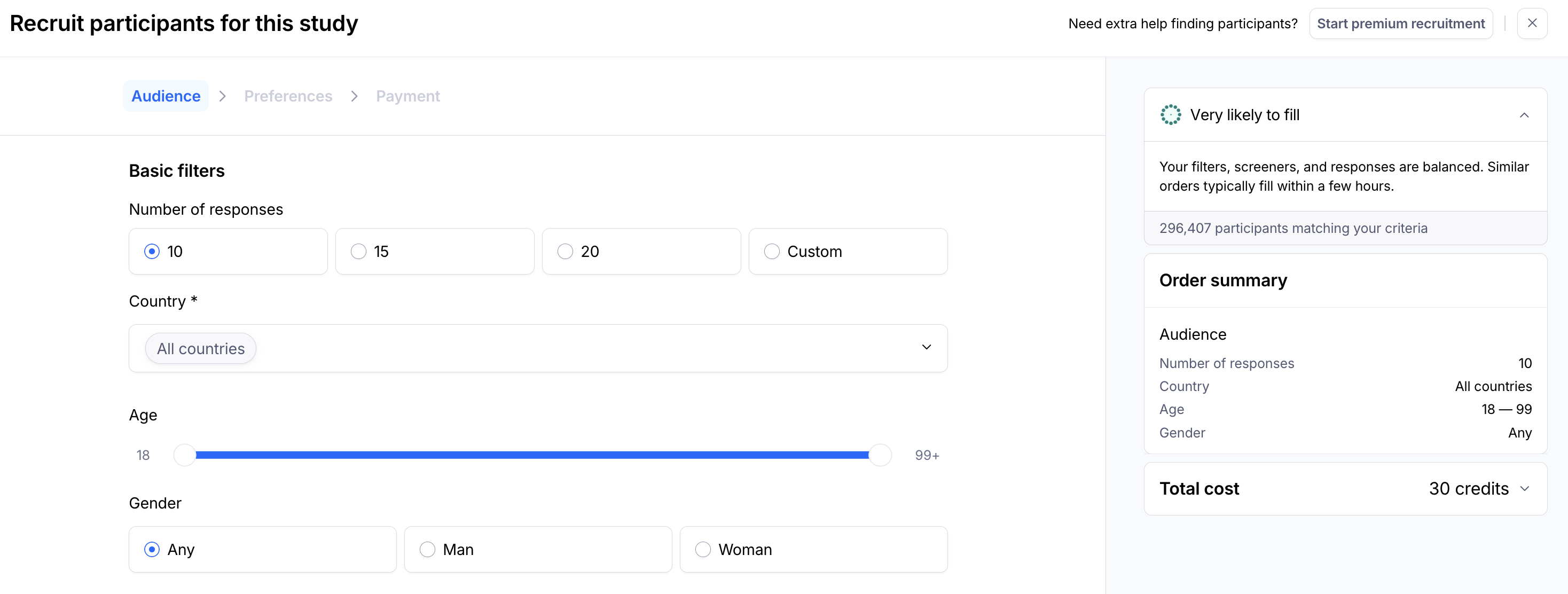
Select a Country(s) to source your participants from.
Refine their Age and Gender, as needed.
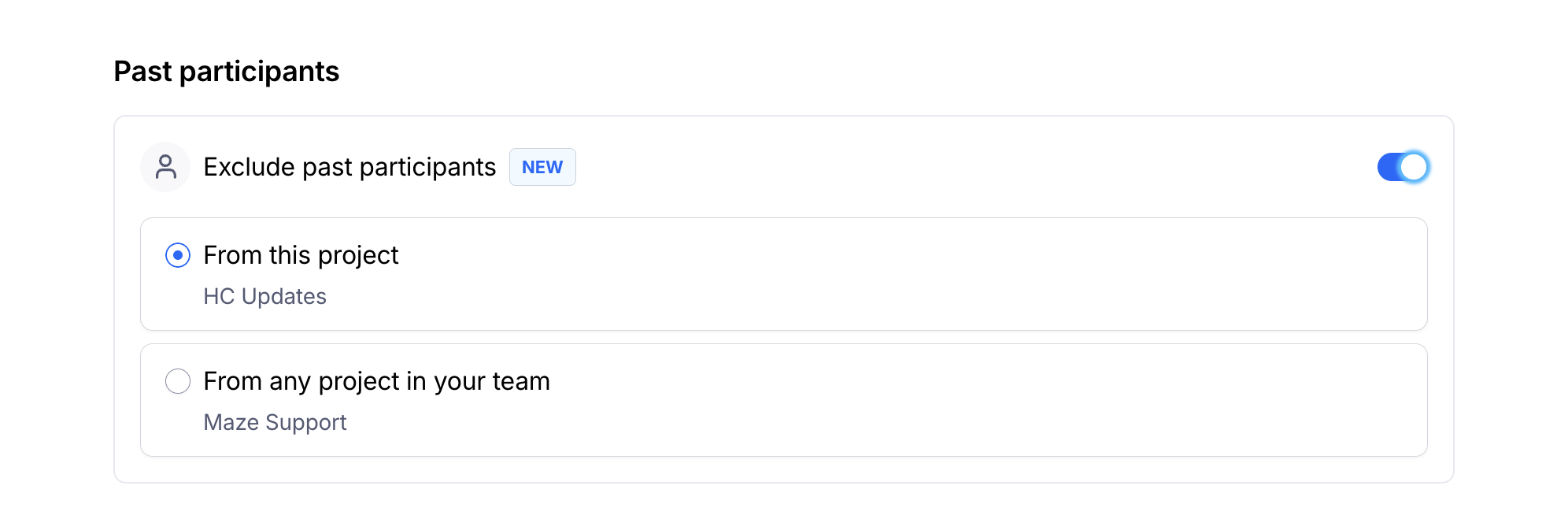
If you're on the Enterprise plan and would like to exclude past participants, toggle Exclude past participants to on. There are two exclusion options:
From this project: Prevents participants who have already completed a study in the same project from being recruited again
From any project in your team: Prevents participants who have ever completed any study from your team from being recruited
If you’re on the Enterprise plan, you can also select advanced filters for your participants.
If you have placed a previous panel order recently on your account, you can select Recently used at the top of the filter selector, beneath Advanced Filters. This displays your 5 most recently used filters, making it faster to apply the targeting filters you've used before without having to search through all available categories.
Feasibility estimate
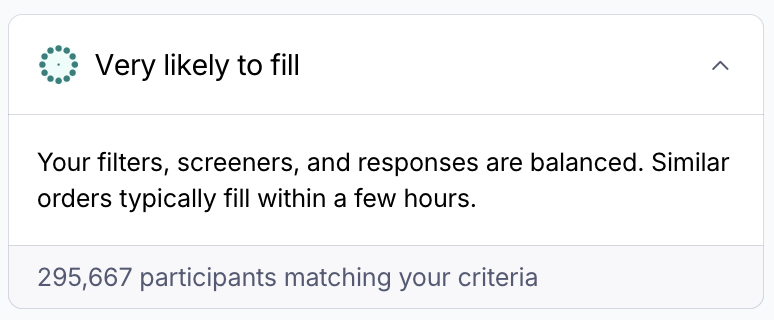
As you configure your order, Maze shows you a Feasibility Estimate — a real-time indicator of whether your order is likely to fill based on your current configuration. As you adjust your audience criteria, screeners, and number of participants, the estimate updates automatically so you can fine-tune your order before placing it. Learn more about the Feasibility estimate.
Step 2: Preferences
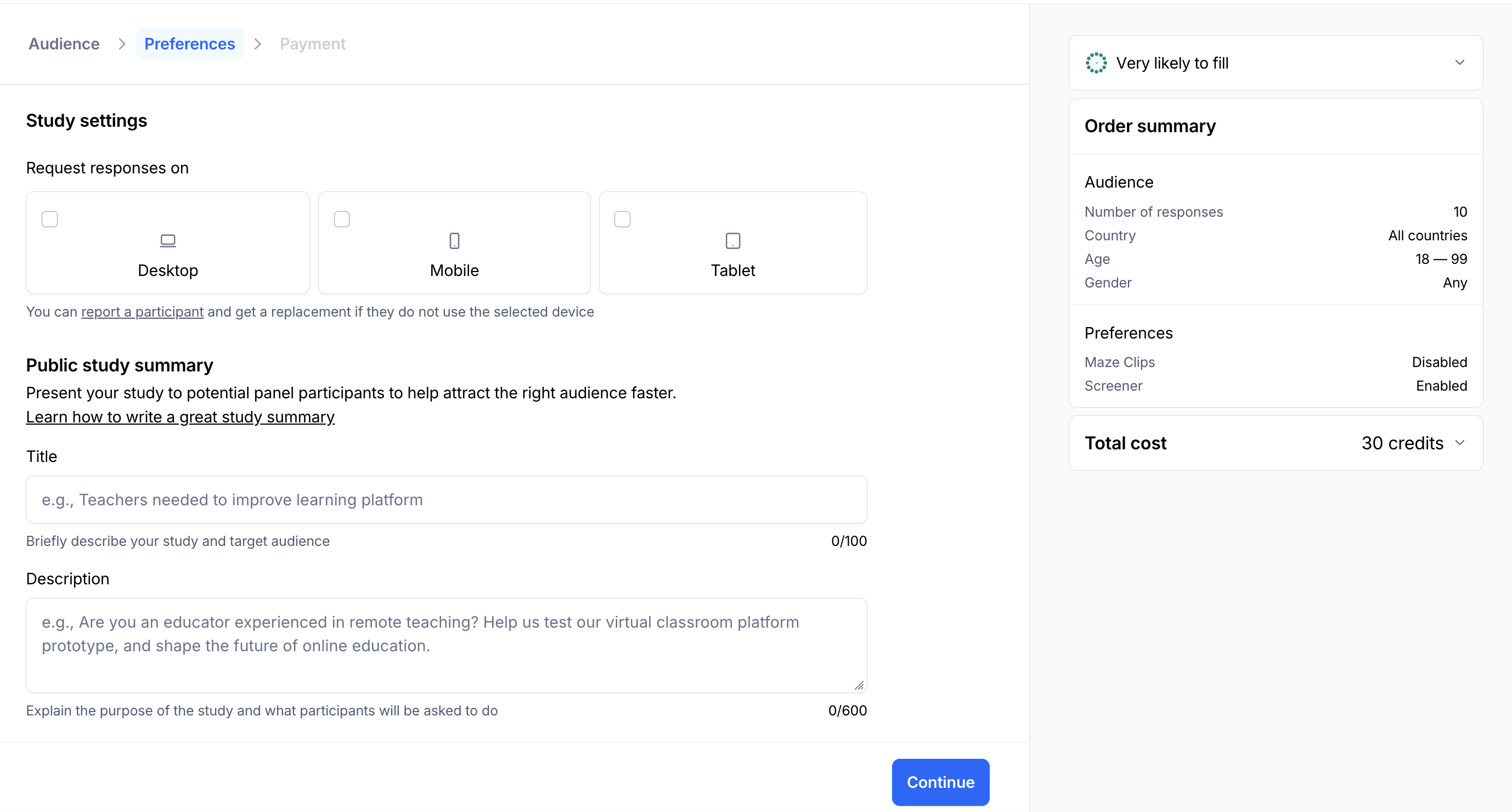
If needed, select the type of device you want participants to take the test on: Desktop, Mobile, Tablet.
If your study includes a prototype or website test, the supported devices are automatically pre-selected based on the dimensions of your screen. It’s not possible to order tests for devices that wouldn’t support the size of the screens used in the study. This means that, when testing a desktop prototype or website, you can only hire participants on desktop devices. If testing mobile screens, you can hire participants on any type of device.
Why can’t I change the device type on my panel order?
Device restrictions set up at the study level, custom or default, will be used when making a panel order and cannot be changed during checkout.
Make sure to set the device settings in the study requirements before completing your study, as this cannot be updated after it is published.
Learn more about Unmoderated Study Device Settings here.
Step 3: Payment
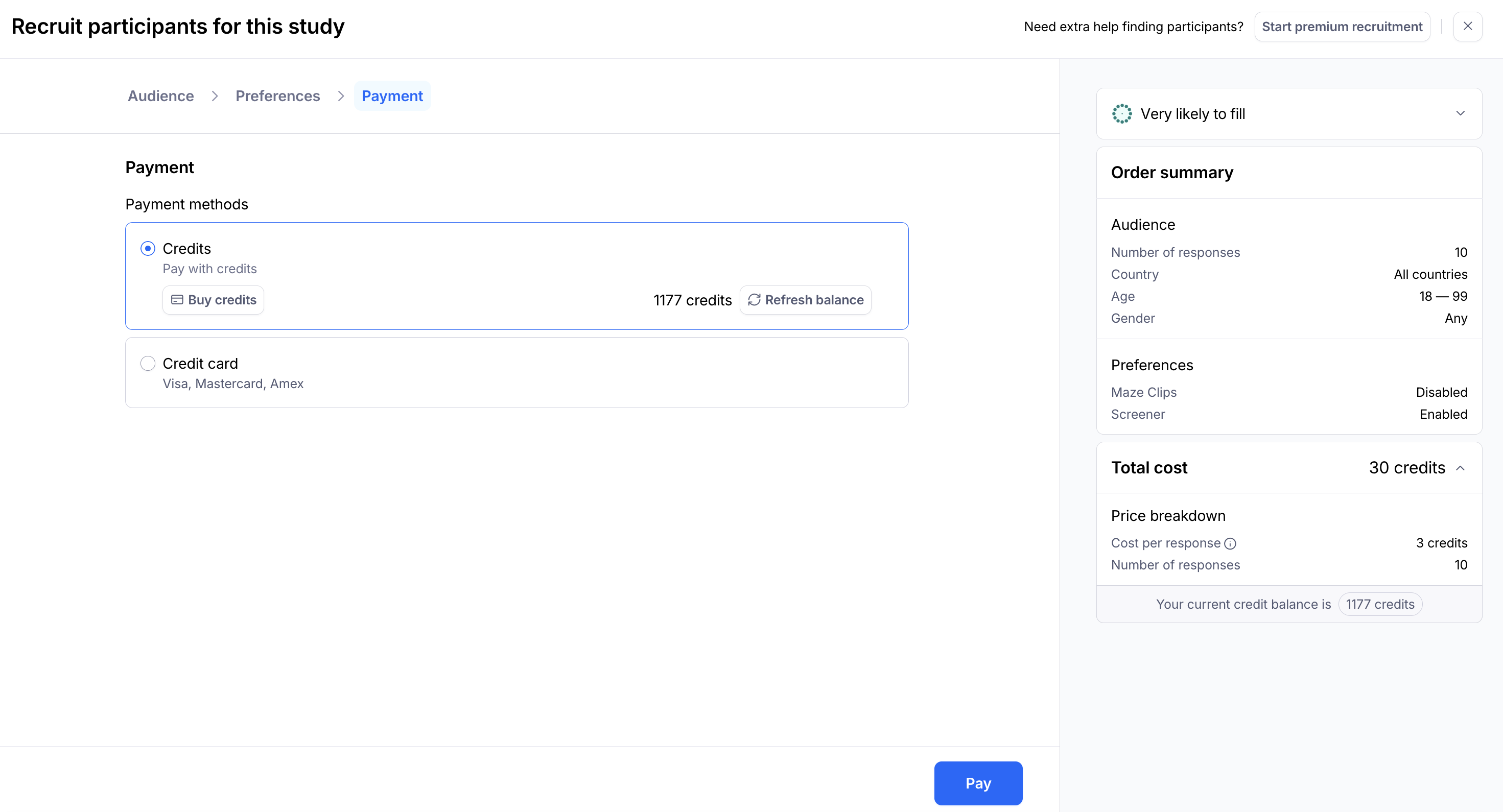
Double-check your order details. Please note that you won’t be able to edit the filters after placing the order. If you want to stop an order before its completion, please follow the steps in this section.
Select your payment method. If you’ve purchased a credit bundle, you can use your available credits. Otherwise, you can pay for this individual order with your credit card. We accept major debit/credit cards.
Order summary
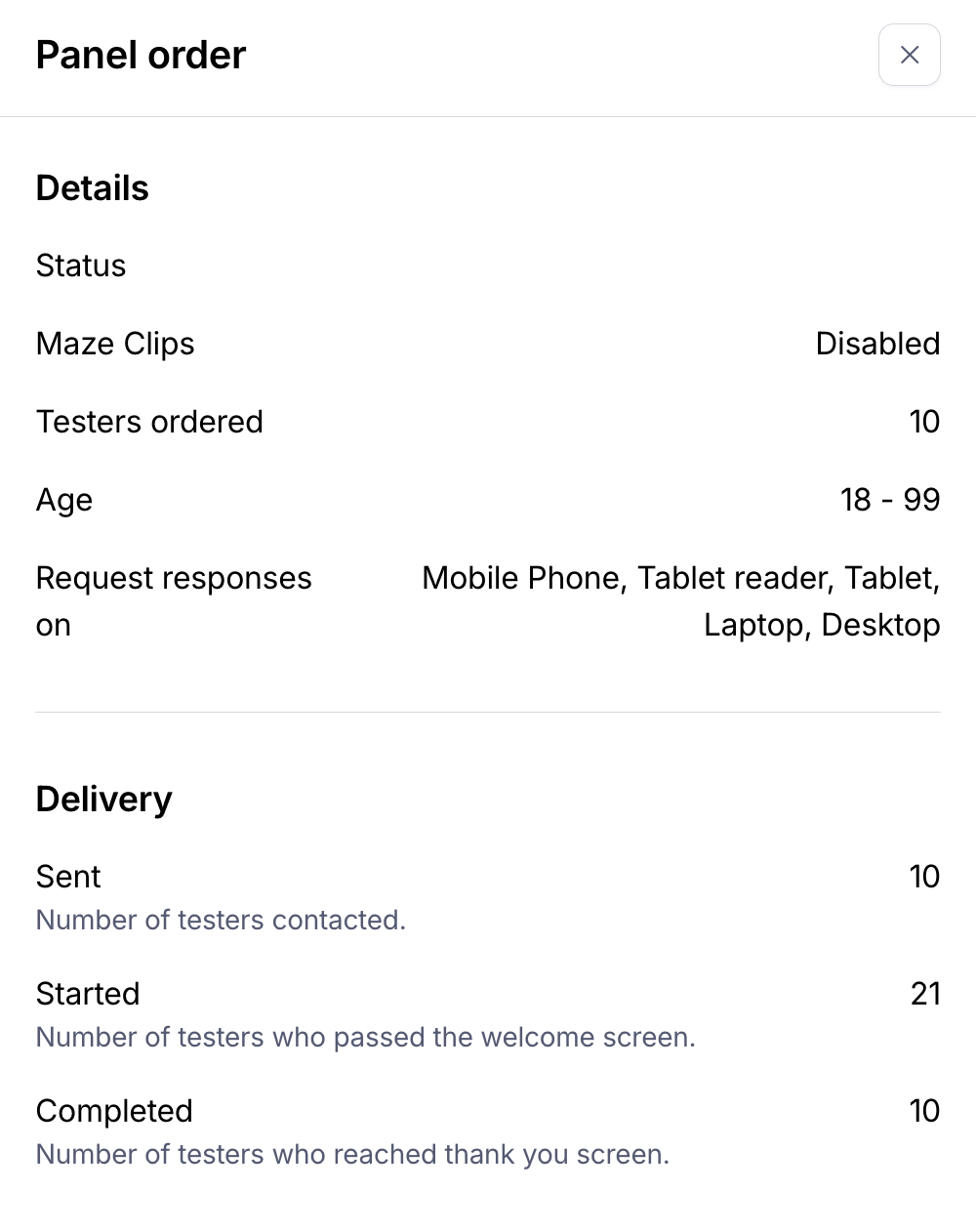
After placing a panel order, you can see a summary of the order on the Recruit page. To do so:
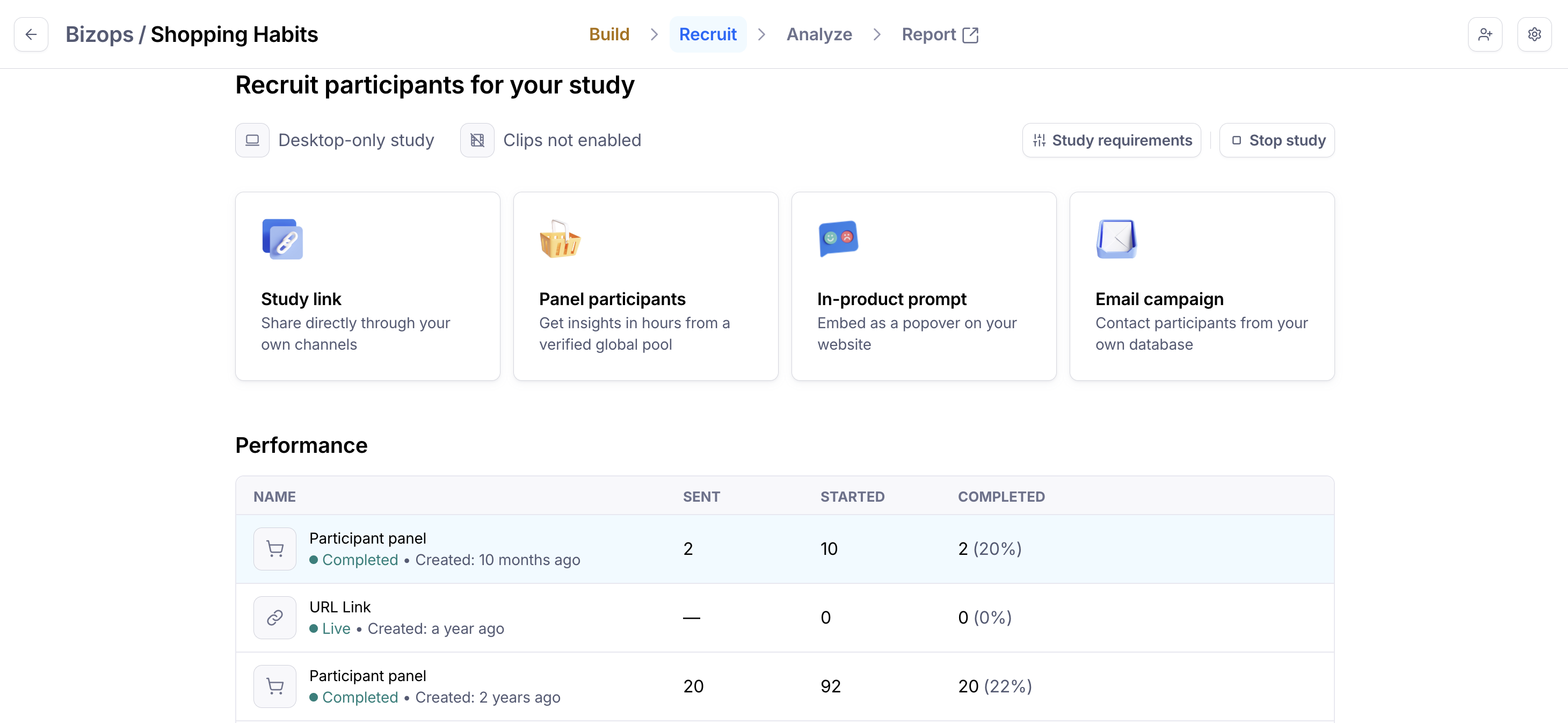
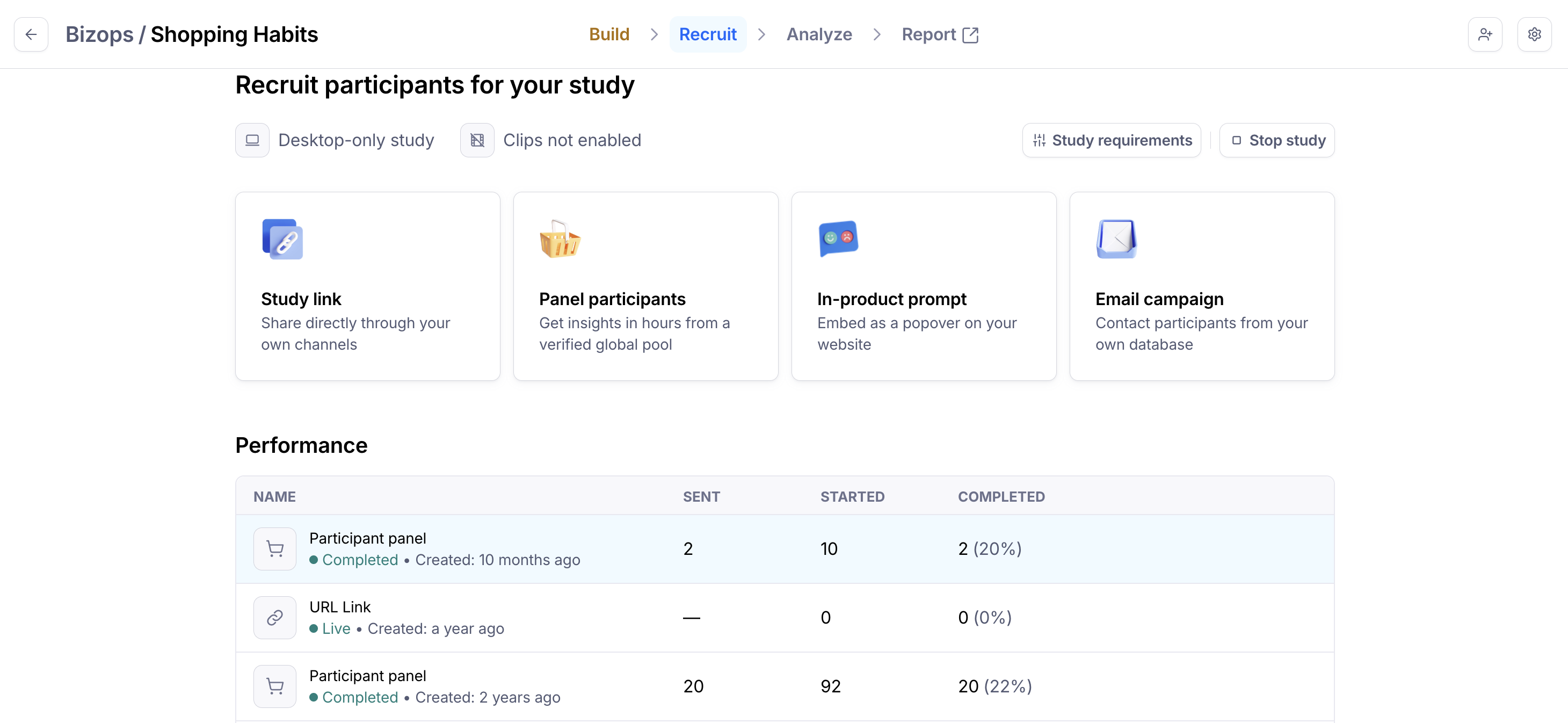
Open the Recruit page for your study with a panel order. Panel orders will appear on that page.
Click the order row to view the order summary.
The summary includes all order details, such as the number of participants and the applied filters.
When to expect results
Results start coming in as soon as you place the order. Orders are often fulfilled quickly, but Maze doesn’t guarantee a particular turnaround time. Every panel order stays active until completed.
A few factors can extend the turnaround time for participant's orders:
Targeting filters may constrain the pool of available participants and extend the turnaround time.
The length of the test can also play a role. If the test is longer than average, you’ll see a higher rate of participants abandoning it or not picking it up at all, which also slows down turnaround time.
If you want to stop an order before completion, please follow the steps in the section below.
Results dashboard
All hired participants who completed the study will appear in your Results dashboard with a source label beneath their participant ID in the list of participants. This is true even if you made multiple orders (e.g. using different targeting filters).
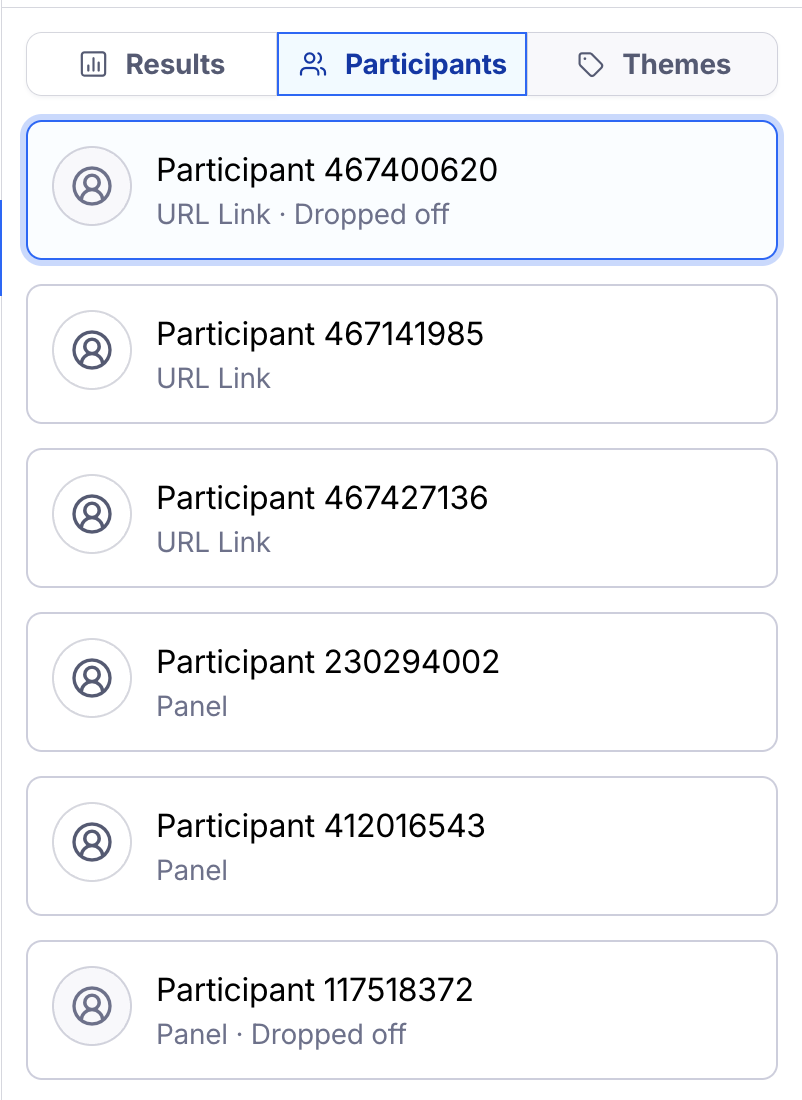
Participants who started the study but haven’t completed it appear with a ‘Dropped off’ label instead. Learn more
Select Participant metadata and then Recruitment method in the filters to view only results from panel participants.
How to stop a panel order
Panel orders don’t stop automatically. They stay active until the number of participants you’ve selected has completed your study.
In some cases, you might want to stop a panel order before it runs its course. For example, if you need to change the targeting filters (since you can’t edit them on active orders).
What happens when an order is stopped?
After stopping the test, any unused credits will be available in your credit balance.
Stop an order
To stop a panel order, simply stop your study from collecting new results. You can do this in the study settings.
Archiving the project or deleting the study will also stop any active orders and refund you any unused credits.
Reporting a participant
When recruiting panel participants, the quality of test results you receive is our biggest concern. Our goal is to ensure that you get results quickly, and that you can trust the results to make informed decisions confidently based on the data you’ve collected.
If you’re not happy with the quality of the responses submitted by a panel participant, we encourage you to report it. This helps us maintain the quality of the panel.
Learn more about reporting panel participants
Still need help?
If you have any questions or concerns, please let our Support team know — we'll be happy to help!