Clips Analysis
Last updated: July 23, 2026
Users can now analyze Clips end-to-end within Maze: from transcription to highlighting to theming and ultimately to shareable reels. Clips analysis capabilities keeps your qualitative insights connected to your quantitative test data for complete context and enables you as the researcher to extract, organize, and share your valuable insights straight from participants' clips recordings.
Who can use this feature?
Clips analysis features are available on our paid plans.
Known limitations
The new clips analysis features will only be available for studies created from 1st August 2025 onwards. Older studies used a different way of recording clips which is not compatible with the new functionality.
Automated Transcripts
All clips recordings that contain audio will always be automatically transcribed. There are a few ways to access your clips transcripts:
Participant results
Open your study and select the Analyze tab.

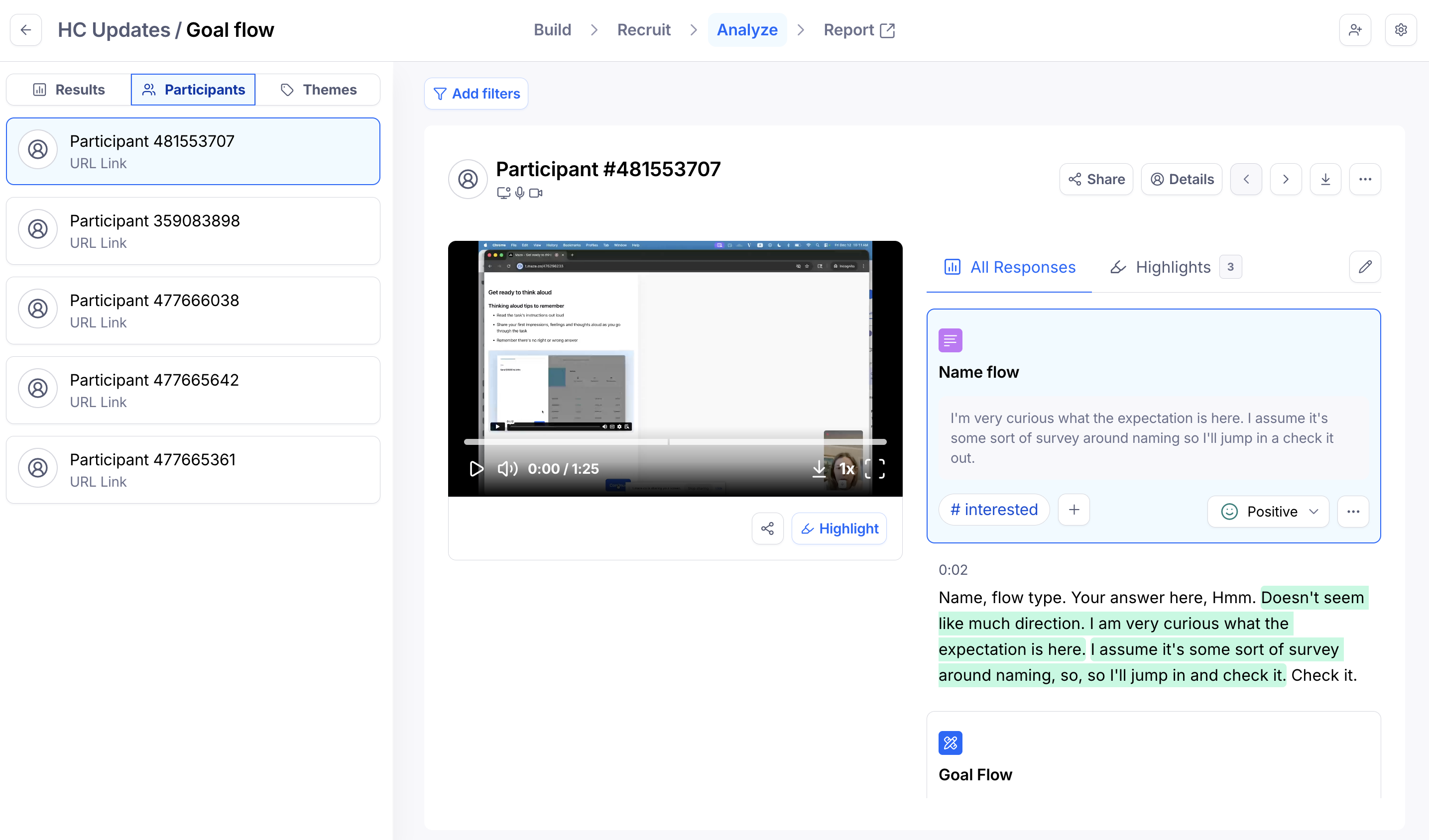
With the participants tab in the left hand panel selected, you'll notice transcripts appear to the right of the clips containing audio. Continue to select different participants in the left hand panel to access the transcripts for each.
Block results
Open your study and select the Analyze tab.

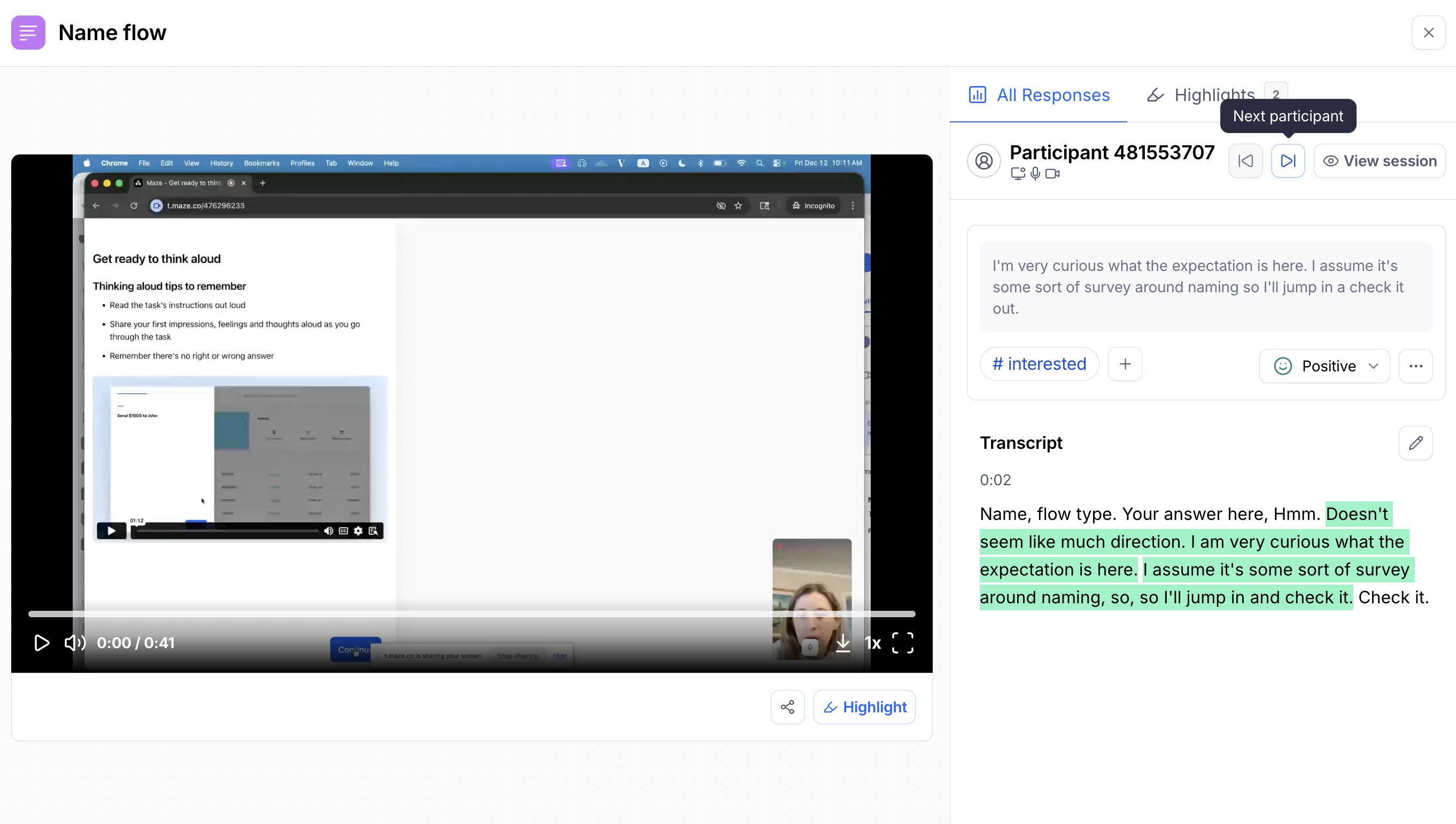
With the results tab in the left hand panel selected, scroll down to the responses section and click the play button on the clip to view all clips/transcripts for a specific block. You'll navigate through transcripts by selecting the left/right buttons.
Click the Highlight button beneath the clip to create a highlight from a specific start and end point in the clip allowing you to jump directly to the point that you want to highlight and save, especially useful in cases where no audio was recorded. Simply set your Start/End time, add your highlight in the text field on the right and click Add highlight.
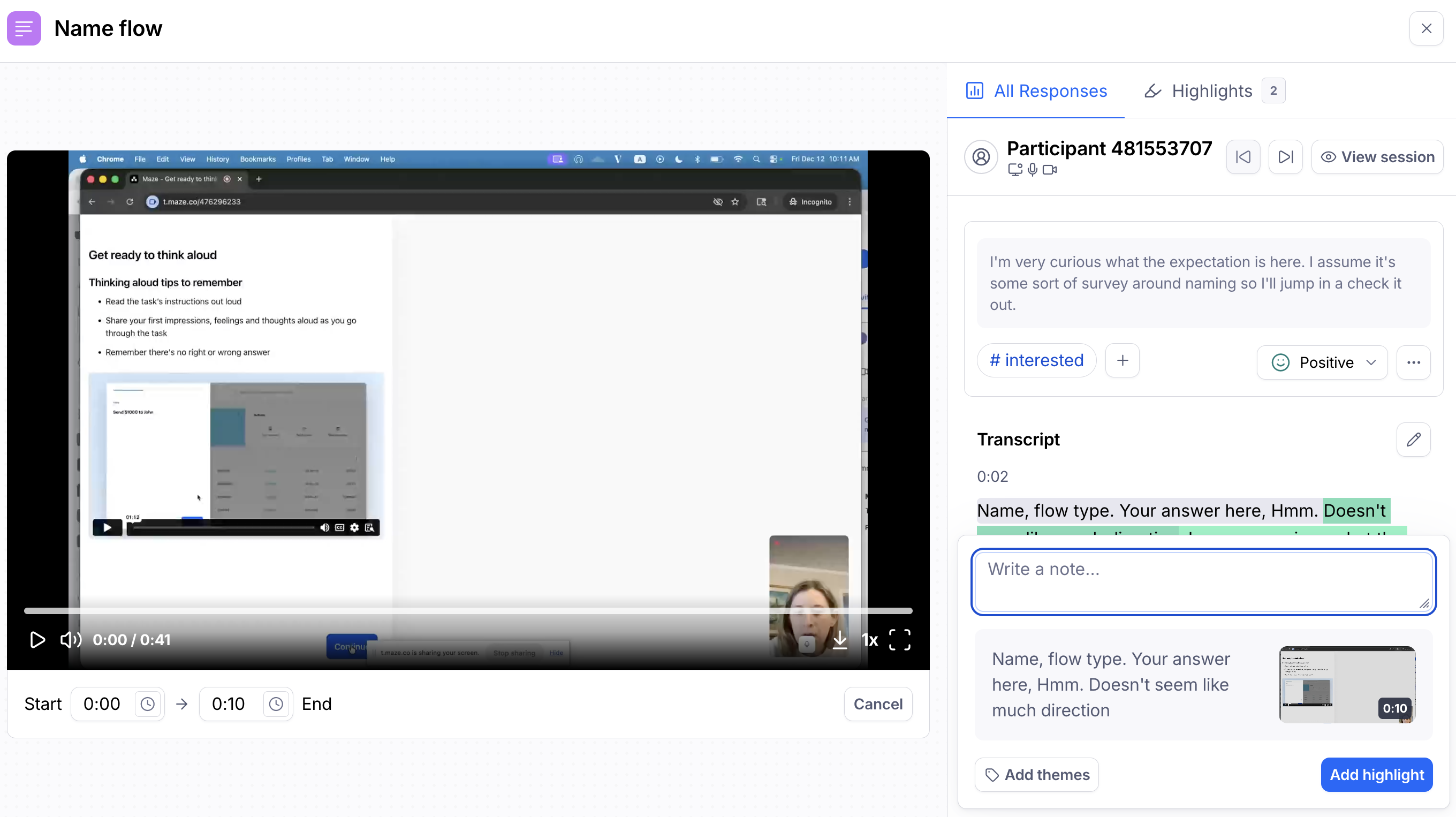
Having the clips transcripts easily accessible allows users to highlight and save key quotes and non-verbal reactions avoiding any missed context and enabling users to review what participants said alongside what they did.
Fixing transcription errors
In some cases, our transcription engine misidentifies the language being spoken in the Clips recording, resulting in transcripts being displayed in the wrong language. If you encounter this, you can fix it by setting the correct recording language.
Creating Highlights
Highlights let you save key quotes and non-verbal reactions (ie: confusion, delight, frustration). Highlights can be created from anywhere you see your Clips transcripts and you can create highlights from either the Analyze or Participants tab from the Analyze page.
Highlights can be accessed from a few different locations in your workspace, including the Analyze page, participant details page, Clips modal, and the themes tab.
Highlights can be shared via direct link, embedding in other tools, or downloaded as video files. Highlights enable context preservation when sharing since you can watch the clip and see the related block responses alongside it.
Learn more about creating, accessing and sharing your highlights here.
Organizing with Themes
Themes are thematic collections that group related highlights. A theme consists of a title, description, color, summary, linked highlights, and a reel. Themes enable you to organize insights across multiple participants, identify patterns, quantify which issues matter most and gain a valuable end to end experience from analysis to insights.
Learn more about organizing with Themes, adding Highlights to your Themes and sharing your Themes and Reels here.
Download reels as a video file
From the Analyze page, click the export button on the right hand side and select Download highlight reel.
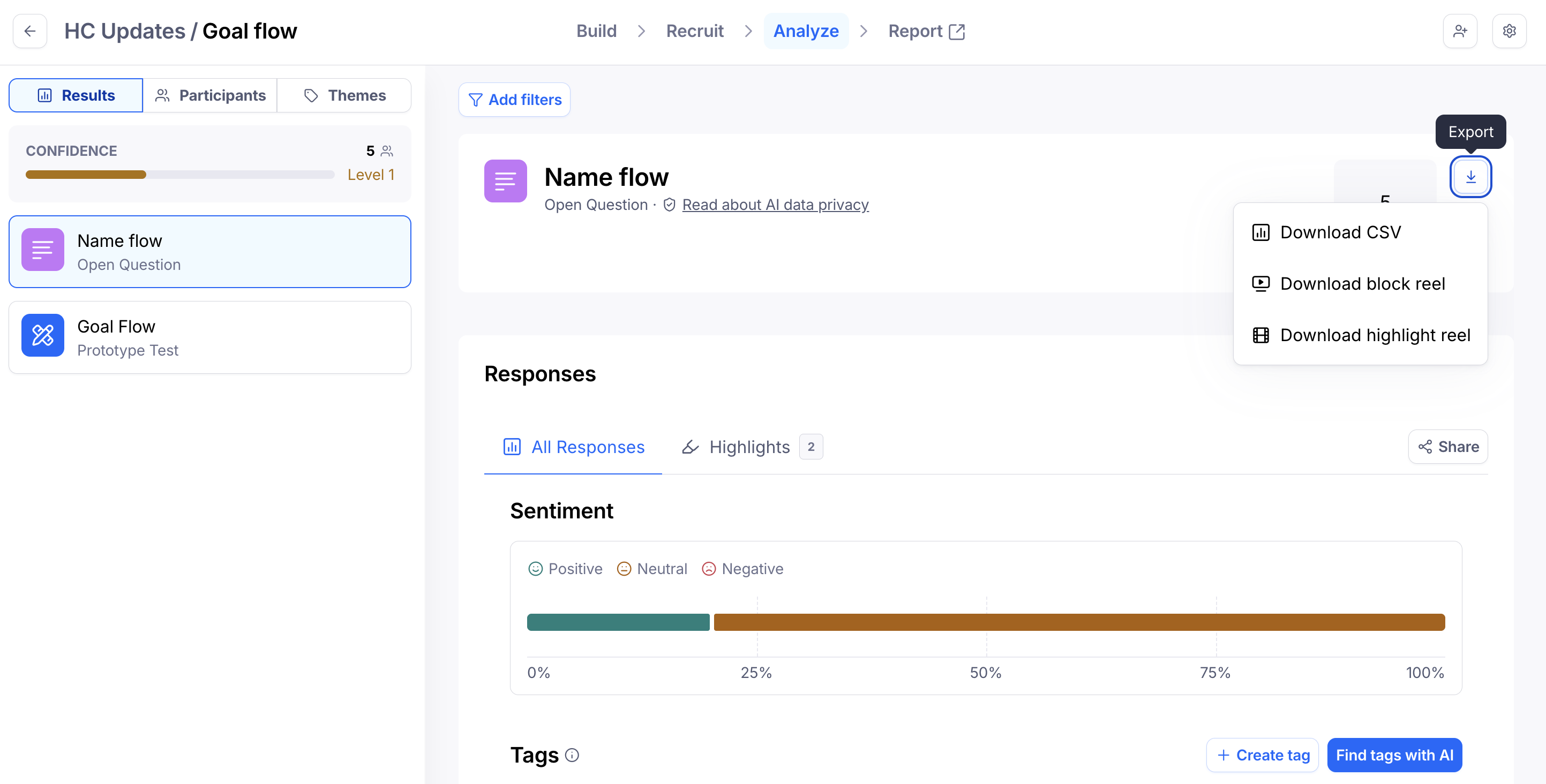
Click Generate reel and you'll receive a download link to your email. Please keep in mind, it'll take a few minutes to process the export.
FAQs
We already use [Dovetail etc.] for qualitative analysis. Why switch?
You don't have to switch completely. The key difference is you won't need to download Clips, lose the test context, and re-upload them elsewhere. With Maze, your qualitative insights (highlights, themes) live right alongside your quantitative results, making it easier to see the full picture. Additionally, you reduce tool sprawl and subscription costs.
Can we export our highlights and themes?
Yes, individual highlights and theme reels can be downloaded as video files for backup or incorporating into other tools.
Are highlights, themes, and reels included in the unmoderated report?
No. Whilst they can be shared individually, they are not part of the report.
Are themes compatible with tags on Open Questions?
No. Tags on Open Questions can be applied to written responses, whereas themes can only be applied to Clips and transcripts.
What video formats are supported for video downloads?
We support .mp4 for all video downloads.
What happened to standalone reels?
Reels are now integrated directly into themes, creating a seamless workflow from analysis to storytelling. Instead of managing reels separately, you create them directly from within your themes, then toggle visibility and reorder highlights to craft your narrative before downloading.
Can I still create a reel without creating a theme first?
No. You will need to create a theme in order to create a reel.
Still need help?
If you have any questions or concerns, please let our Support team know — we'll be happy to help!