Using Figma's interactive components feature with Maze
Last updated: August 6, 2026
Interactive components is a feature developed by Figma that allows users to create interactions between variants in a component set. Please refer to Figma's documentation to learn more.
By using interactive components, you can create missions with higher fidelity, and lower the number of screens in your prototype. This makes it easier to manage your designs in Figma, and should also produce a better participant experience in Maze by reducing the loading time and memory usage for participants viewing your prototype.
Please note that participants will be able to interact with interactive components in your Figma prototype, regardless of whether or not you've enabled this feature in your study. But if you need these interactions to appear in the path analysis, you'll need to enable the interactive components feature.
Before you start
Please read through the current limitations before you begin using interactive components with Maze.
We also recommend checking out our best practices for optimizing your Figma prototypes for Maze: Creating a Maze-ready Figma prototype
Enabling interactive components in Maze
Participants will be able to interact with interactive components in your Figma prototype, regardless of whether you've enabled interacted components in the study or not.
If you simply want participants to be able to interact with a realistic prototype (e.g. with functional checkboxes, toggles, etc.) without recording those interactions in the path, you don't have to take any additional steps. You can just leave the interactive components toggle disabled in the study draft — the interactive components will still work.
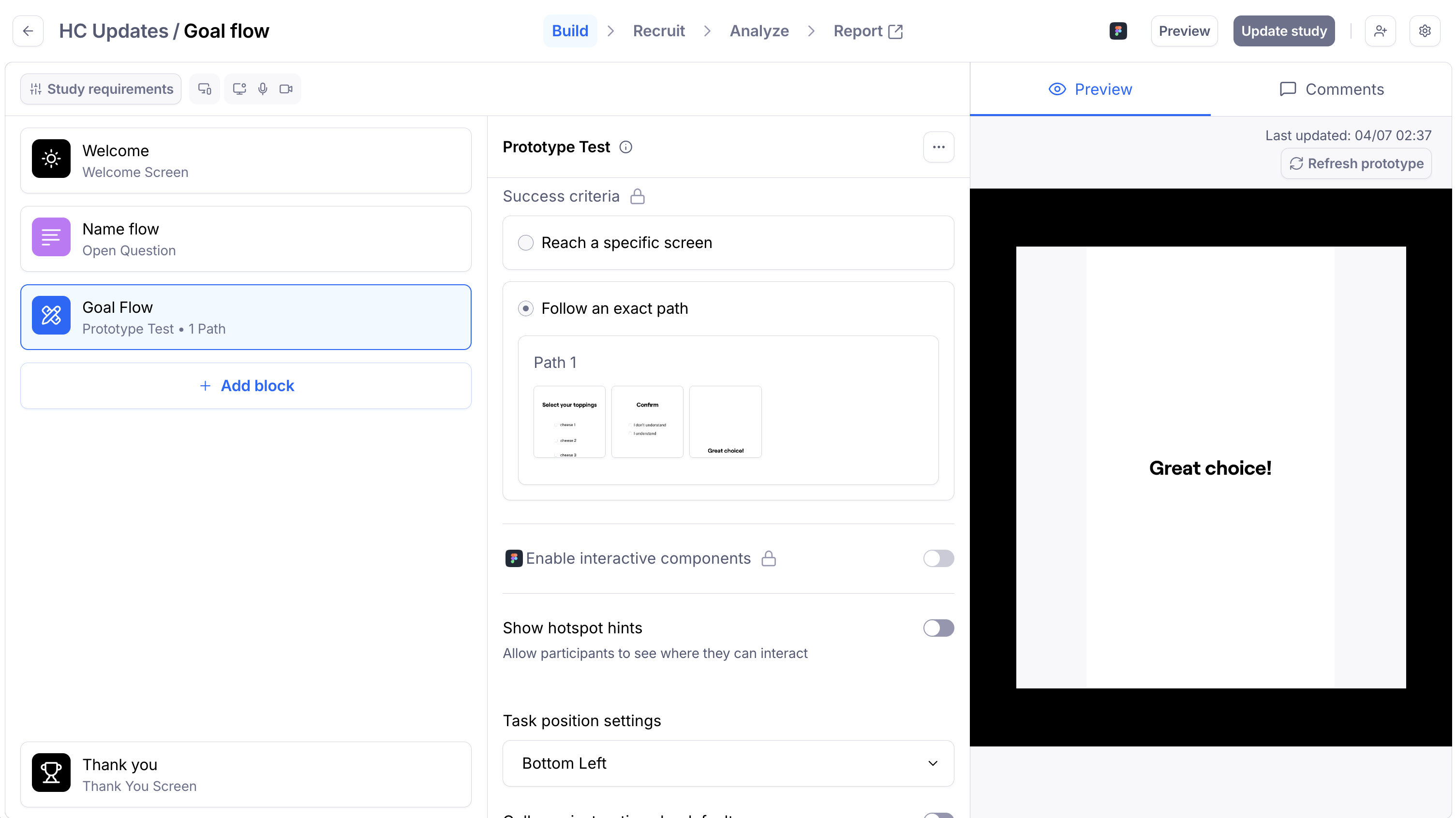
On the other hand, if certain interactions are instrumental for the path analysis, you need to allow interactive components to be captured in your paths by following the steps below:
Import your Figma prototype containing interactive components.
Enable the toggle Enable interactive components to allow “change to” interactions involving component variants (e.g. enabling/disabling a toggle) to be captured in your expected path. Note that this toggle only appears if interactive components are detected in the Figma prototype.
Enabling/disabling interactive components will clear any paths you may have previously set.
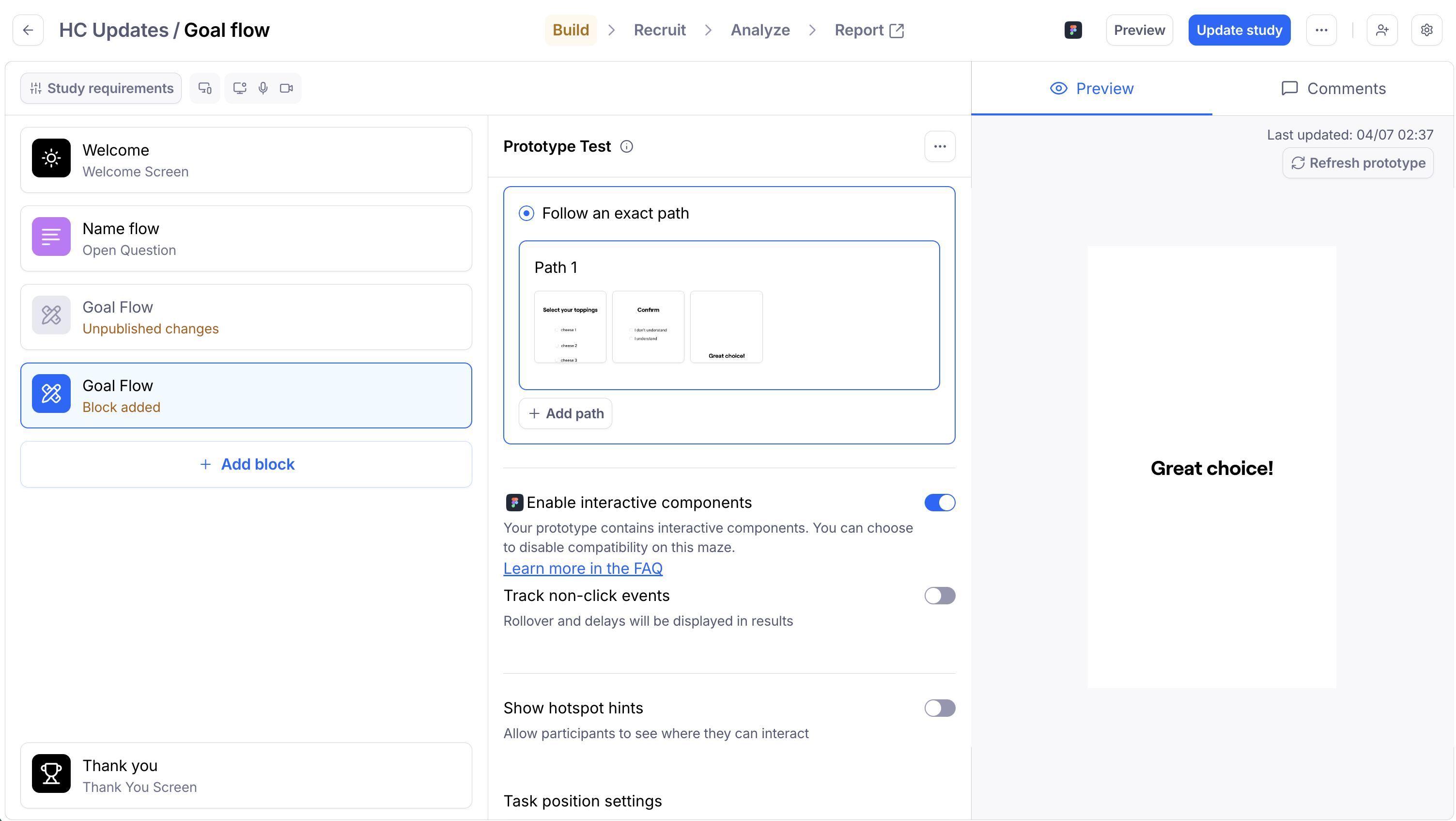
If needed, enable Track non-click events. When this setting is not enabled, only state changes triggered by a click will be registered. When this setting is enabled, all interactions (i.e. clicks, as well as hovers, drags, and other triggers) will appear in the results. For instance, if a participant hovers over an element, then moves the mouse away, this will register as three separate screens in the path analysis: the first for the un-hovered state, the second for the hovered state, and the third back to the un-hovered state.
Set the expected path(s). Any state changes you make to an interactive component (e.g. checking and unchecking a checkbox) via “change to” interactions will be shown in the expected path with an icon and count on the respective screen thumbnail. Pay close attention to the end states of the screens, as these will impact how success is measured. How do interactive components work with results and reporting in Maze?
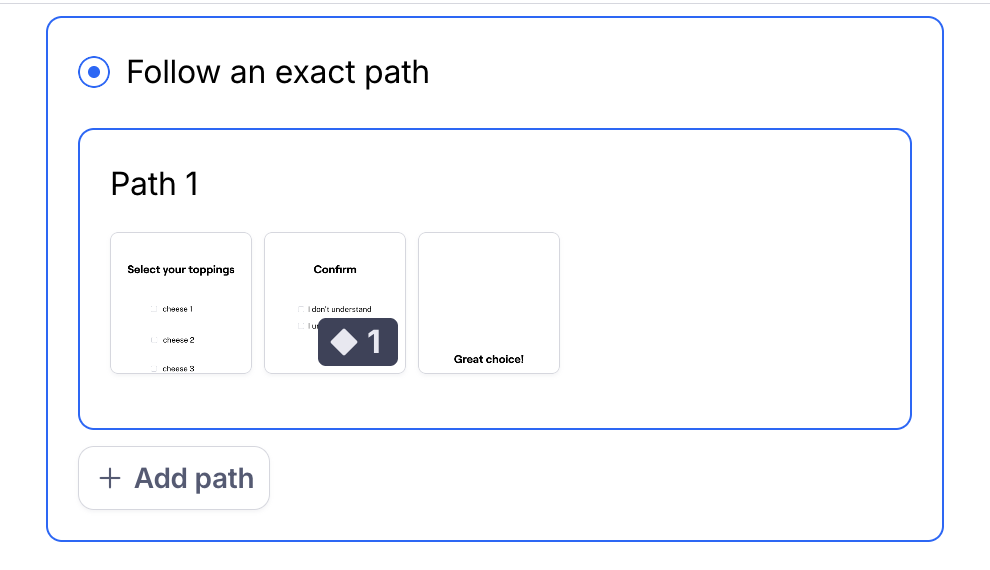
How do interactive components work with results and reporting in Maze?
For a mission to be successful, the end state of the screen must be exactly matched with what you defined when in the paths. Why are participants getting stuck on my prototype with interactive components?
Expected path
The success of a mission block is measured by comparing the paths you defined in the study builder and the way participants interacted with the mission.
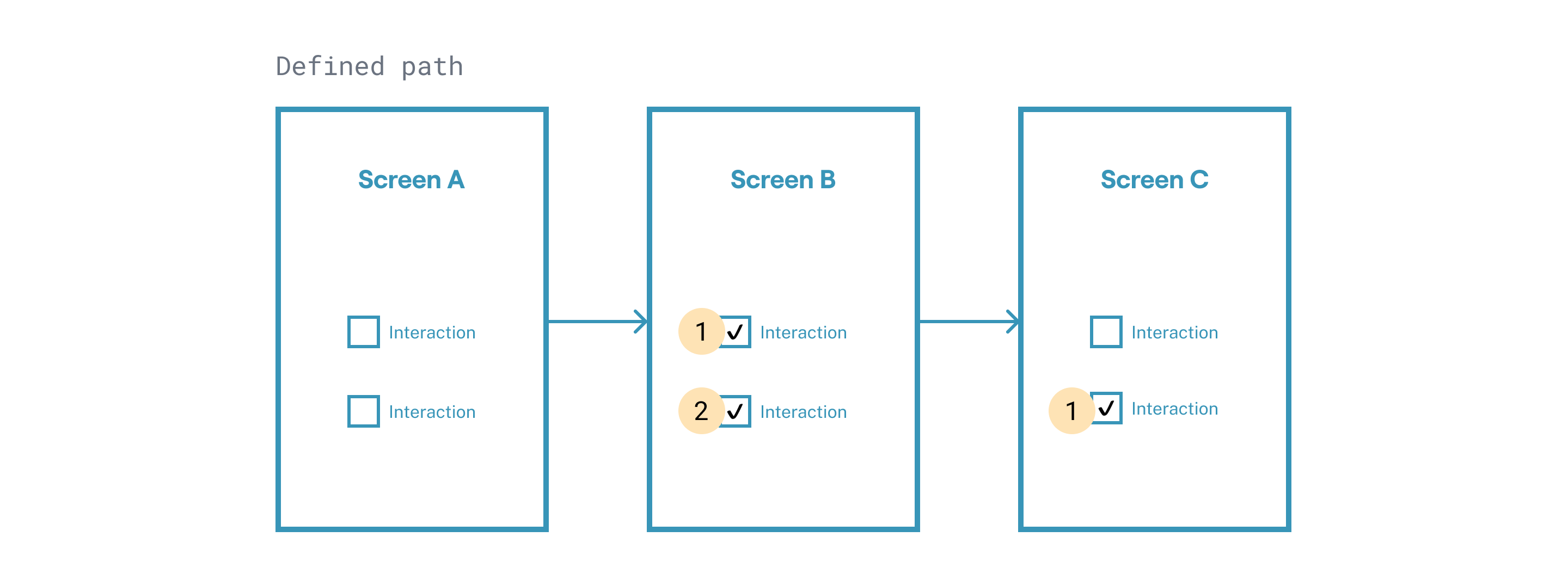
If you enabled interactive components in your study, the end states of the screens are also taken into consideration. A mission is considered complete when a participant reaches the last screen in the path as well as the end state of that last screen.
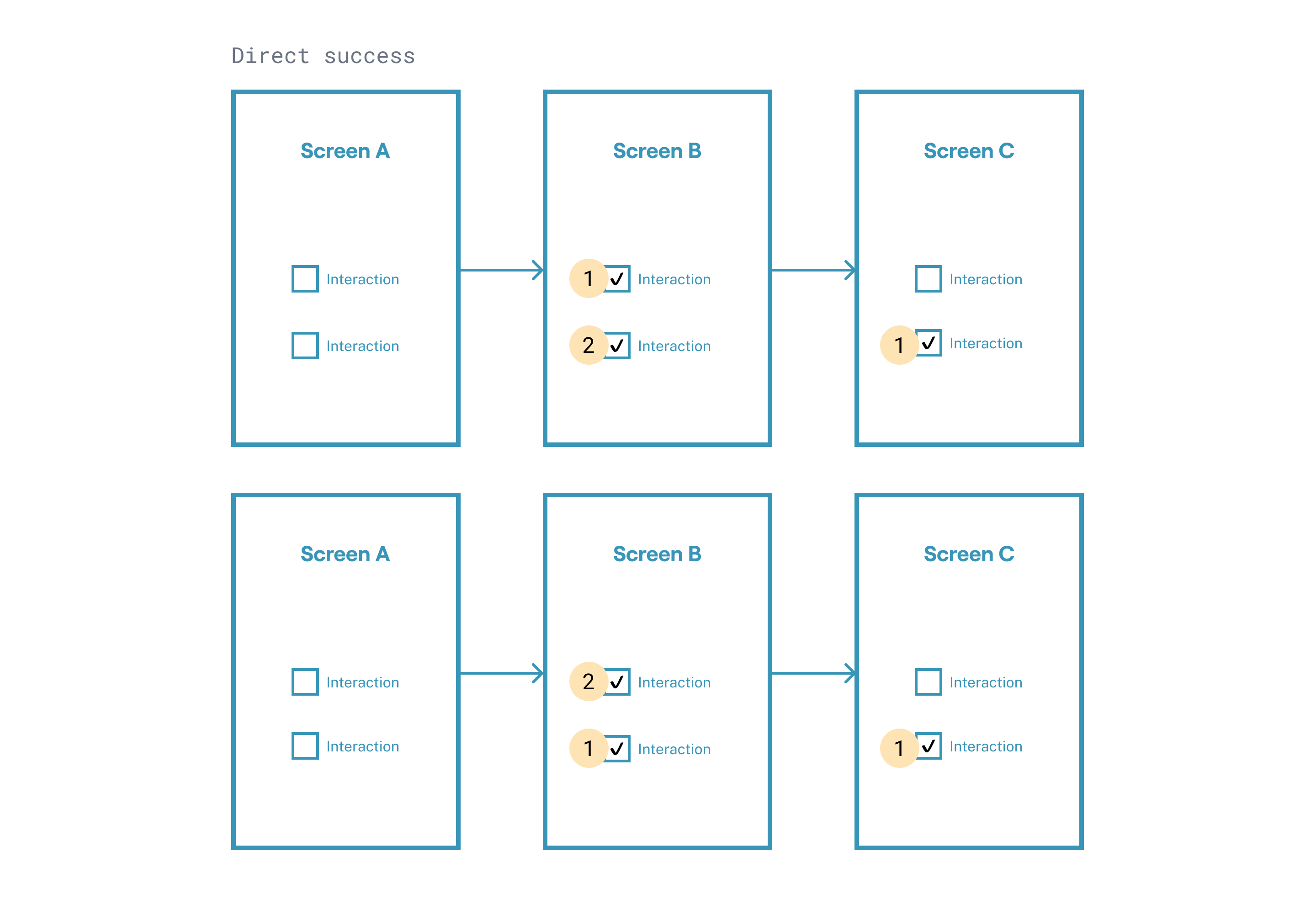
Direct success
Participants who complete the mission by clicking every screen and reaching the end state you established for each screen in the path. They do not need to click the interactive components in the same order, as long as the end state for each screen is the same.
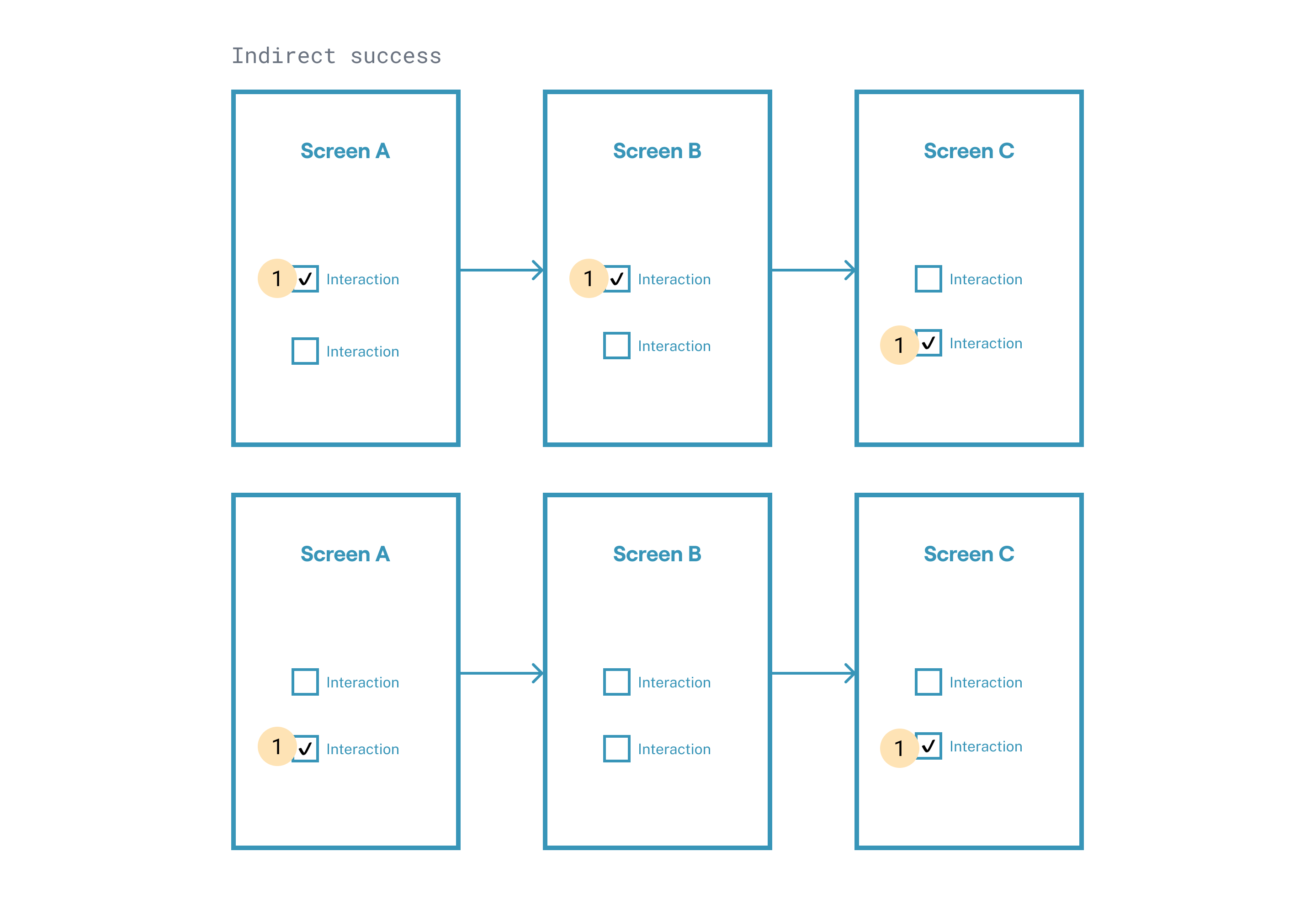
Indirect success
Participants who complete the mission, but deviate from the order and/or end states you've established for each screen.
Mission unfinished
Participants who abandoned the mission, or didn't reach the final screen and respective end state.
Aggregated paths
A single success path might result in multiple aggregated success paths in your mission results and in your study report. This happens because the Results dashboard does take the sequence of state changes into account when aggregating paths.
As such, paths are aggregated depending on the sequence of screens and the end states of those screens.
Paths are aggregated if all screens and their end states are in the same order and the interactive components are interacted with in the same sequence.
Paths are not aggregated if some of the end states don't match and/or the interactive components aren't interacted with in the same sequence, even if the screen order is the same.
Known limitations with interactive components in Maze
There are currently a few limitations to our support of interactive components that you should be mindful of.
Why am I getting an "Invalid mission path" error when I try to publish my study?
Why are my participants getting stuck on my prototype with interactive components?
Why are the results for certain missions not being recorded?
Our team has been continuously working to make our Figma integration as smooth as possible. If you have any feedback about the current limitations, or are running into issues that you believe go beyond them, please reach out to our team — we'll be happy to help!
Troubleshooting other Figma issues
You might run into difficulties with your Figma prototypes that are not related to interactive components.
Learn more about common Figma errors
Still need help?
If you have any questions or concerns, please let our Support team know — we'll be happy to help!