A guide to all blocks you can use in Maze
Last updated: August 27, 2026
A study is a collection of unmoderated tasks and questions for testers to complete. Studies are composed of separate blocks: missions (i.e. tasks), questions, and additional screens.
To get started, create a study and build your new study by adding blocks. You'll find all the block types on the right-side panel of the study draft page.
If you're on a paid plan, you can also customize the Welcome Screen and the Thank You Screen.
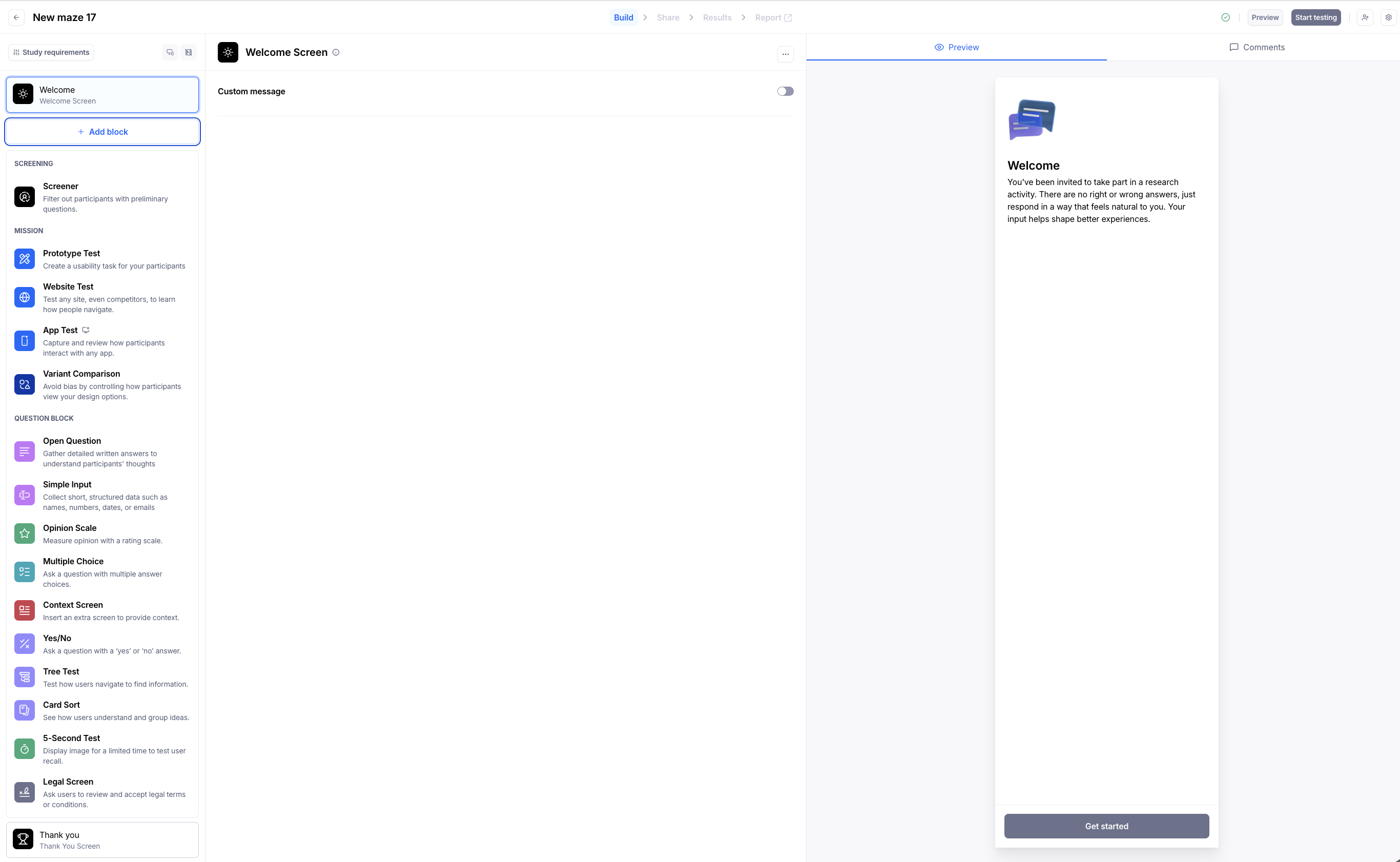
Block types
Learn about the different types of blocks you can use in your study.
You can add basic formatting (e.g. bold, or an embedded link) to the text within your blocks. Learn more about text formatting
Screener
The Screener block allows you to qualify or screen out testers directly within your study, removing the need to filter and clean your results data.
Learn more about participant screening
Prototype Test
Create tasks for your testers to complete using your prototype.
Learn more about prototype tests
Website Test
Create tasks for your testers to complete directly on your website.
Learn more about web site tests
App Test
Record participants interacting with websites or apps on mobile devices. Requires participants to install the Maze Participate mobile app.
Learn more about the mobile app.
Variant Comparison (Enterprise plan)
Test different variants within a single study.
Participants can be shown versions either sequentially or exclusively, enabling streamlined testing and analysis. This block consolidates all results, simplifying the comparison of user interactions and feedback across the tested variants.
Learn more about Variant Comparison
AI Conversation
The AI Conversation block lets you add a short voice exchange led by an AI moderator inside an unmoderated study. Use it to ask follow-up questions, gather context, or capture richer, more natural responses than you'd get from text-based answers alone.
Learn more about the AI Conversation block
Open Question
Open Question blocks allow you to ask in-depth, exploratory questions.
Team and Enterprise plan customers can also harness the capabilities of GPT-4 and enable AI-generated follow-up questions.
Learn more about Open Questions and dynamic AI follow-ups
Simple Input
Simple input blocks allow you to ask basic questions to gather short text answers, or numerical, date, or email data. This is ideal when you want to ask simple, direct questions.
Learn more about Simple Inputs
Opinion Scale
An Opinion Scale question allows you to ask testers to rate a statement on a scale. You can adjust the scale to include up to 10 steps and write labels for the left, middle, and right of the scale.
Learn more about opinion scale blocks
Multiple Choice
A Multiple Choice is a question with multiple answers to choose from. Typically, this is used for closed-ended questions when respondents have to select one answer. You can also allow multiple-selection answers by choosing multi-select.
Learn more about multiple-choice blocks
Matrix
The Matrix block allows you to combine multiple statements (rows) with shared response options (columns), making it easy to gather comparative feedback in a single, organized view. Use it for Likert-scale surveys, feature satisfaction ratings, or any scenario where you want participants to evaluate multiple items using the same criteria.
Learn more about matrix blocks
Context Screen
A Context Screen is an extra screen you can add to your study where you want to add context, explain the next part of the study, or communicate something to your testers. You can add a title and a description. Testers will have to click “Continue” to move to the next block.
Learn more about Context Screens
Yes/No
A Yes/No question allows you to ask testers a closed-ended question where the answer is either ‘yes’ or ‘no’.
Learn more about yes/no questions
Tree Test (Team and Enterprise plan)
A Tree Test is a great way to validate the ease of finding items in your product structure.
Card Sort (paid plans)
A Card Sort allows you to discover how your users categorize and understand information.
5-Second Test
A 5-Second Test is a great way to test user recall, measuring what information users take away and what impressions they get within the first five seconds of viewing a design.
Learn more about the 5-Second Test
Legal Screen (Enterprise plan)
A legal screen allows you to ask testers to review and accept terms and conditions or other legal documents. Legal Blocks are an Enterprise feature.
Learn more about the Legal block
Default blocks
Each study has a Welcome and Thank You Screen by default. If you're on a paid plan, you can customize these screens.
Welcome Screen
The Welcome Screen is the first screen in your study. Every study has a Welcome Screen by default with a message for your test participants. You can change the message on a paid plan.
Learn more about the Welcome Screen
Thank You Screen
The Thank You Screen is the last screen in your study. Every study has a Thank You Screen by default with a message for your test participants. You can change the message on a paid plan.
Learn more about the Thank You Screen
Still need help?
If you have any questions or concerns, please let our Support team know — we'll be happy to help!